42
3
Basic interface control
1. User password settings
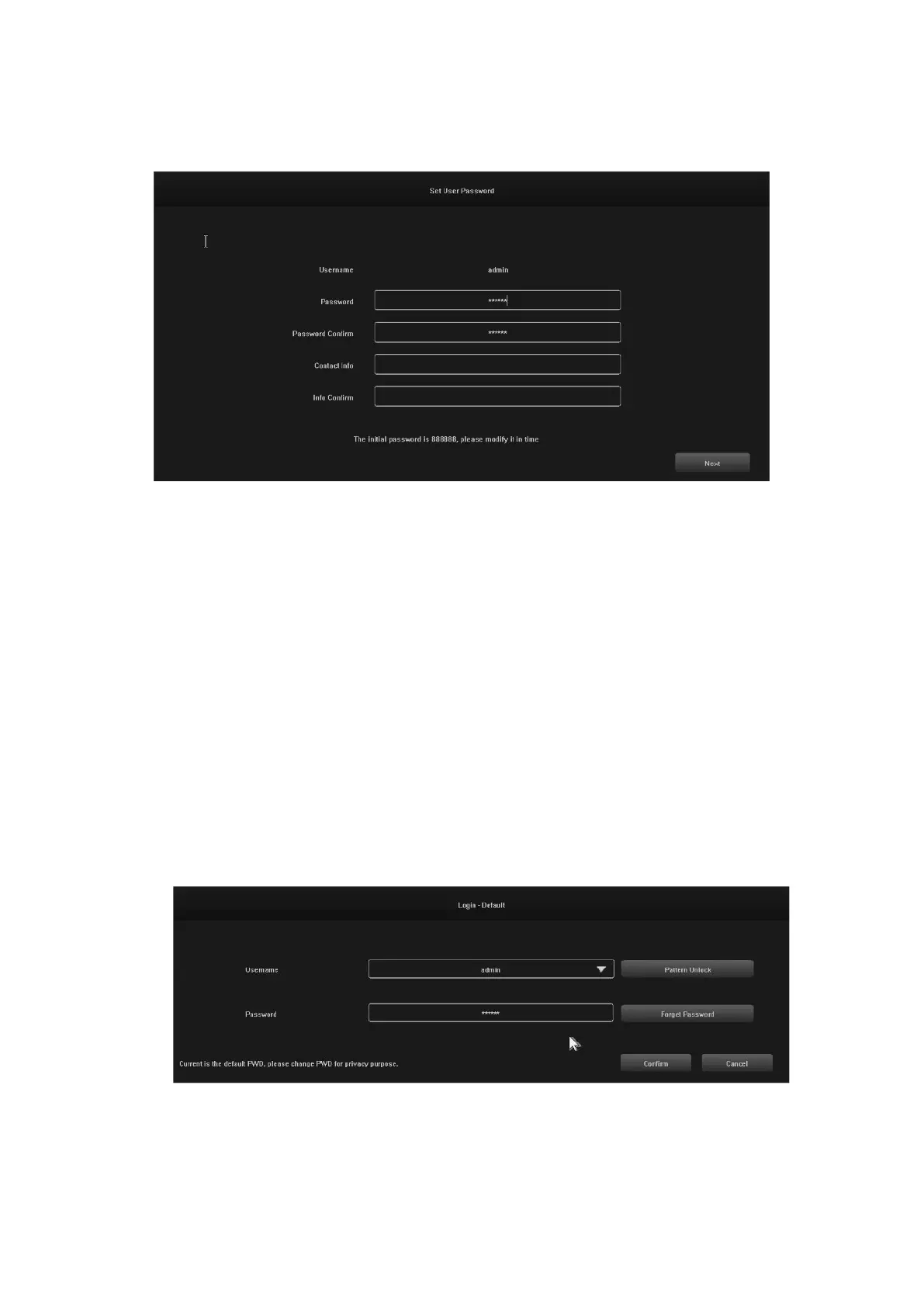
When the system is turned on, the "Set User Password" interface will automatically appear as shown below:
1.1 Click on the text box after "Password" and enter the password you want to change. The default system
password is "888888".
1.2 Click on the text box after "Password Confirm" and enter the password again to verify it is correct. The
default system password is "888888".
1.3 Click on the text box after "Contact Info" and enter your contact details to ensure that you can retrieve
your password by contacting them if you forget your password. (Format example: 420-13xxxxxxxxxxx in the
Czech Republic, 1-202xxxxxxxxxx in the United States) or by e-mail (e.g. servis@evolveo.com).
1.4 Click on the text box after "Info Confirm" and re-enter your contact details to ensure that the information
you have entered is correct.
1.5 Click the "Next" button to finish setting the user password.
1.6 Password changes can be skipped depending on the trustworthiness of the users.
2. Login
When the system is powered on, the "Login - DefaultL" interface is automatically displayed, as shown in the
following image:


 To Next Page