50
4. Network Video Recorder Operating Instructions
1. Make sure the network video recorder is properly connected to the network (network cable and power
connection).
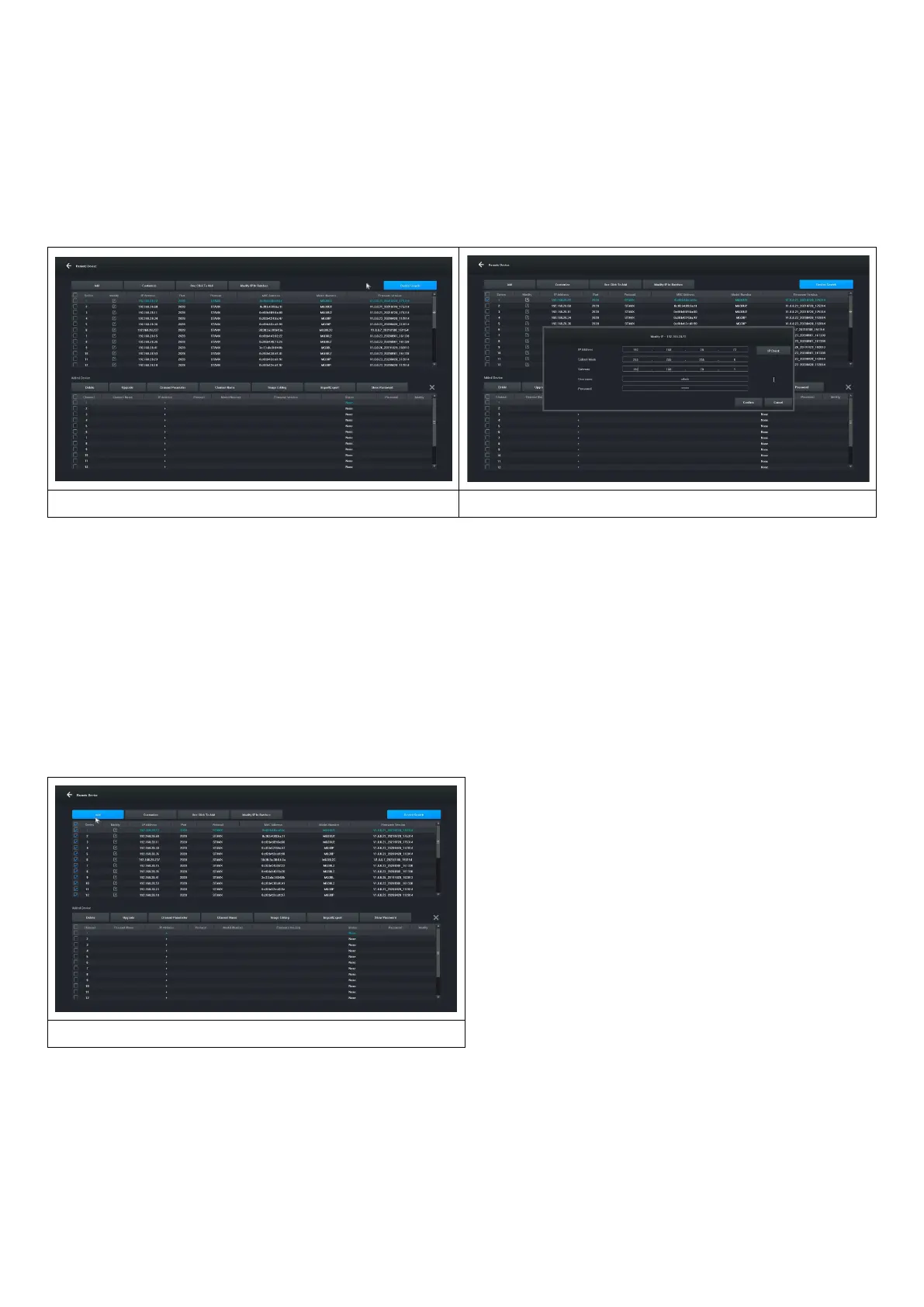
2. In the main interface of the network video recorder, click "Remote Device" -> Device Search -> Search
Camera, the interface will be displayed as shown in Figure 1-1.
Figure 1-1
Figure 1-2
3. Display the IP address you searched for, for example 192.168.8.88, and the IP segment is 8, if the IP
segment of your network video recorder is the same as segment 8, you can go directly to step 5, if not, you
need to adjust the IP segment of the camera to match your network video recorder.
4. Select the device, click the "Modify IP In Batches" button as shown in Figure 1-2, and then change the IP
address and IP segment 8 of the gateway address to the same IP segment that is consistent with the
network video recorder, click the "Confirm" button, and click the "Device Search " button again.
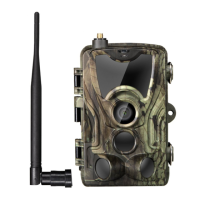
5. Click the "(Select All" button and then click the "Add" button, as shown in Figure 1-3.
Figure 1-3
6. Right-click to exit the interface and view a preview of the device renderer.


 To Next Page