48
7. Recording schedule settings
Feature illustration: Used to set the recording schedule. By default, the system will allow all-day recording.
Steps:
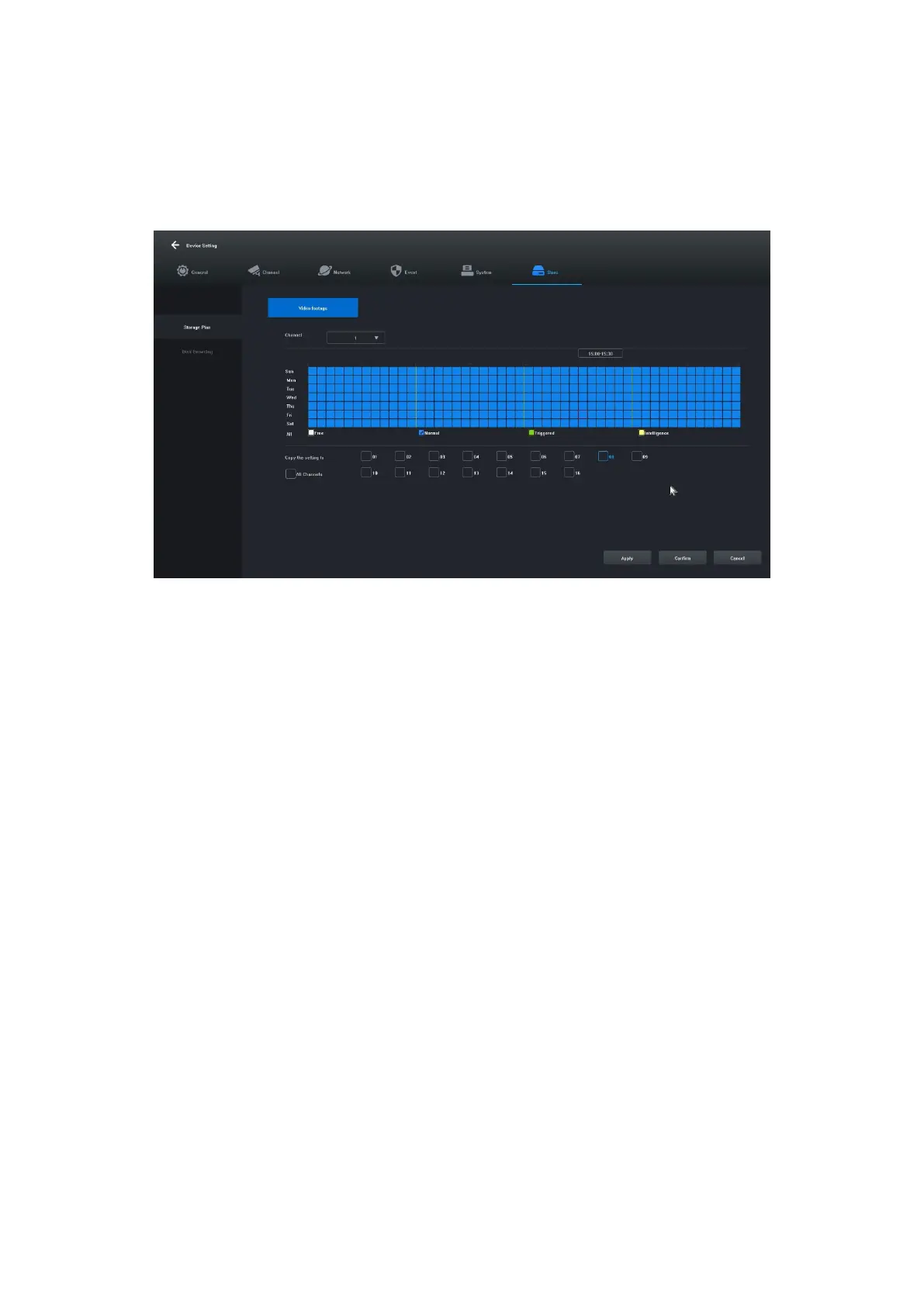
7.1 Click "Main Menu" -> " Storage Settings", the interface for recording settings will open, the picture is
shown below:
7.2 Click and select "Free [1]", "Normal [2]", "Triggered [3]", "Intelligence [4]" and set the recording schedule
for the current channel, the minimum range is 30 minutes.
7.3 After selecting the record type, simply drag the mouse to complete the settings for removing or adding
the record plan. You can also click the button on the left to quickly set it up.
7.4 Once the current channel has been set, you can select the channel to be copied by selecting "Copy this
setting to other channels" and clicking the "Apply" button to save it.


 To Next Page