49
8. Video playback
Feature illustration: It is used to query and play a recording of any channel.
Steps:
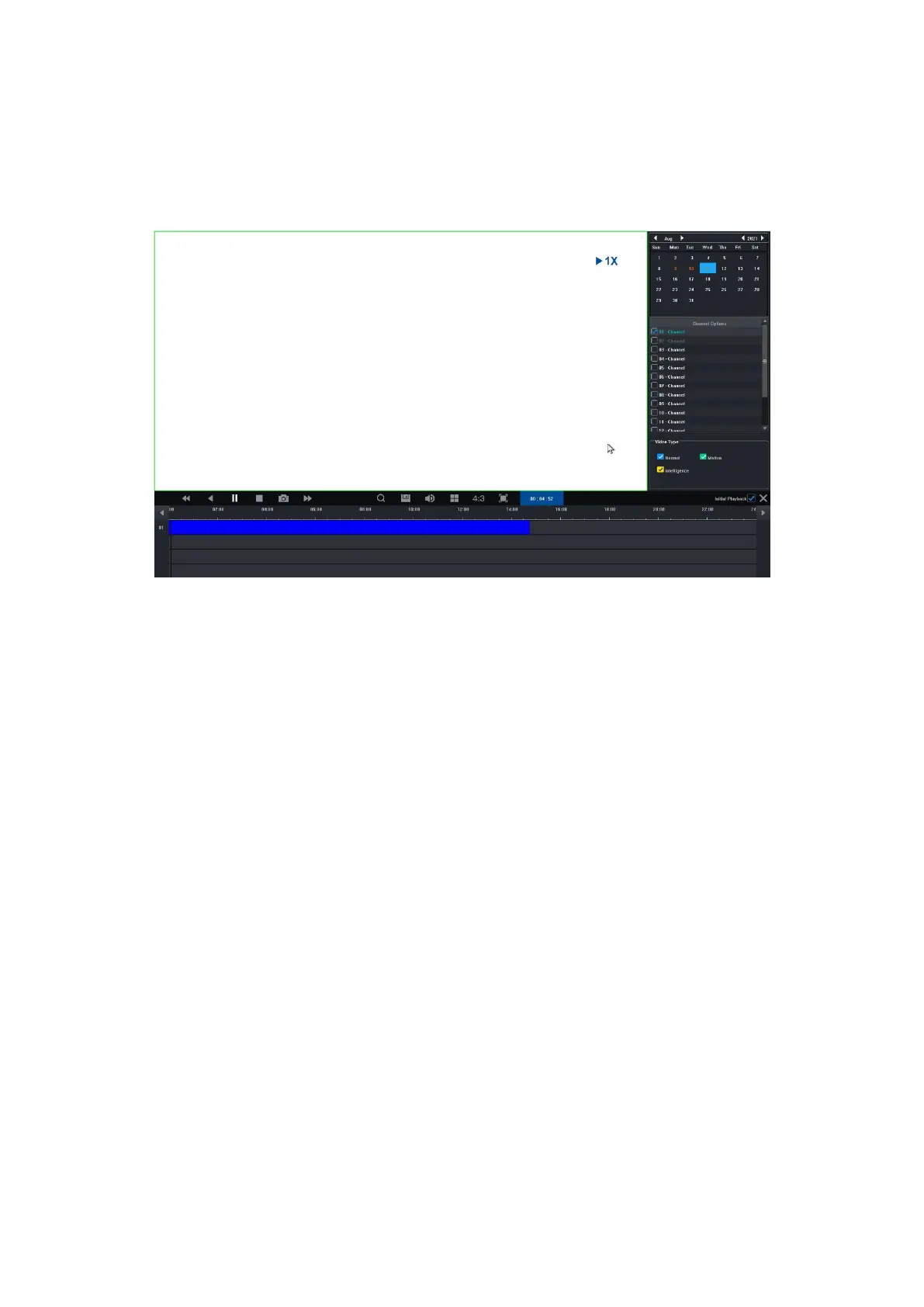
8.1 Click on the "Recording Inquiry" menu or "Main menu" -> "Recording Inquiry", the video playback
interface will open, the picture is shown below:
8.2 Click on the date in the calendar. A date highlighted in blue means that a record was made on that day.
A date highlighted in white means that there is no record on that date.
8.3 Click to select the channel number of the video to be played. Depending on the difference in models, a
preview of the selected channel's playback interface will be displayed by default.
8.4 Click to select the record type. Record types: "Normal", "Motion" and "Intelligence" for filtering. Normal is
marked in blue, motion in green, smart in yellow.
8.5 Click the "Play" button to play the video files that meet the conditions; you can also double-click on the
video slider for quick playback.


 To Next Page