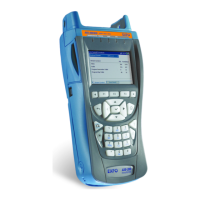
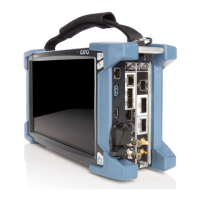
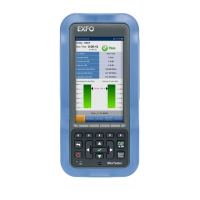
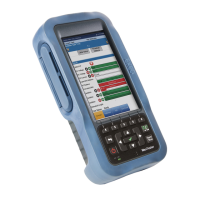
EXFO EX1 Main Menu
EXFO EX1 19
Connection
To establish a connection with an EXFO EX1 device:
1. Select a device from the list. A pop-up is displayed while trying to
establish the connection with the selected EXFO EX1 device.
If the connection succeeds, Connected is displayed next to the
connected EXFO EX1 device.
2. If the connection fails (not connected) ensure that the EXFO EX1
device is in-range, within 1 meter to 30 meters depending on the
obstacle and interference, and select the device again.
3. If the Incompatibility Detected page is displayed, the firmware of the
EXFO EX1 device is not compatible with the smart device application
and must be updated:
3a. If the message No Network connection on 10/100/1000M
Electrical is displayed, make sure the EXFO EX1 device is
connected to the Internet using the RJ45 port (refer to Connecting
the RJ45 and SFP Ports on page 13).
OR
3b. If the message No Network connection on Wi-Fi is displayed,
make sure the EXFO EX1 device is connected to the Internet using
a Wi-Fi connection (tap the setting button and connect to a
Wi-Fi access point).
OR
3c. If the message Server unreachable through 10/100/1000M
Electrical / Wi-Fi is displayed, contact EXFO technical support.
3d. Tap the DOWNLOAD AND INSTALL
button to download and
install the new firmware on the EXFO EX1 device. The EXFO EX1
device battery charge level must be more than 30% to perform a
system update. Once the installation is completed, the EXFO EX1
device is automatically rebooted and the connection is
established with the smart device.


 To Next Page