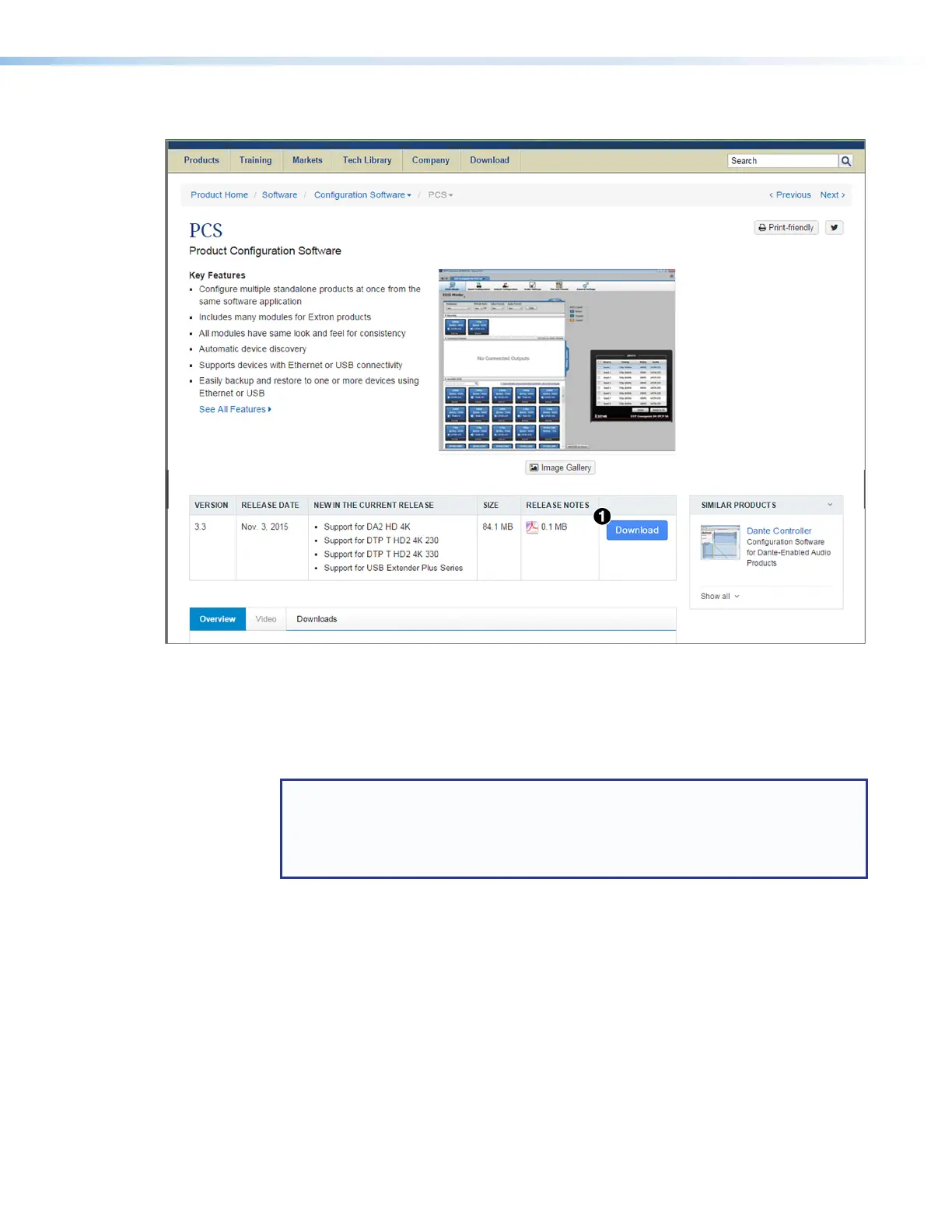
3. On the PCS page, click the Download button in the table (see figure 22,
1
).
Figure 22. Download Button on the PCS Web Page
4. On the Download Center screen that opens, fill in the required information, then click
the Download pcss_vnxn.exe button.
5. If the File Download - Security Warning window appears, click Run to begin
downloading the installer file.
NOTE: If you want to save the installation file to your computer hard drive to run
later, click Save. On the Save As window that opens, save the setup file to the
desired location. When you are ready to install the software, double-click on the
pcss_vnxnxn.exe icon, click Run on the download screen that opens, and restart
this procedure at step 6.
If, instead, you see a Download icon at the bottom of the page, wait until the icon
displays the name pcss_vnxnxn.exe, then click it.
6. On the next prompt window that opens, click Run to start the installation process.
7. Follow the instructions on the InstallShield Wizard screens to complete the software
program installation. By default, the installation creates a folder called “Extron PCS” at:
c:\Program Files (x86)\Extron\Extron PCS or
c:\Program Files\Extron\Extron PCS
If there is not already an Extron folder in your Program Files folder, the installation
program creates it as well.
USB Extender Plus Series • Remote Configuration and Control 28


 To Next Page