Starting the Configuration Program
In order to use the PCS software, the transmitter, receivers, and computer running the
PCS software must all be on the same network and must have the same subnet mask and
gateway IP address (see Setting Up Network Operation on the previous page).
1. To start the PCS configuration program, do either of the following:
• Double-click on the EAF.exe file, by default located on your computer at
c:\Program Files [or Program Files(x86)]\Extron\Extron PCS.
• Click Start > All Programs > Extron Electronics > Extron Product
Configuration Software/Extron Product Configuration Software.
2. The first time you open the PCS software, a Tutorial screen appears. To close this
screen, click I Get It. The Extron PCS window opens, displaying a list of all devices
connected to the network.
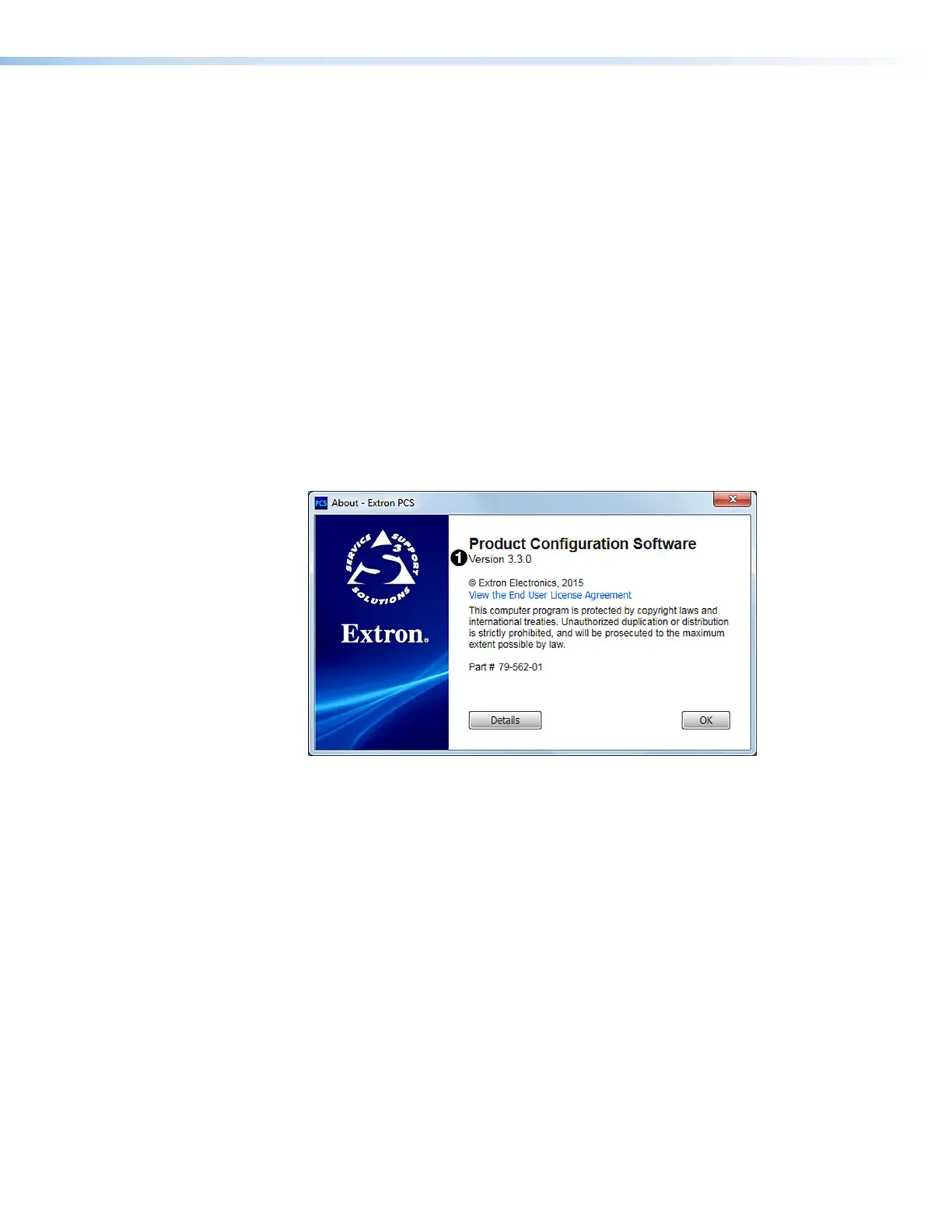
3. Check the software version and ensure that it is 3.3 or higher. To view the software
version:
a. Click the menu icon in the upper-right corner of the PCS screen and select About
Extron PCS from the drop-down menu.
The following screen appears:
Figure 24. Software Version Number on the About PCS Screen
b. After ensuring that the software version is 3.3 or higher (see figure 24,
1
), click OK
to close the window.
USB Extender Plus Series • Remote Configuration and Control 30


 To Next Page