17 / 92FAVERO ELECTRONICS - 0259-1060 - FA-15 User Manual - Rev03
ENGLISH
Note
The status LED ashes to indicate:
• connection in progress
• connection problem (check that the MASTER/SLAVE devices are switched on. In the case
of wireless connection, try to remove pairings between MASTER and SLAVE, pressing the
[ALT] + [WIRELESS RESET] keys and then follow the pairing procedure again).
3.4. TEST function
A “TEST” function is available to check correct functioning of the FA-15 device.
To activate it, simply press the keys [ALT] + [TEST] on the remote control/app.
Each time these keys are pressed, the device will perform one step of the following sequence:
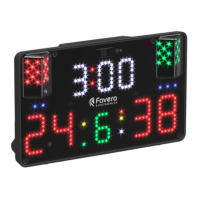
• switching on of all views on the display
• switching on of indicators (red, green, white, yellow) alternately with all other views
• keeping certain views switched on, it will launch the red, green and white indicators in sequence
(demo mode)
• switching on in sequence of various views
• test of weapons circuit: if all seven rear sockets are short-circuited (weapons + piste), the device
emits a continuous tone to conrm correct functioning of the weapon control circuits.
To deactivate the “TEST” function, press the [ON-OFF] key on the remote control/app.
4. MAINTENANCE
4.1. Outer cleaning
Clean using a clean lint-free cloth to remove dust.
DO NOT
use abrasive chemical products, petrol, trichloroethylene, alcohol or steam-cleaning tools.
4.2. Troubleshooting
All maintenance, repairs and checks on the scoreboard MUST ONLY be performed by qualied
technicians.
Error Solution
1. When the power is
connected, the display
remains switched off
(a) Check the power supply unit and power connections.
(b) If using a power bank, check the level of charge and recharge if
required.
(c) Try using another USB power supply unit.
2. The status LED ashes
BLUE.
The status LED is blue when the device is in “MASTER” operating mode and
ashes if at least one SLAVE device paired is unable to connect wirelessly:
(a) leave the “Master” mode by pressing the [ALT] + [WIRELESS RESET]
keys on the remote control paired to the MASTER device. Now try and
pair the “SLAVE” devices in question again (see paragraph “3.3. Devices
in MASTER - SLAVE mode”).


 To Next Page