Figure 3-33 Enabling Route QoS
2. Select to Enable or Disable the route QoS function as required.
3. Click Apply to save and apply the configuration.
3.4.3.23.4.3.2 Route QoS Configuration
While configuring the route QoS parameters, you can classify the queues based on
priority and process the messages with high priority first when system congestion
occurs.
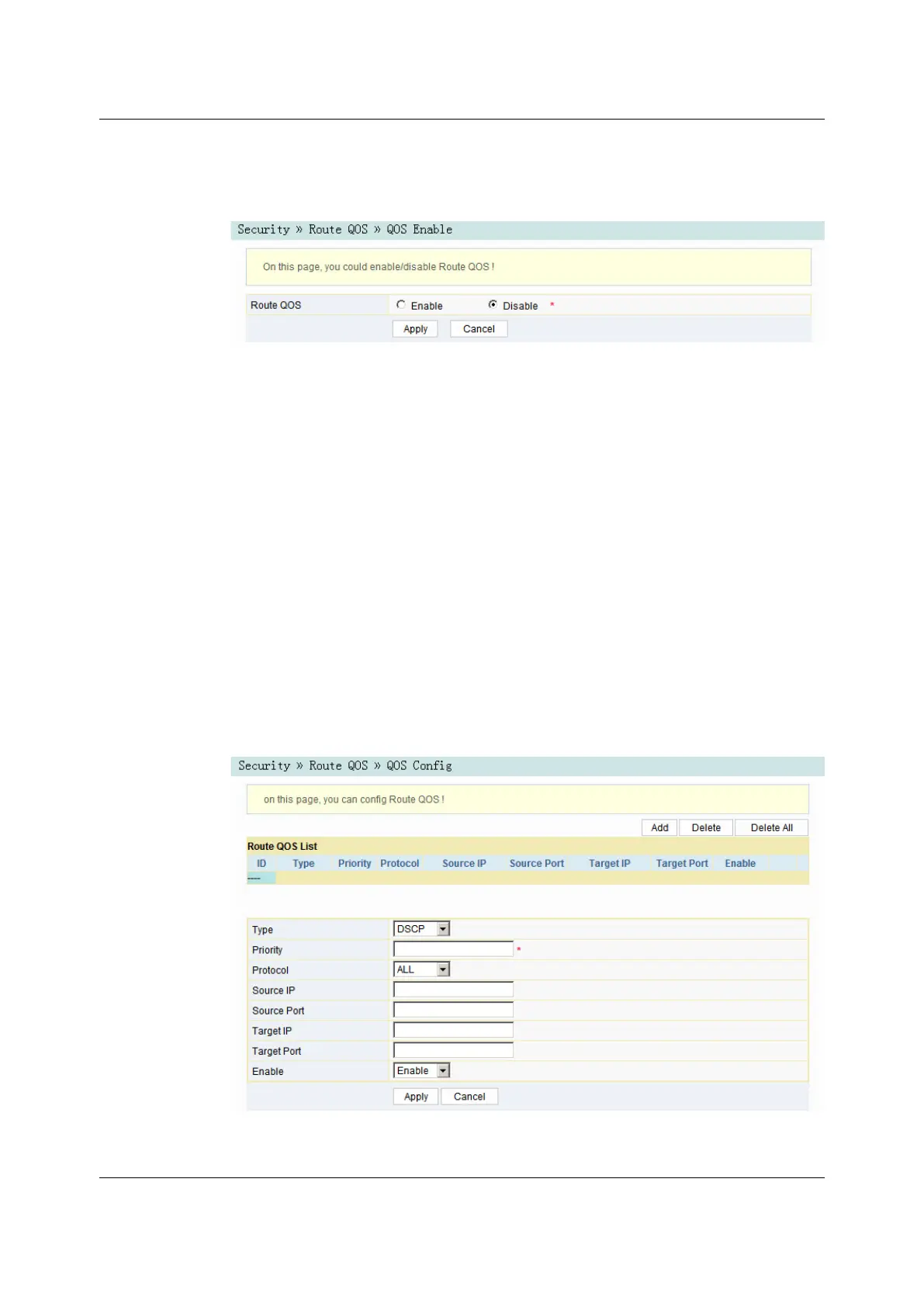
1. Select Security in the navigation bar and select Route QOS→QOS Config in
the left link bar. Then click Add to open the route QoS configuration page, as
shown in Figure 3-34.
Figure 3-34 Route QoS Configuration
Version: A
63


 To Next Page
 Loading...