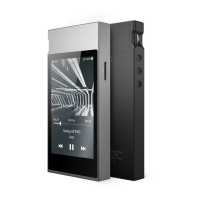
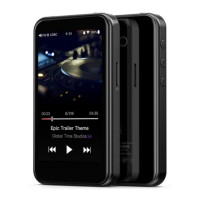
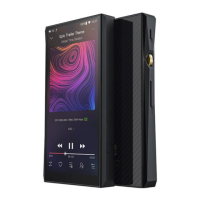
It can be switched between the storage and DAC mode. When the storage mode is
selected, data can be transmitted from computers by the USB cable. When the DAC mode is
selected, the M3 Pro can be connected to computers through the USB cable to perform audio
decoding as an external sound card.
(Notes: for Windows system versions7/8/10 of 32 bit or 64bit, first you need to download the
USB DAC driver in our website. It has the detailed installation instructions; OSX system can
use the USB DAC function directly once the M3 Pro is connected to the computer and
switched to USB DAC mode; Windows xp system only supports the storage mode of the
player.)
3.10.6 Recording quality
When choosing the Low item for the recording file, it would be kept as MP3 format;
while High means the file would be kept as WAV format.
3.10.7 Lockscreen clock
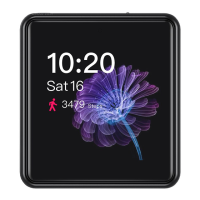
With the Lock screen clock function turned on, the M3 Pro would display the clock
when it is locked. If it is turned off, it would display the system setting page rather than the
clock page.
3.10.8 Select output
The 3.5mm port in the M3 Pro supports both the headphone output and line-out. When
it is set to PO, the volume is controlled by the M3 Pro. When it is LO mode, the volume
would be fixed at the maximum value. At this time, it may be extremely loud to use
headphones. So please do not use headphones directly. (The LO port is for the connections of
headphone amplifiers or other power amplifiers.)
3.10.9 Time setting


 To Next Page