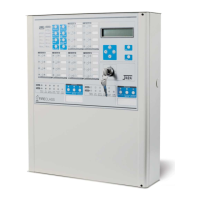
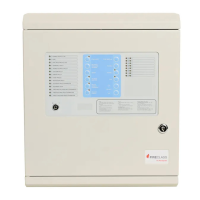
n
User Code (Key/LED 1)
The LED will go On to indicate that the system is ready
to start the programming procedure. Using keys 0 thro
-
ugh 9, type in a 4 digit User Code. The LED will go Off
after entry of the fourth digit (indicating that the “User
Code” has been accepted).
n
Day Mode (Key/LED 2)
The LED will go On to indicate that the system is ready to
start the programming procedure. Using keys 0 through
9, type in the “Time” when the changeover from Night to
Day Mode must occur. Enter two digits for the Hour (00
to 23 — 00 for Midnight) and two for the Minutes (00 to
59). The LED will go Off after entry of the fourth digit (indi
-
cating that the setting has been accepted).
n
Night Mode (Key/LED 4)
The LED will go On to indicate that the system is ready
to start the programming procedure. Using keys 0 thro
-
ugh 9, type in the “Time” (formatted as per Day Mode)
when the changeover from Day to Night Mode must oc
-
cur. The LED will go Off after entry of the fourth digit (in
-
dicating that the setting has been accepted).
n
Clock (Key/LED 5)
The LED will go On to indicate that the system is ready to
start the programming procedure. Using keys 0 through 9,
type in the current “Time” (format as per Day Mode).
n Date (Key/LED 7)
The LED will go On to indicate that the system is ready
to start the programming procedure. Using keys 0 thro-
ugh 9, enter the respective two digits for the Day (00 to
31), Month (00 to 12) and Year (00 to 99). The LED will
go Off after entry of the last digit (indicating that the set-
ting has been accepted). Wrong entries will be signalled
by an audible error signal.
n
Mains Off Delay (Key/LED 8)
The LED will go On to indicate that the system is ready
to start the programming procedure. Using keys 0 thro
-
ugh 9, type in the length of time the Control panel must
wait before signalling a Mains Failure event. Enter two
digits (0 through 30 minutes). The LED will go Off after
entry of the second digit (indicating that the “Mains Off
Delay” has been accepted). Wrong entries will be si
-
gnalled by an audible error signal.
The “VARIOUS” Programming Phase
The VARIOUS LED will blink to indicate that the system
is ready to program the Stabilization Time, Reset
Time, Silenceable Outs and Configuration 1 and 2.
During this phase, the keys and LEDs will operate in ac
-
cordance with the options preceded by in the panes
on the Programming Overlay, see Figure 34.
1. Using the keys in columns C and D, select the para
-
meter you want to program, then refer to the respective
paragraph or,presstheNext phase key 9 to go to the
following Programming Phase (see Column A).
n
Stabilization Time (Key/LED 1)
The LED will go On to indicate that the system is ready
to start the programming procedure. Use the Increase
Time option (Key 8)orDecrease Time option (Key 0),
respectively, to increase or decrease the setting. The
setting is achieved by adding together the values indi
-
cated by the LEDs in column B (e.g. if the 8 sec and 2
sec LEDs are On, the setting will be 10 seconds).
n Reset Time (Key/LED 2)
The LED will go On to indicate that the system is ready
to start the programming procedure. This setting is
achieved and formatted as per the Stabilization Time.
n Non-Silenceable Outs (Key/LED 4)
Press key 4 (NON-Silence. Outputs) to set the NON-Si-
lenceable Outputs, then press key 3 (ALARM) to set the
ALARM Output as NON-Silenceable.
– if the ALARM LED is On, the ALARM Output is NOT
Silenceable;
– if the ALARM LED is Off, the ALARM Output is Silen
-
ceable.
48 Conventional Fire Panels J424/J408



 To Next Page