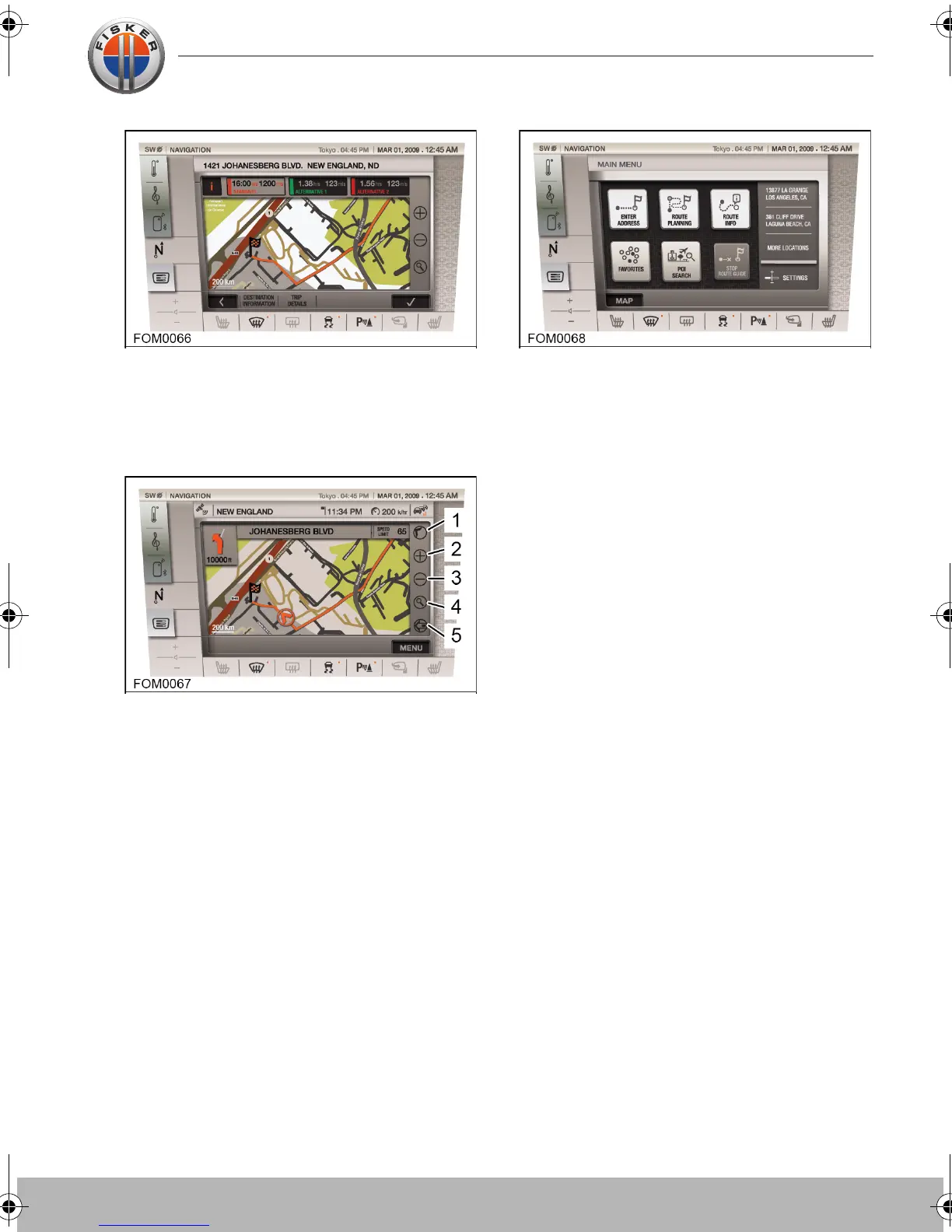
Touch the confirm icon to calculate your
route. Your route is displayed.
Touch the confirm icon again to begin
navigating to the selected destination.
Use the route controls to change the way
the map is displayed.
1. 3D view
2. Zoom in
3. Zoom out
4. Default zoom view
5. Split screen
To cancel the current navigation, touch the
MENU icon and select STOP ROUTE
GUIDE. Your route is cancelled.
Route settings
• Keyboard settings
Allows you to select between
alphabetical, english, German and
French keyboard layouts
• 2D map orientation
Allows you to orientate the 2D map to
north, the driving direction or smart
orientation
• Maximum speed
Sets a speed warning at 15, 20, 25 or 30
mph
• Route options
Allows you to view and adjust the
settings for the active route, the
standard route and the alternative route
1 and 2.
• Traffic Message Channel (TMC) settings
Allows you to search for TMC
broadcasts.
• More options
Allows you to adjust the way points of
interest (POIs) are viewed and the auto
zoom settings.
Touch-screen user manual.book Page 21 Tuesday, September 20, 2011 3:03 PM



 To Next Page