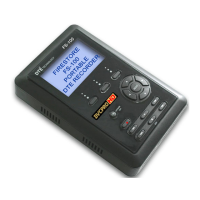
FS-T1001 Menus
FS-T1001 Media Recorder -
25
To set the time zone:
1. Select geographical region, such as America or Asia.
Use the Scroll-pad and Select button to locate and pick
a geographical region.
Selecting a region displays a list of cities in different
time zones within that region.
2. Use the Scroll Pad to locate a city located in the same
time zone as the recording session.
3. Press the Select key.
The display returns to the
SETUP menu.
DST ADJUST
This preference sets the daylight savings settings on FS-T1001 to
either adjust automatically (based on a set date) or based on
standard or alternative settings. There are three settings:
•
AUTOMATIC Default
The FS-T1001 Series automatically adjusts to and from
daylight savings time. The
TIME ZONE must be set to location
of operation.
• STANDARD
Locks the FS-T1001 to Daylight Standard Time for the
location identified in TIME ZONE.
• ALTERNATE
Locks the FS-T1001 to Daylight Savings Time for the location
identified in TIME ZONE.
Using STANDARD or ALTERNATE
STANDARD and ALTERNATE are useful during a transition
between daylight standard and daylight savings times. Using
either setting for the day of the transiting, eliminates the
potential time-jump effects when the transition occurs.
OLED
Use to enable/disable the OLED backlight. There are three options:
•
ON - Permanently sets OLED backlight to ON.
•
OFF - Permanently sets OLED backlight to OFF.
•
AUTO - Automatic mode, the OLED backlight lights when any
key is pressed and remains on for 10 seconds. Having the
OLED backlight off helps save battery power and recording
inconspicuously.


 To Next Page