FoMaKo -
Focus Your Streaming www.fomako.net
FoMaKo IP Streaming Camera Quick Start
Dear Friend,
Thanks for ordering FoMaKo cameras. To setup your streaming system easier, please read this quick start instruction first.
Video Out Methods:
(1) HDMI video output:
- HDMI port to HDMI TV/monitor, to preview video and change camera setting by press “menu” on remote control
- HDMI port to HDMI video switch/mixer
- Use HDMI to USB video capture card converting HDMI signal to USB signal, then, you can use this camera as normal
USB camera
(2) 3G-SDI Video output : 3G-SDI video out is similar as HDMI, the only difference is your device should support SDI .
(3) LAN Video output: Before using “LAN Video Out” , we should add the camera to your network.
(4) USB Video out, you can use the camera as an USB webcam
(FoMaKo cameras come with LCD Screen and DHCP enabled, network settings is much easier than other cameras.)
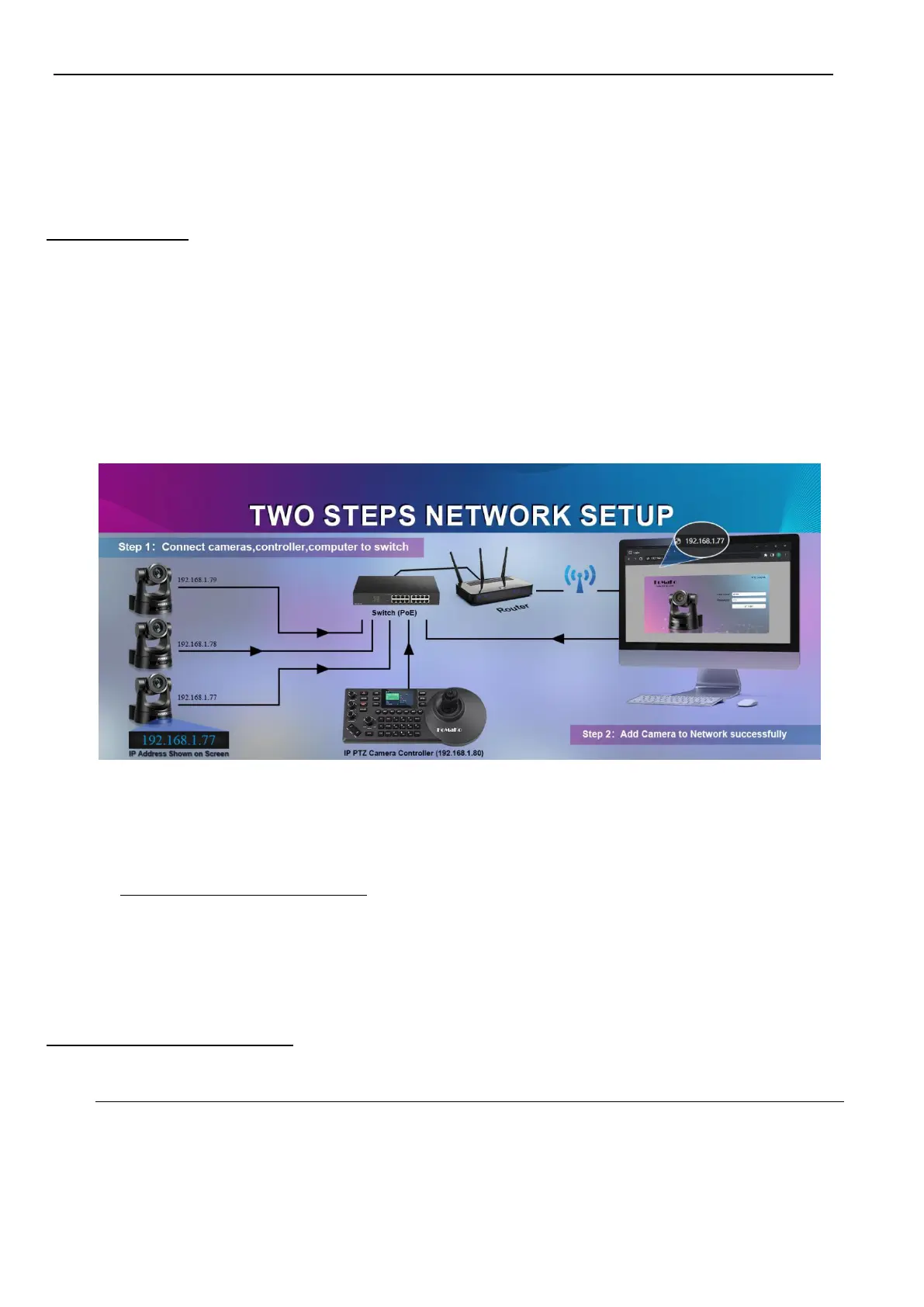
Please do the connections as above, you’d better has a router in the network, then, router will assign IP address for all
the devices. It will save 20+ steps settings on computer.
Camera’s LCD screen will show camera’s ip address, you can use web browser to visit camera’s webpage by the ip
address.
username: admin password: admin
(Important: When added the cameras to the network successfully, you’d better turn off DHCP , otherwise, when camera
or router rebooted, the IP address maybe changed.)
If router can’t assign IP address for camera successfully, camera’s LCD will show default IP address: 192.168.5.163
Add Camera to IP PTZ Controller:
Some information you need:
IP Visca port: 5678 Sony Visca port: 52381 Onvif Port: 2000 User Name: admin Password: admin
We recommend to use Sony Visca or IP Visca control protocol, the two protocols are more steady and work better.
Let’s use FoMaKo KC608 Pro IP controller for example:
FoMaKo KC608 Pro controllers are optimized for FoMaKo cameras, it is very easy to let them work together.
(1) Add the controller to the same LAN as camera, the router will assign an IP address for IP controller



 To Next Page