68
w
w
w
w
w
w
w
w
w
w
w
w
w
w
w
w
ww.foscam.
ww.foscam.
ww.foscam.
ww.foscam.
ww.foscam.
ww.foscam.
ww.foscam.
ww.foscam.
us
us
us
us
us
us
us
us
Foscam
Foscam
Foscam
Foscam Digital
Digital
Digital
Digital Technologies
Technologies
Technologies
Technologies LLC
LLC
LLC
LLC
Telephone:
Telephone:
Telephone:
Telephone: 1-800-930-0949
1-800-930-0949
1-800-930-0949
1-800-930-0949
68
68
68
68
Add
Add
Add
Add device
device
device
device in
in
in
in LAN
LAN
LAN
LAN
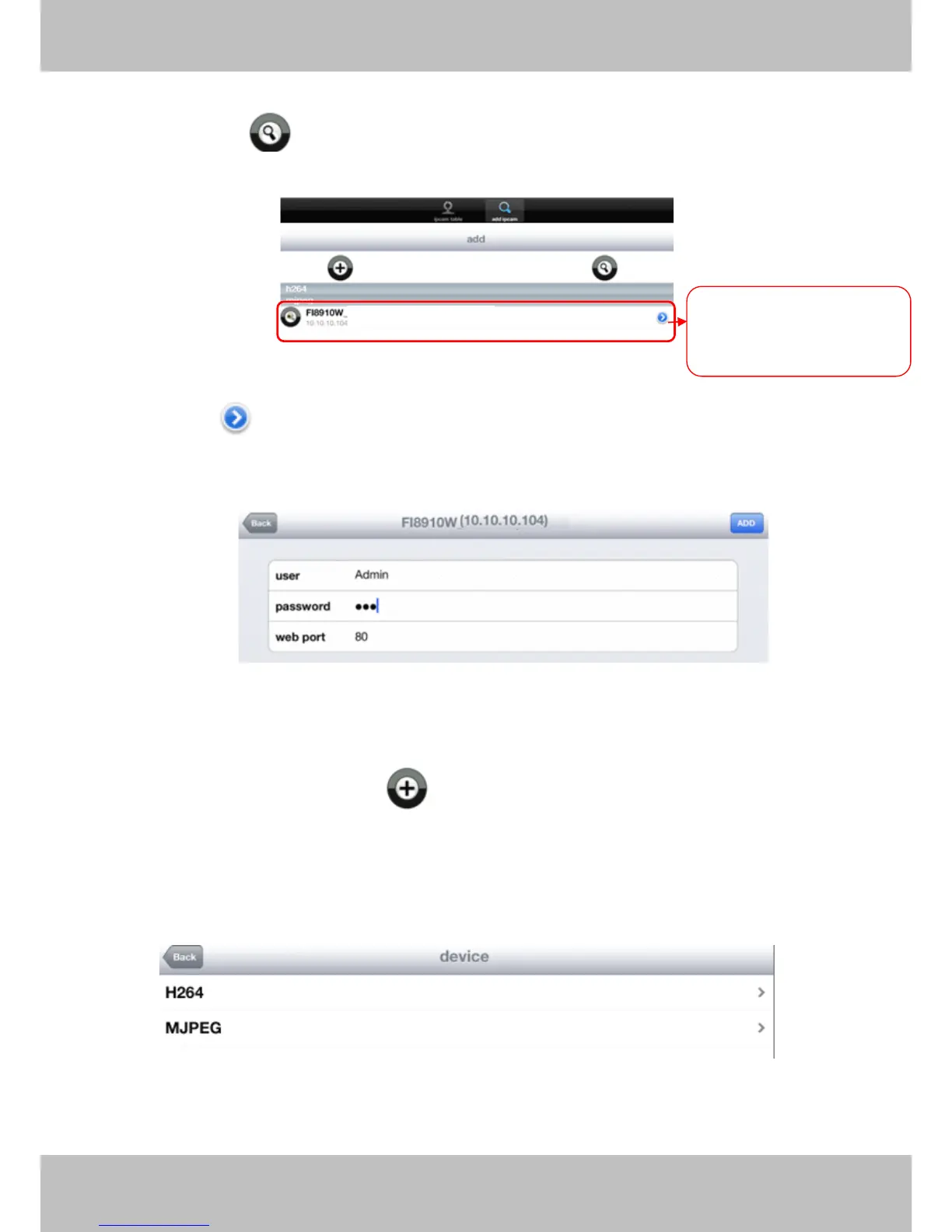
Click this button and the APP will search all cameras in LAN, then add it to APP
automatically .
Figure 4.11
There is a icon after the camera name, click it and you can enter the user name, password
and web port to login the camera.
Figure 4.12
Add
Add
Add
Add device
device
device
device in
in
in
in WAN
WAN
WAN
WAN
Step
Step
Step
Step 1:
1:
1:
1: Click the Add Camera icon to add cameras manually .
Step
Step
Step
Step 2:
2:
2:
2: Select the camera type: mjpeg or h.284 (Figure 4.13), then enter the camera ’ s basic
information like camera name , ip , http/media port, user name, password and so on(Figure
4.14).
Figure 4.13
The
The
The
The cameras
cameras
cameras
cameras in
in
in
in LAN
LAN
LAN
LAN can
can
can
can
be
be
be
be searched
searched
searched
searched and
and
and
and added
added
added
added to
to
to
to
APP
APP
APP
APP automatically
automatically
automatically
automatically


 To Next Page