© 2021 Flanders Scientic, Inc.
29
Return to Table of Contents
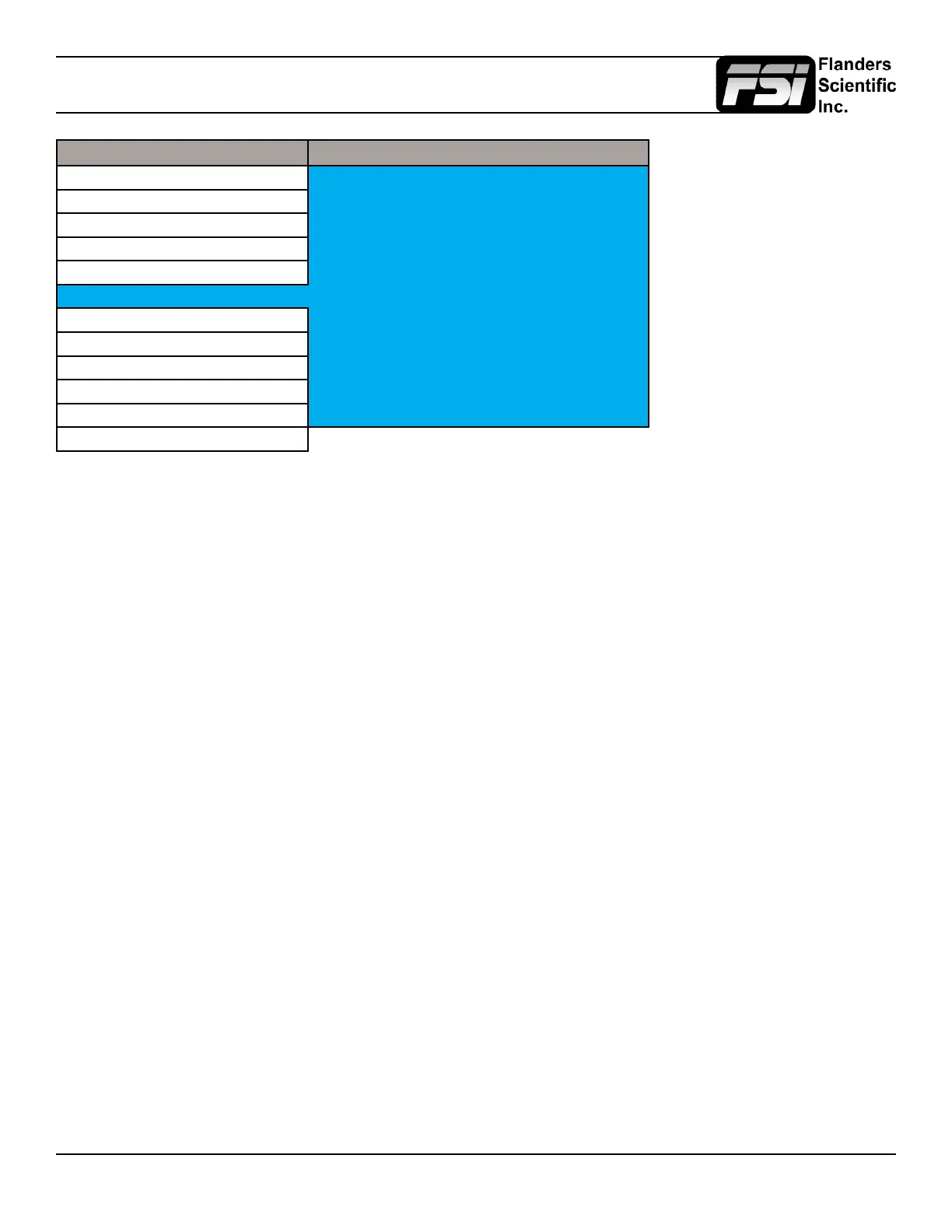
Alarm Menu
Main Menu Alarm
Function Alarm Off
Scopes & Audio Meters Visual Alarm Off
Video Remote Alarm Monitoring Off
Audio IRE Trigger Level 100 IRE
Marker Audio Trigger Time 3s
Alarm Audio Phase Indicator Off
OSD UMD Display UMD
GPI UMD Color White
Color Management UMD Position Top
System Audio Meter Vertical
System Status Select Alarm Area
Support
Remote Alarm Monitoring
When set to ON allows for remote alarm monitoring via FSI’s remote alarm monitoring software.
IRE Trigger Level
Sets the luminance threshold at which IRE alarms will be triggered, adjustable from 90 to 109 IRE
Audio Trigger Time
Sets the amount of time with mute audio that should elapse before the mute audio alarm is triggered.
Audio Phase Indicator - Only applies to Safety Broadcast feature
Enable or disable an Audio Phase Indicator for use with Safety Broadcast.
UMD Display
Only applies to Safety Broadcast feature. Allows you to select whether the Source ID overlay displayed is based on the
manually set source ID on the monitor’s OSD menu or based on remotely set UMD information over serial connection. You
may also turn the selection to off to remove the Source ID overlay.
UMD Color
Only applies to Safety Broadcast feature. Toggles the Source ID text color between White and Black.
UMD Position
Only applies to Safety Broadcast feature. Select top or bottom of screen. Please note that when Timecode Overlay is active
the UMD will automatically be positioned at the bottom of the screen.
Audio Meter - Only applies to Safety Broadcast feature
Determines horizontal or vertical positioning of Audio Meters in Safety Broadcast.
Select Alarm Area
The screen area monitored for Alarm Triggers can be adjusted using the Select Alarm Area feature. To set the alarm area
simply highlight Select Alarm Area and press ENTER. Once active you can use the monitor’s rotary knobs to adjust 4 lines
on screen, similar to the custom graticules feature on the marker menu, to dene the onscreen area that will be monitored.
Once your desired area has been set simply use the MENU button to back out of the Select Alarm Area function. The default
alarm monitoring area is the whole screen, but this function allows users to specify smaller regions if only a portion of the
screen area needs to be monitored.



 To Next Page