© 2021 Flanders Scientic, Inc.
40
Return to Table of Contents
Verify that the monitor’s update mode is turned on via the System Menu:
System > UDisk Mode > On
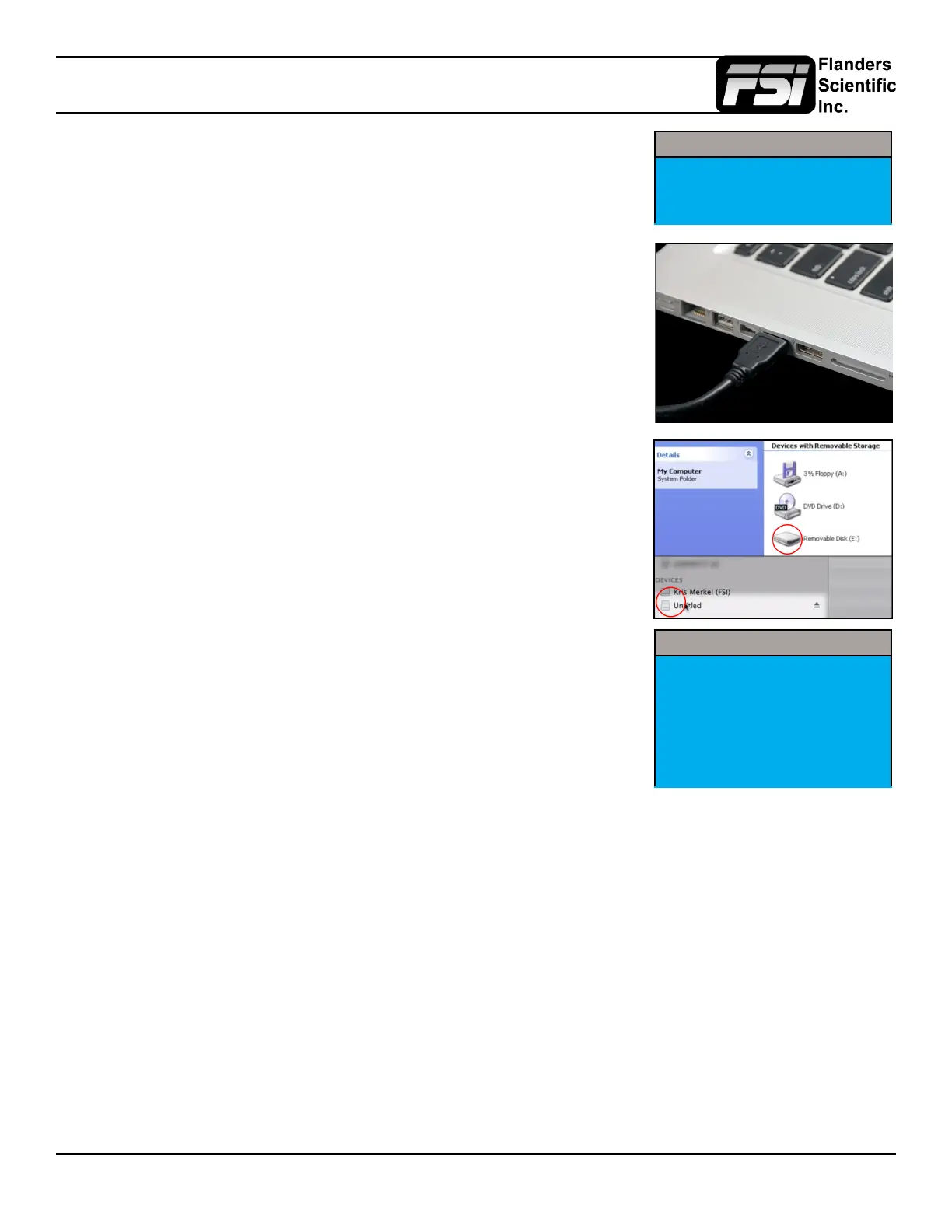
Connect the FSI update cable that came with your monitor (USB to RJ45) to an
available USB port on your computer.
After a short time, the computer should recognize the FSI monitor as a mass storage
device, viewable in Mac’s Finder or PC’s My Computer.
Drag and drop the ditXX.dat le(s) you created to the monitor.
All 16 DIT LUTs can be transfered at one time.
Appendix A - DIT / Look LUTs
Select Menu > Color Management > Update LUT to save the LUT(s).
Once saved the DIT LUTs can be turned on/off by assigning DIT 3D LUT to a function
key.
You can also simply use the up and down arrow keys while the DIT LUT function is
active to toggle between 3D DIT LUTs you have loaded to the monitor.
NOTE: When a DIT LUT is active it will impact the Scope and Measurement
feature values accordingly to reect your DIT LUT’s impact on the signal. This is
in contrast to the simpler Log mode selections found on the Video menu, which
will not change scope or measurement values even when active.
Color Management
Luminance 100
LUT Bypass None
Update LUT
Red Gain 50
Green Gain 50
Blue Gain 50
System
Luminance Interval On
UDisk Mode On
Language English



 To Next Page