LOGGING IN
This section will get you up and running with the Synapse® Mobility software in a few quick steps.
Prerequisites
Before you start using the application, check that you have the following:
A browser and, if working on a mobile device, a validated device (see the list of Supported
mobile devices and browsers).
The URL address of the application, as well as your login credentials (if you do not have this
information, contact your system administrator.)
Access to the hospital's network, or an Internet connection.
Configuring the Safari browser
The steps below are only required for users running the application in a Safari browser on an iPad.
In order to work correctly, the application must run as a mobile website. However, with the introduction of
the iPadOS, Safari requests the desktop version of websites by default.
To configure Safari to read the application's pages correctly on an iPad:
1. In Safari, navigate to the URL address of the application, as provided by the system
administrator.
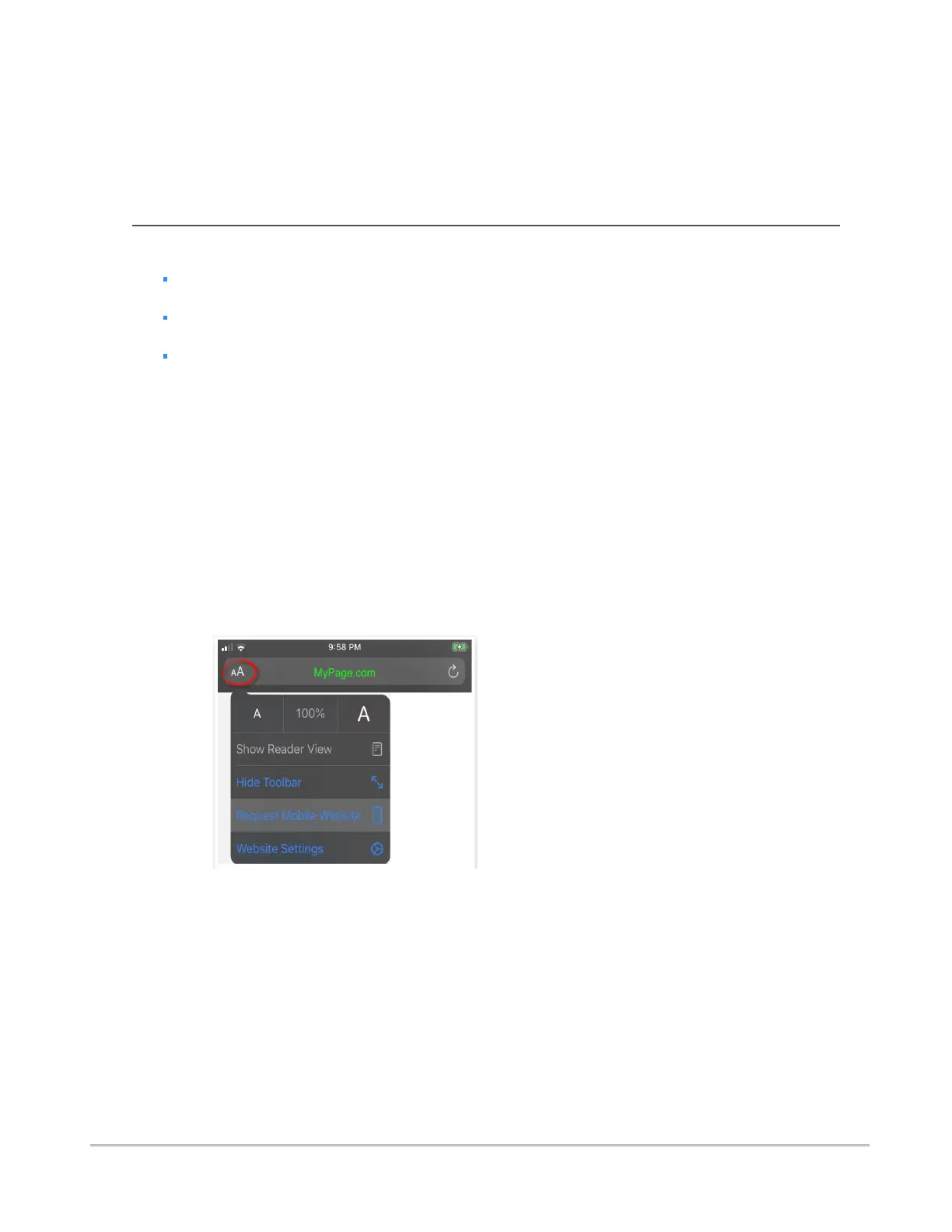
2. Once the website has loaded, tap the AA button on the left hand side of the address bar. This
will display a menu with some configuration options.
3. If you see the option Request Mobile Website, select it.
If you see the option Request Desktop Website instead, the browser is already viewing the
page as a mobile website, and you do not need to change the configuration.
Once Safari is set to request the mobile website for the Synapse Mobility web pages, it will remember this
setting and it will not be necessary to repeat these configuration steps (unless the all the settings for the
device are reset).
Synapse® Mobility User Guide for HTML5 Getting started
Confidential and Proprietary
DOC-0046692-A
17







 To Next Page