GENERAL NAVIGATION
This section describes the tools that are available from the user interface to perform general interactions, in
other words the operations that are applicable to all view modes.
For a description of mode-specific interactions, see 2D view mode, 3D view mode, and MIP/MPRview
mode.
Using the navigation tools
You can navigate images in the viewer with the navigation tools.
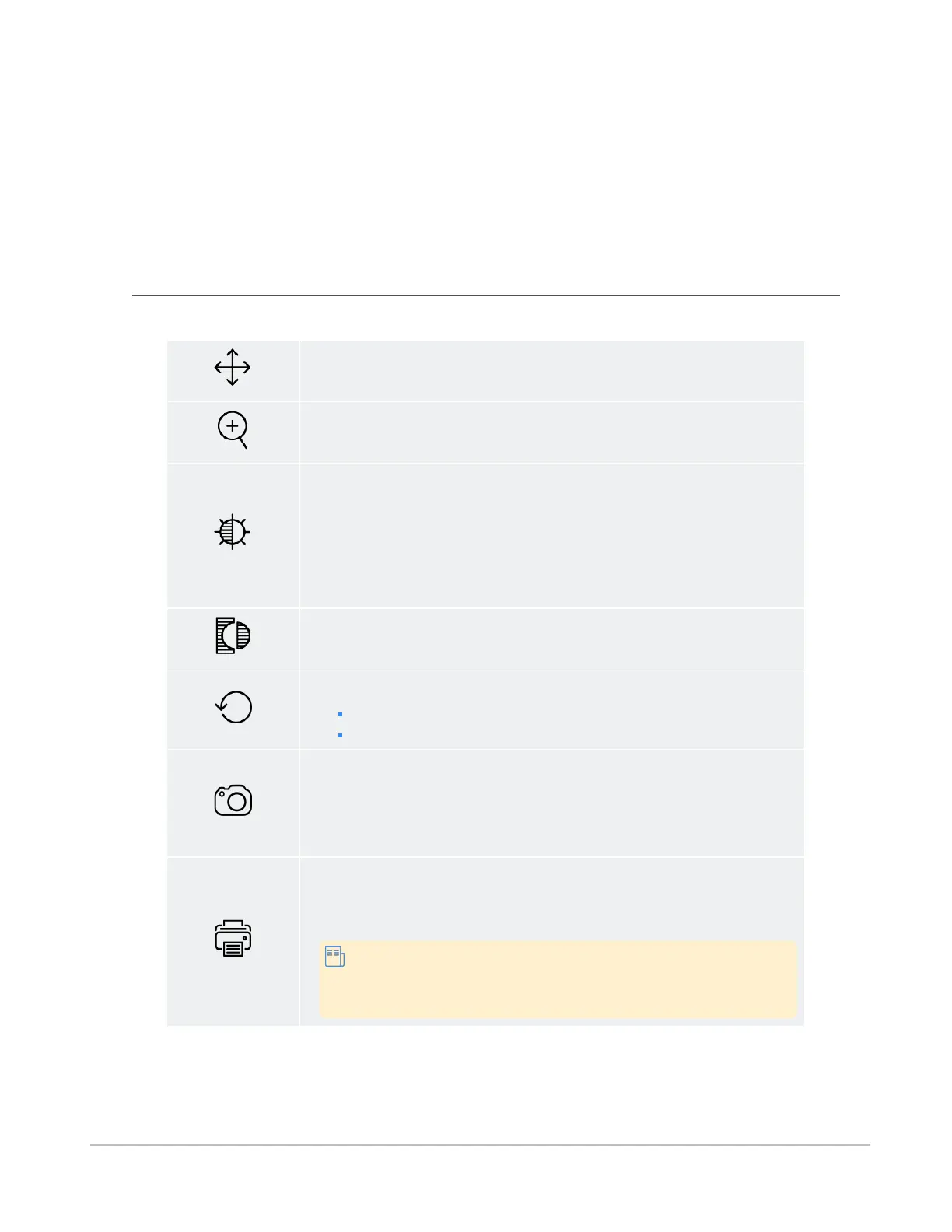
Pan
When selected, click and drag in any direction to pan the image.
Zoom
When selected, click an drag up and down to zoom in and out of the image.
Window/Level
When selected, click and drag left and right to adjust window width, and up
and down to adjust window level. See also Applying presets.
This tool, when working with DICOM images stored in RGB format, for example
some US and SC data sets, controls the brightness and contrast; however, the
brightness and contrast values are not displayed in the metadata information.
Invert Intensities
Select Invert from the view menu.
Reset
To reset a single view, use the Reset tool located in the view menu.
To reset all views, use the Reset tool in main the toolbar.
Capture
Select Capture from the view menu.
This function is used to capture a Secondary Capture DICOM image and push
the newly acquired image to the appropriate PACS or VNA repository.
Print
Select Print from the view menu. Fill the checkbox if you wish to include
confidential patient metadata in the print.
To avoid exposing confidential patient metadata, the
confidential patient information checkbox is greyed out and
disabled during collaboration sessions.
Synapse® Mobility User Guide for HTML5 Viewer
Confidential and Proprietary
DOC-0046692-A
32







 To Next Page