3D VIEW MODE
The 3D view mode renders volumes in a in a three-dimensional format. A unique lens lets you penetrate
through the volume and see the inside. There are also tools to remove obscuring material from the volume,
allowing you to focus clearly on a specific anatomy or pathology.
All of the methods of navigating the data described in General navigation apply in 3D view mode.
Changing the image orientation
Orientation information is always visible to clearly indicate how a patient is oriented (posterior, anterior,
superior, inferior, right lateral or left lateral).
There are various methods for changing this image orientation, described below.
Keyboard shortcuts
You can use preset hotkeys (keyboard shortcuts) to orient the volume of the image to different positions, or
to return it to a known position.
The preset hotkeys for patient orientation in 3D mode are based on the position of the keys
on an English US keyboard. The hotkey letters never change, regardless of the user's
language or keyboard.
Orientation Keyboard Shortcut
Left Lateral
L
Right Lateral
R
Posterior
P
Anterior
A
Superior
S
Inferior
I
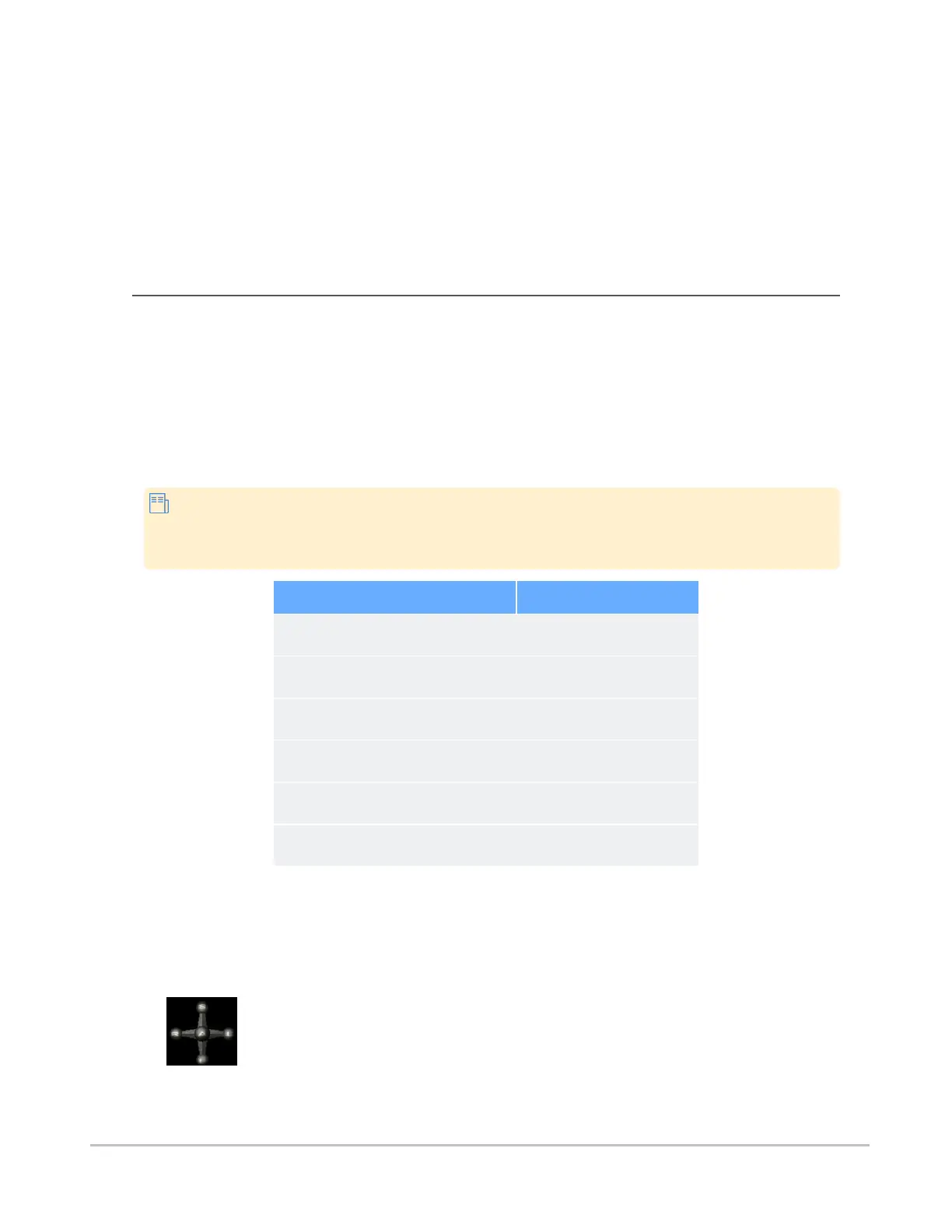
Interactive orientation widget
In 3D view mode, patient orientation is indicated using an interactive orientation widget in the bottom right of
the image. You can snap the volume to any of the six standard orientations by clicking the spheres on the
orientation axis.
Synapse® Mobility User Guide for HTML5 Viewer
Confidential and Proprietary
DOC-0046692-A
39







 To Next Page