Rotate feature
The Rotate feature lets you quickly rotate a volume in any direction.
To use the Rotate tool
1.
Click the Rotate tool .
2. Click the image, then drag in any direction.
To rotate by using touch gestures
Drag the image with your fingers
Magnifying part of a volume
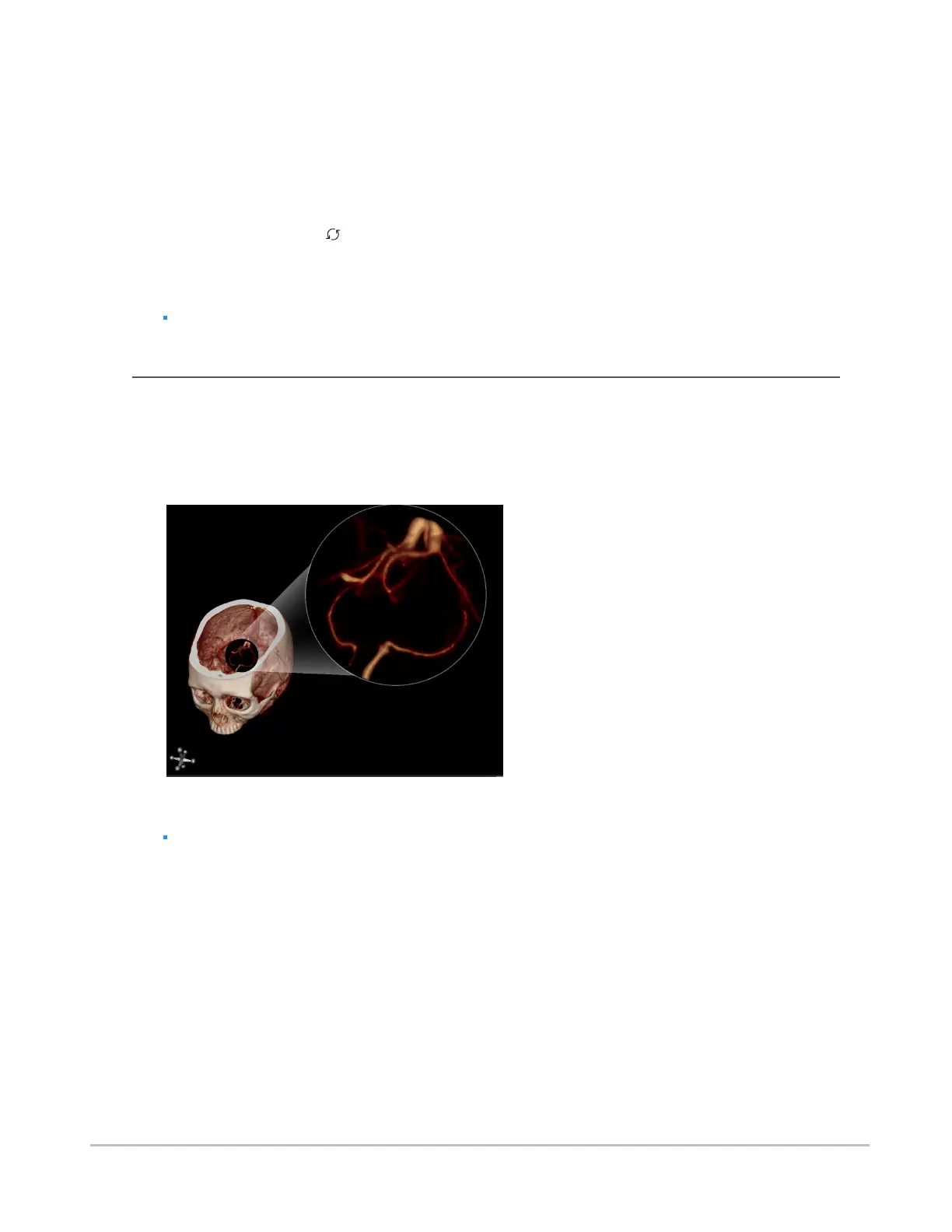
On desktop browsers, you can use the lens tool to magnify a selected portion of the volume in the 3D view
mode while keeping the entire volume in the main view. A magnified view is displayed in the upper-right
corner.
The lens tool is made up of a lens and a magnified view. The magnified view shows a close-up of the area
covered by the lens.
To enable the lens tool
Press the O key.
To move the lens over the volume
1. Position the pointer over the lens to select the lens.
2. Click and drag to reposition the lens.
To move the lens through the volume
1. Position the pointer over the lens.
2. Scroll the mouse wheel up to push the lens deeper into the volume or down to move the lens in
the opposite direction.
Synapse® Mobility User Guide for HTML5 Viewer
Confidential and Proprietary
DOC-0046692-A
40







 To Next Page