To adjust the magnification of the lens view
1. Position the mouse pointer over the magnified view. This selects the magnified view.
2. Do one of the following:
Scroll the mouse wheel up to increase magnification.
Scroll the mouse wheel down to decrease magnification.
Removing obscuring anatomy
You can use either the clipping planes tool or the scalpel tool to remove obscuring material from a 3D
volume. The scalpel tool is only available on desktop devices.
Using clipping planes
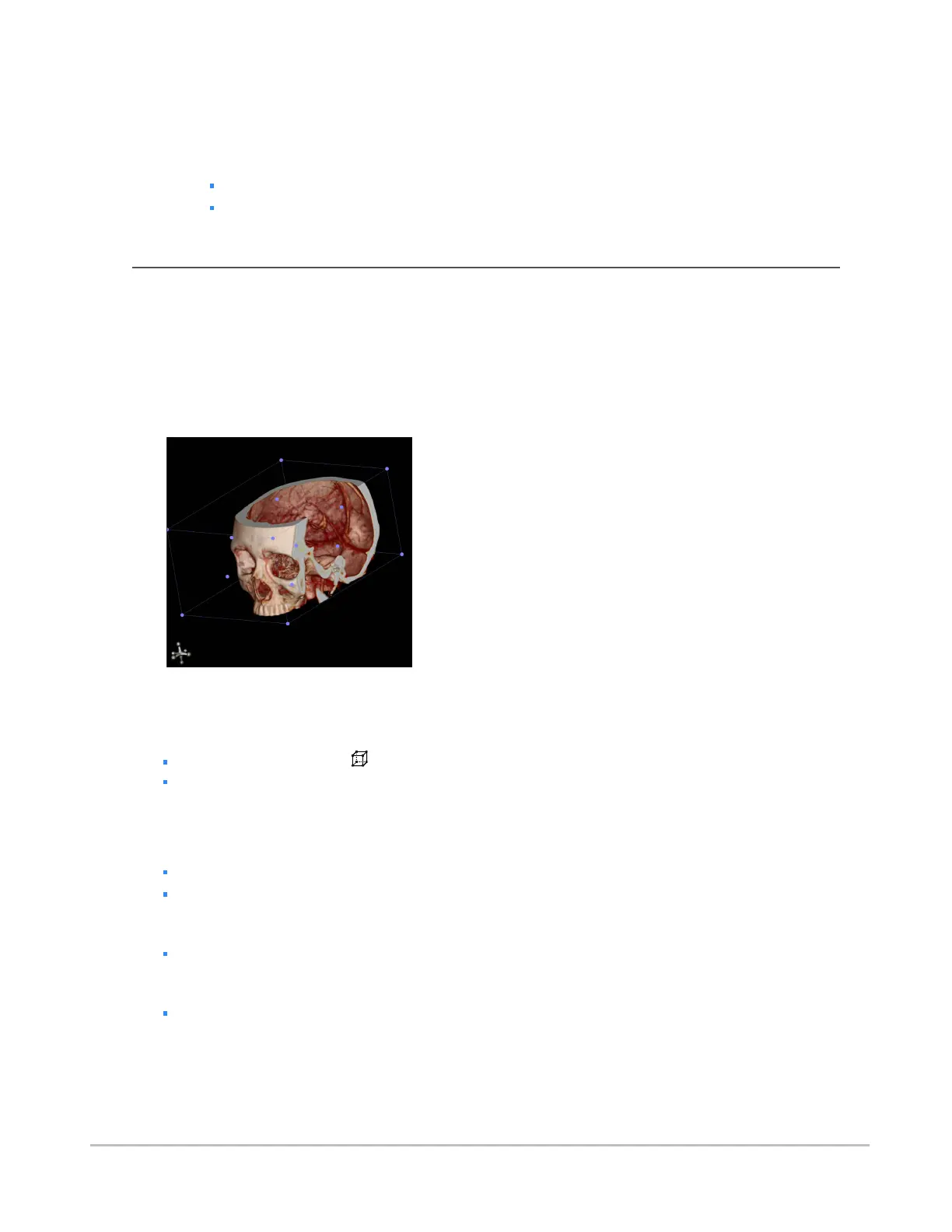
You can slide clipping planes into the volume to cut away obscuring features. Clipping planes appear as a
box drawn around the outside of the volume with spherical “handles” located on the corners and sides.
To toggle the clipping planes
Do one of the following:
Select Clipping Planes from the view menu.
Press the C key.
To rotate the clipping planes
Do one of the following:
Click on an edge of the clipping planes and drag.
Click on a corner of the clipping planes and drag.
To resize the clipping box
Click a “handle” located in the side of the clipping planes and drag.
To rotate the volume when clipping planes are enabled
Click outside the clipping planes and drag.
Synapse® Mobility User Guide for HTML5 Viewer
Confidential and Proprietary
DOC-0046692-A
41







 To Next Page