To start scrolling
Click the Play button . (You may start scrolling even while the data set is being buffered.)
To stop scrolling
Click the Pause button .
To adjust maximum framerate
Click the fps button and adjust the slider to the desired framerate.
To reverse scrolling direction
Click the fps button and click to fill the Playback Reversed check box.
To deactivate cine mode
Click the X button.
Viewing the content of the DICOM header
Some elements of the DICOM header appear as an overlay over the DICOM images. The level of metadata
shown in this overlay is configurable (see Configuring the level of metadata). In 2D view mode, you can
also view the entire content of the DICOM header; this feature displays the full metadata in a table format in
a separate window.
To display the content of the DICOM image header:
Select DICOM Header from the view menu.
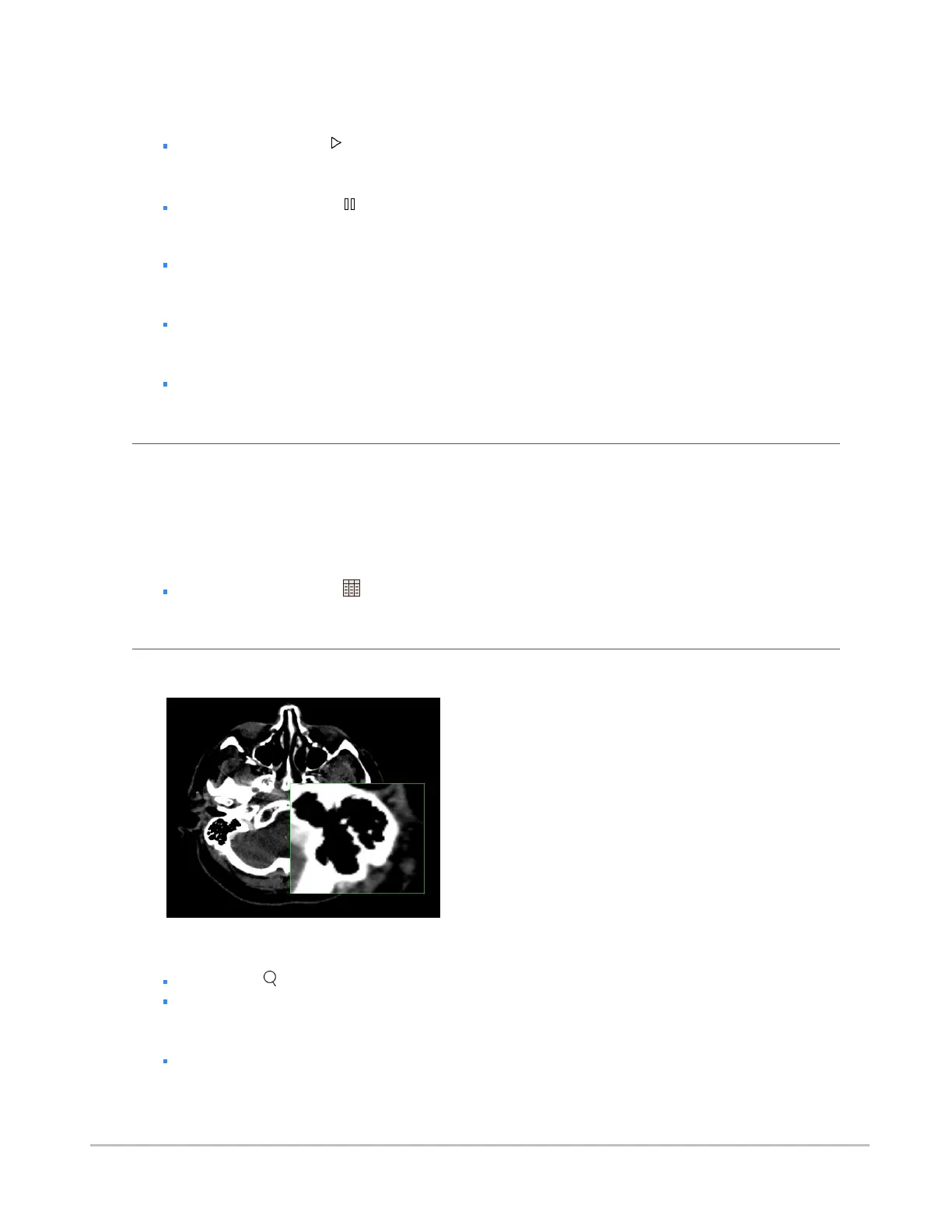
Magnifying part of an image
On desktop browsers, you can magnify a region of an image with the 2D Lens tool.
To toggle the 2D Lens tool
Select Lens from the view menu.
Press the O key.
To move the lens over the image
Click on the magnified region and drag to reposition the magnifying glass.
Synapse® Mobility User Guide for HTML5 Viewer
Confidential and Proprietary
DOC-0046692-A
38







 To Next Page