To select repositories
1. Click Select Repositories.
2. Fill the check boxes for the data repositories you wish to search.
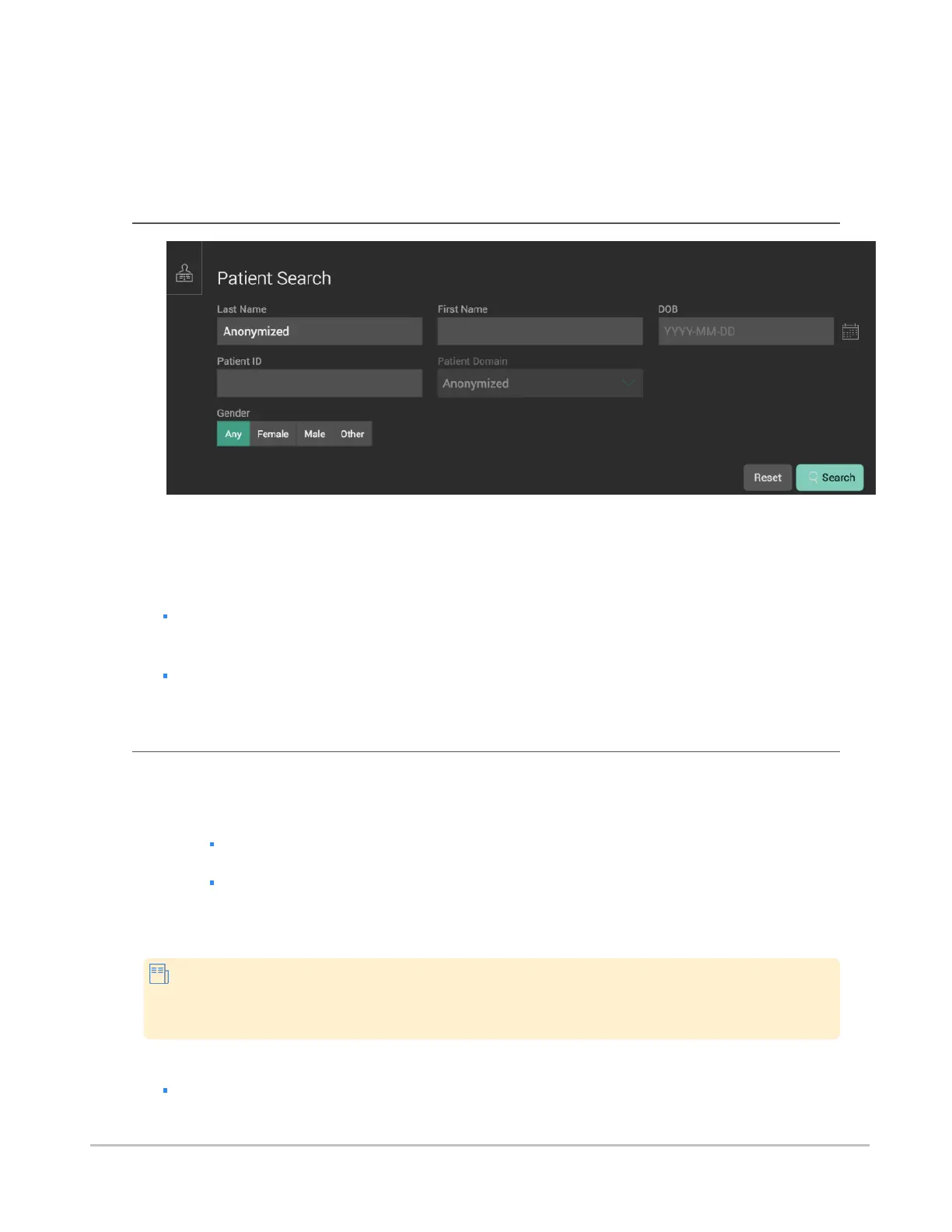
Patient search panel
When the software is configured for Patient Search, you can use it to find, browse, and add selected
patients to the document list. From the document list, you can select content to add to the worklist.
The Patient Search panel supports the following criteria:
Last Name, First Name. Date of Birth, and a combination of Patient ID and Patient Domain.
In addition:
The Gender field enables you to restrict your search by patient gender (female, male, or other).
If you do not specify a gender, the default value Any will be used.
Search operations
To perform a search
1. Enter the search term in the relevant search field (for example, to search by patient name, enter
the name in the Patient Name field).
If you provide only a partial value, use asterisks before and/or after the search parameter
to indicate that there is missing information.
The date search fields indicate what format is expected for the date; this will be either
yyyy-MM-dd or dd-MM-yyyy, depending on the configuration set by the system
administrator. When you enter a date, the hyphens are optional.
2. Press the Enter key, or click Search.
In some configurations, the search results contain a History section, where users can
access their most recently loaded studies, eliminating the need to repeat recent searches.
See Selecting recently loaded studies.
To reset your search
Click Reset.
Synapse® Mobility User Guide for HTML5 Search interface
Confidential and Proprietary
DOC-0046692-A
22







 To Next Page