EasyManua.ls Logo

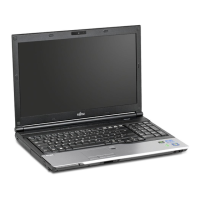
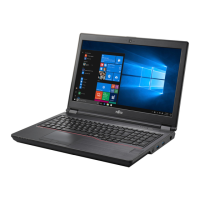
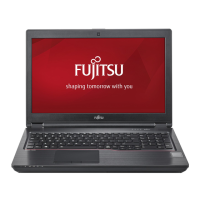
Fujitsu CELSIUS H970 - User Manual

Fujitsu CELSIUS H970
88 pages
Print Icon
To Next Page IconTo Next Page
Loading...
System
Operating Manual
FUJITSU CELSIUS H970

Table of Contents

Questions and Answers

  • B
    Benjamin CabreraAug 19, 2025
    Why my Fujitsu CELSIUS H970 Laptop cannot be started?
    • K
      kelly04Aug 20, 2025
      If your Fujitsu Laptop won't start, make sure the battery is correctly installed in its compartment. If it is, the battery might be dead, so try charging it, inserting a charged battery, or connecting the mains adapter. Also, verify that the power adapter is properly connected to the laptop.
  • S
    Sandra ThomasAug 21, 2025
    How to fix Fujitsu CELSIUS H970 Laptop LCD screen remains blank?
    • W
      williampotterAug 22, 2025
      If the LCD screen on your Fujitsu Laptop remains blank, first, ensure the monitor is not switched off by pressing a key or touching the touchpad. If you have an external monitor or television connected, press the key combination to switch the screen output.
  • J
    Jim MillerAug 23, 2025
    How to fix error message 'Keyboard controller error' on Fujitsu Laptop?
    • P
      Peter MaxwellAug 25, 2025
      If your Fujitsu Laptop displays the error message 'Keyboard controller error', switch the notebook off using the ON/OFF button. Wait 3-5 seconds and switch the notebook on again.
  • J
    Jason HarrisAug 26, 2025
    Why doesn't wireless connection to a network work on Fujitsu Laptop?
    • M
      Mark TorresAug 26, 2025
      If the wireless connection to a network does not work on your Fujitsu Laptop, ensure that the wireless component is enabled. If it is enabled but the connection still fails, check whether the wireless connection is switched on via the software. Further information can be found in the help files.
  • R
    Robert SpearsAug 28, 2025
    What to do if the external monitor remains blank when connected to Fujitsu Laptop?
    • G
      garyfrancisAug 28, 2025
      If the external monitor remains blank when connected to your Fujitsu Laptop, first, ensure that the monitor is switched on. If power saving is activated, press any key to continue. Adjust the monitor's brightness. Check if the screen output is set to the notebook's LCD screen and switch it using the appropriate key combination. Finally, verify that the power and data cables are properly connected to both the monitor and the laptop.
  • A
    Amanda StokesAug 29, 2025
    What to do if my Fujitsu CELSIUS H970 Laptop suddenly stops working?
    • B
      Brandi BarberAug 29, 2025
      If your Fujitsu Laptop stops working, it might be in energy-saving mode, so try to exit that mode. If an application is causing the issue, close the application or restart the laptop. Also, check if the battery is dead; if so, charge it, insert a charged battery, or connect the mains adapter.
  • J
    jacksonreginaAug 31, 2025
    How to fix error message 'Operating system not found' on Fujitsu Laptop?
    • S
      Sara RamirezSep 1, 2025
      If your Fujitsu Laptop displays the error message 'Operating system not found', check in the BIOS Setup whether your hard disk has been set correctly. Ensure that the operating system is installed on the corresponding drive.
  • K
    Kimberly ParkerSep 3, 2025
    How to fix 'System CMOS checksum bad' error on Fujitsu CELSIUS H970?
    • J
      Jenna WhiteSep 3, 2025
      If your Fujitsu Laptop displays the error message: 'System CMOS checksum bad - default configuration used', switch the notebook off, then switch it back on. Press the F2 function key to access the BIOS Setup. In the BIOS Setup, go to the Exit menu, select 'Load Setup Defaults', select OK, and press Enter.
  • M
    michellestoneSep 4, 2025
    What does 'Extended memory failed' mean on Fujitsu Laptop?
    • D
      donnagaySep 4, 2025
      If your Fujitsu Laptop displays the error 'Extended memory failed at offset: xxxx Failing Bits: zzzz zzzz', check whether the additional memory module has been inserted correctly.
  • J
    Jennifer FisherSep 7, 2025
    Why is my Fujitsu CELSIUS H970 not printing?
    • C
      Christopher ClaySep 7, 2025
      If the printer is not printing from your Fujitsu Laptop, make sure that the printer is switched on and ready for operation. Check that the data cable connecting the notebook to the printer is properly connected. Also, verify that the correct printer driver is loaded.

Summary

Ports and Controls

Front Ports and Indicators

Identifies and describes the ports and indicators on the front of the notebook.

Left Side Ports

Identifies and describes the ports located on the left side of the notebook.

Right Side Ports

Identifies and describes the ports located on the right side of the notebook.

Bottom Components

Identifies and describes components located on the bottom of the notebook.

Important Notes

Safety Notes

Essential safety information that must be followed when working with the notebook.

Wireless Component Safety

Specific safety instructions for using wireless components like WLAN and Bluetooth.

First-time Setup of Your Device

Unpacking and Device Check

Steps for unpacking and inspecting the device for any transportation damage.

Selecting a Suitable Location

Guidelines for choosing a safe and appropriate location for device setup.

Connecting the Mains Adapter

Instructions on how to connect the notebook to the power supply.

Initial Device Power On

Steps for powering on the device for the very first time.

Working with the Notebook

Switching the Notebook On

Step-by-step guide on how to power on the notebook.

Switching the Notebook Off

Procedures for safely shutting down the notebook to prevent data loss.

Keyboard Operation

Details on keyboard layout, keys, and special functions.

Keyboard Combinations

Explains useful keyboard shortcuts and function key combinations.

Touchpad and Buttons

Guide to using the touchpad and its buttons for navigation and selection.

Battery Charging and Maintenance

How to properly charge, care for, and maintain the notebook battery.

Battery Removal and Installation

Step-by-step instructions for removing and installing the notebook battery.

Security Functions

BIOS Password Protection

Setting up passwords in the BIOS for enhanced system security.

BIOS Supervisor and User Passwords

Detailed steps for assigning and managing BIOS supervisor and user passwords.

Boot Password Protection

Configuring the system to require a password before booting the OS.

Hard Disk Password Protection

Setting up password protection for the notebook's hard disk drive.

Connecting External Devices

Removing and Installing Components during Servicing

Component Installation;Removal Notes

General precautions and safety guidelines for handling internal components.

Preparing for Component Removal

Steps to take before starting the removal or replacement of internal parts.

Memory Expansion Installation;Removal

Procedures for adding or removing RAM modules.

Removing Memory Modules

Step-by-step guide to removing RAM modules from their slots.

Installing a Memory Module

Instructions for inserting new RAM modules into the notebook.

HDD and M.2 Module Installation;Removal

Procedures for installing and removing hard drives and M.2 storage devices.

Removing the Hard Disk Drive (HDD)

Detailed steps for safely removing the notebook's hard disk drive.

Inserting the Hard Disk Drive (HDD)

Instructions for installing a new hard disk drive into the notebook.

Removing M.2 Module (On-Board)

Steps for removing an M.2 module installed on the mainboard.

Inserting M.2 Module (On-Board)

Instructions for installing an M.2 module onto the mainboard.

Removing M.2 Module (Under HDD)

Steps for removing an M.2 module located beneath the hard disk.

Inserting M.2 Module (Under HDD)

Instructions for installing an M.2 module located under the hard disk.

Finishing Component Replacement

Final steps after component removal or installation to prepare the device.

Settings in BIOS Setup Utility

Starting BIOS Setup Utility

Procedures for accessing and launching the BIOS Setup Utility.

Troubleshooting and Tips

Fujitsu CELSIUS H970 Specifications

General IconGeneral
Form factorClamshell
Product typeMobile workstation
Product colorBlack
Panel typeTFT
LED backlightYes
Display surfaceMatt
Display diagonal17.3 \
Display brightness300 cd/m²
Native aspect ratio16:9
Pointing deviceTouchpad
Operating system architecture64-bit
Bus typeDMI3
SteppingR0
Tjunction100 °C
Processor cache8 MB
Processor cores4
Processor modeli7-6820HQ
System bus rate8 GT/s
Processor familyIntel® Core™ i7
Processor seriesIntel Core i7-6800 Mobile Series
Processor socketBGA 1440
Processor threads8
Processor codenameSkylake
Processor frequency2.7 GHz
Processor cache typeSmart Cache
Configurable TDP-down35 W
Processor lithography14 nm
Processor manufacturerIntel
Processor front side bus- MHz
PCI Express slots version3.0
Processor boost frequency3.6 GHz
PCI Express configurations1x16, 2x8, 1x8+2x4
Thermal Design Power (TDP)45 W
Maximum number of PCI Express lanes16
Memory slots4x SO-DIMM
Internal memory16 GB
Memory clock speed2133 MHz
Memory form factorSO-DIMM
Internal memory typeDDR4-SDRAM
Maximum internal memory64 GB
SSD capacityThe Solid State Drive's storage capacity in Gigabytes.
SSD interfacePCI Express
Storage mediaSSD
SSD form factorM.2
Optical drive typeDVD±RW
Total storage capacity256 GB
Compatible memory cardsMicroSD (TransFlash), MicroSDHC, SD, SDHC, SDXC
Number of SSDs installed1
On-board graphics card ID0x191B
Discrete graphics card modelNVIDIA® Quadro® P3000
On-board graphics card modelIntel® HD Graphics 530
Discrete graphics card memory6 GB
Discrete graphics memory typeGDDR5
On-board graphics card familyIntel® HD Graphics
Maximum on-board graphics card memory1.7 GB
On-board graphics card OpenGL version4.4
On-board graphics card base frequency350 MHz
On-board graphics card DirectX version12.0
On-board graphics card dynamic frequency (max)1050 MHz
Audio chipRealtek ALC255
Number of built-in speakers2
Front camera resolution (numeric)2 MP
Battery life (max)9 h
AC adapter frequency50 - 60 Hz
AC adapter input voltage100 - 240 V
AC adapter output current13 A
AC adapter output voltage19.5 V
Cable lock slot typeKensington
Password protection typeHDD, Supervisor, User
Wi-Fi standards802.11a, Wi-Fi 5 (802.11ac), 802.11b, 802.11g, Wi-Fi 4 (802.11n)
Top Wi-Fi standardWi-Fi 5 (802.11ac)
Ethernet LAN data rates10, 100, 1000 Mbit/s
Charging port typeDC-in jack
USB 2.0 ports quantity0
USB 3.2 Gen 1 (3.1 Gen 1) Type-A ports quantity3
Operating temperature (T-T)5 - 35 °C
Operating relative humidity (H-H)20 - 80 %
Sustainability certificatesRoHS, ENERGY STAR
CertificationCE
Processor codeSR2FU
Processor ARK ID88970
Processor package size42 x 28 mm
Supported instruction setsSSE4.1, SSE4.2, AVX 2.0
Intel Smart Response Technology version1.00
Weight and Dimensions IconWeight and Dimensions
Depth288 mm
Width418 mm
Height30 mm
Weight- g

Related product manuals