EasyManua.ls Logo

Fujitsu LIFEBOOK A514 - User Manual

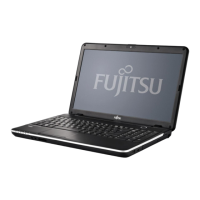
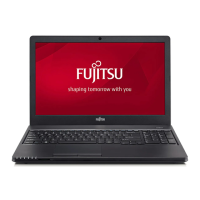
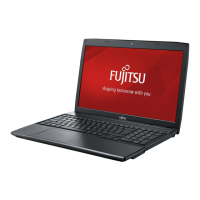
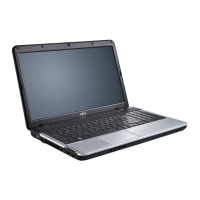
Fujitsu LIFEBOOK A514
79 pages
Print Icon
To Next Page IconTo Next Page
Loading...
System
Operating Manual
FUJITSU LIFEBOOK A514

Table of Contents

Questions and Answers

  • J
    jonesrickySep 3, 2025
    What to do if Fujitsu LIFEBOOK A514 printer does not print?
    • L
      Lisa SchultzSep 4, 2025
      If the printer isn't printing, first ensure that the printer is switched on and ready for operation. Next, check that the data cable connecting the notebook to the printer is properly connected. Finally, verify that the correct printer driver is loaded.
  • K
    Kenneth RushSep 18, 2025
    What to do if Fujitsu LIFEBOOK A514 shows 'Error message: Operating system not found'?
    • J
      Julie LivingstonSep 18, 2025
      Check in the BIOS Setup whether your hard disk has been set correctly. Make sure that the operating system is installed on the corresponding drive.
  • M
    matthew93Sep 16, 2025
    How to fix external monitor if image is unstable on Fujitsu LIFEBOOK A514?
    • S
      scott96Sep 16, 2025
      The wrong external monitor might have been selected, or the wrong screen resolution might have been set for the application program. Terminate the application program in Windows by pressing Alt + F4. If the fault persists after closing the program, use the key combination for switching the screen output to switch over to the notebook’s LCD screen. Change the screen resolution and select the correct monitor.
  • A
    Amanda JonesSep 14, 2025
    What does 'Error message: Previous boot incomplete - Default configuration used' mean on Fujitsu LIFEBOOK A514?
    • T
      Tammie ThomasSep 14, 2025
      This error message indicates that default values were used for certain settings due to an error during the previous system boot. Press the F1 function key when prompted to do so.
  • S
    Sarah SmithSep 13, 2025
    What does 'Error message: Press to resume, to SETUP' mean on Fujitsu LIFEBOOK A514?
    • K
      Kimberly WoodwardSep 13, 2025
      This message appears if an error occurs during the self-test before starting the operating system. Press the F1 function key to start the operating system or press the F2 function key to access the BIOS Setup.
  • P
    Patricia MezaSep 12, 2025
    How to resolve 'Error message: Failure Fixed Disk n' on Fujitsu Laptop?
    • J
      John PowellSep 12, 2025
      This error message means that the settings of the hard disk drive are incorrect. To fix this, start the BIOS Setup (Primary Master submenu) and select the correct settings.
  • S
    smithrachelSep 9, 2025
    What does 'Error message: Extended memory failed at offset: xxxx Failing Bits: zzzz zzzz' mean on Fujitsu Laptop?
    • D
      Daniel Thomas DVMSep 9, 2025
      This error message indicates that an error occurred at address xxxx when testing the extended memory. Check whether the additional memory module has been inserted correctly.
  • M
    Matthew JarvisSep 7, 2025
    What does 'System CMOS checksum bad - default configuration used' mean on Fujitsu LIFEBOOK A514 Laptop?
    • L
      lrodriguezSep 7, 2025
      This error message indicates that the system configuration information is incorrect. To resolve this, switch the notebook off and then on again. Press the F2 key to enter the BIOS Setup. Go to the Exit menu, select 'Load Setup Defaults', and then select 'OK'.
  • D
    douglaslisaSep 5, 2025
    How to fix Fujitsu LIFEBOOK A514 radio connection if it does not work?
    • M
      Michelle JonesSep 5, 2025
      If the radio connection to a network isn't working, make sure the wireless component is enabled. Check whether the radio connection is switched on via the software.
  • J
    Jesse HaysAug 20, 2025
    What to do if Fujitsu LIFEBOOK A514 cannot be started?
    • T
      teresawilliamsAug 21, 2025
      If your Fujitsu laptop won't start, there could be a few reasons. First, ensure the battery is correctly installed in its compartment. Second, the battery might be dead, so try charging it, inserting a charged battery, or connecting the mains adapter. Lastly, verify that the power adapter is properly connected to the notebook.

Summary

Innovative technology

Further information

Provides information about drivers, software, and system compatibility.

Notational conventions

Explains symbols and formatting used in the manual for clarity.

Ports and controls

Front panel components

Identifies and describes the main components on the front of the notebook.

Left and right panel ports

Details the ports and connections available on the left and right sides of the device.

Underside layout

Shows the arrangement of service compartments and battery release on the notebook's underside.

Important notes

Safety Guidelines and Precautions

Covers general safety, radio component safety, handling, and cleaning advice.

Energy Saving and Travel Advice

Provides tips for conserving battery power and preparing the notebook for travel.

First-time setup

Unpacking and initial checks

Guides users through unpacking and inspecting the device for transport damage.

Location and connection

Explains how to select a suitable location and connect the mains adapter.

Initial power-on procedure

Describes the steps for switching on the device for the first time and the installation process.

Working with your notebook

Notebook Status and Operation

Explains status indicators, powering on/off, and basic notebook operation.

Keyboard and Input Devices

Covers keyboard layout, key combinations, touchpad functions, and settings.

Display, Webcam, and Storage

Details LCD screen, webcam, optical drive, power management, and memory cards.

Connectivity and Networking

Covers audio, wireless LAN/Bluetooth, and Ethernet/LAN connections.

Security functions

Physical and BIOS Security

Covers using the security lock and configuring BIOS supervisor/user passwords.

Password protection features

Details password protection for booting and hard disk access.

Connecting external devices

Video and Data Port Connections

Connects external monitors via VGA, and devices via HDMI and USB.

Audio and USB Charging

Explains connecting audio devices and using USB ports for charging.

Removing and installing components

Servicing Preparation and Safety

Outlines precautions and preparation steps for component servicing.

Memory Module and Hard Disk Procedures

Details the removal and installation of memory modules and hard disk drives.

Component Reassembly and Finalization

Covers reattaching covers, installing the battery, and reconnecting cables.

BIOS Setup Utility

Accessing and Navigating BIOS

Guides on starting, operating, and navigating the BIOS Setup Utility.

Saving and Exiting BIOS Settings

Explains the options for saving, discarding changes, and exiting the BIOS Utility.

Troubleshooting and tips

General Troubleshooting Guidance

Provides general advice for resolving faults and contacting support.

System and Display Problem Solving

Addresses issues with startup, date/time, LCD screen, and external monitors.

Operational and Connectivity Error Resolution

Troubleshoots notebook operation errors, printer issues, and network connectivity.

Interpreting Error Messages

Explains common error messages displayed during system startup and their resolutions.

Technical data

Environmental and Physical Specifications

Details ambient conditions (temperature) and physical dimensions of the notebook.

Power System Specifications

Lists specifications for the rechargeable battery and the 65 W power adapter.

Manufacturers notes

Compliance and Certification Information

Covers CE marking, declarations of conformity, and other certifications.

Regulatory and Safety Statements

Includes FCC, Industry Canada, UL notices, and telephone network compliance.

Fujitsu LIFEBOOK A514 Specifications

General IconGeneral
Tcase- °C
Bus typeDMI
Tjunction100 °C
Processor cache3 MB
Processor cores2
Processor modeli3-4005U
System bus rate5 GT/s
Processor familyIntel® Core™ i3
Processor seriesIntel® Core™ i3-4000 Mobile Series
Processor socketBGA 1168
Processor threads4
Processor codenameHaswell
Number of QPI links-
Processor frequency1.7 GHz
Processor cache typeSmart Cache
Configurable TDP-down- W
Processor lithography22 nm
Processor manufacturerIntel
Processor front side bus- MHz
PCI Express slots version2.0
Processor operating modes64-bit
ECC supported by processorNo
PCI Express configurations4x1, 1x4
Thermal Design Power (TDP)15 W
Maximum number of PCI Express lanes10
On-board graphics card ID0xA16
Discrete graphics card modelNot available
On-board graphics card modelIntel® HD Graphics 4400
Graphics card Open GL supportYes
On-board graphics card familyIntel® HD Graphics
Maximum on-board graphics card memory2 GB
On-board graphics card OpenGL version4.3
On-board graphics card base frequency200 MHz
On-board graphics card DirectX version12
On-board graphics card dynamic frequency (max)950 MHz
Processor ARK ID75105
Processor package size40 x 24 x 1.5 mm
CPU configuration (max)1
Intel ME Firmware Version9.5
Graphics & IMC lithography- nm
Supported instruction setsAVX 2.0, SSE4.1, SSE4.2
Intel Smart Connect Technology version1.00
Intel Smart Response Technology version0.00
Form factorClamshell
Product typeLaptop
Product colorBlack
Memory slots2x SO-DIMM
Internal memory4 GB
Memory clock speed1600 MHz
Internal memory typeDDR3L-SDRAM
Maximum internal memory16 GB
Memory layout (slots x size)1 x 4 GB
HDD size2.5 \
HDD speed5400 RPM
HDD interfaceSATA
Storage mediaHDD
Optical drive typeDVD Super Multi
Total storage capacity500 GB
Compatible memory cardsSD, SDHC, SDXC
Display surfaceMatt
Display diagonal15.6 \
Display brightness200 cd/m²
Display resolution1366 x 768 pixels
Native aspect ratio16:9
Contrast ratio (typical)300:1
Front camera resolution1200 x 768 pixels
Front camera resolution (numeric)0.9 MP
Wi-Fi standards802.11b, 802.11g, Wi-Fi 4 (802.11n)
Bluetooth version4.0
Ethernet LAN data rates10, 100, 1000 Mbit/s
Charging port typeDC-in jack
USB 2.0 ports quantityUSB 2.0 ports have a data transmission speed of 480 Mbps, and are backwards compatible with USB 1.1 ports. You can connect all kinds of peripheral devices to them.
USB 3.2 Gen 1 (3.1 Gen 1) Type-A ports quantity3
USB 3.2 Gen 1 (3.1 Gen 1) Type-C ports quantity0
Pointing deviceTouchpad
Battery capacity4500 mAh
Battery life (max)8 h
Number of battery cells6
AC adapter power65 W
AC adapter frequency50 - 60 Hz
AC adapter input voltage100 - 240 V
AC adapter output current3.42 A
AC adapter output voltage19 V
Cable lock slot typeKensington
Password protection typeBIOS, HDD, Supervisor, User
Operating temperature (T-T)5 - 35 °C
Sustainability certificatesRoHS, ENERGY STAR
CertificationCE, WEEE, Microsoft Operating Systems (HCT / HCL entry / WHQL)
Weight and Dimensions IconWeight and Dimensions
Depth252 mm
Width378 mm
Height30.9 mm
Weight2400 g

Related product manuals