3. Local Port Operation
Navigating the OSD
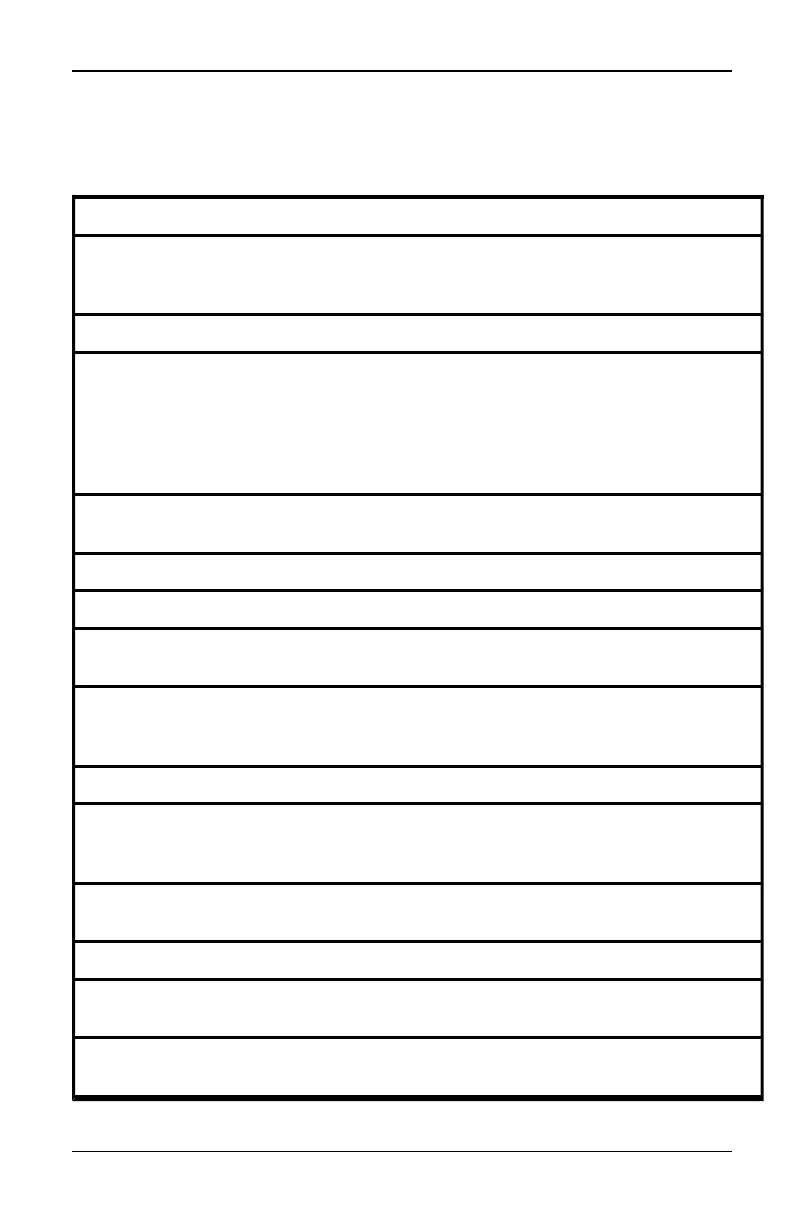
This table describes how to navigate the OSD using the keyboard and mouse.
Keystroke Function
<Print Screen>, Ctrl-Ctrl,
Shift-Shift and/or Alt-Alt
OSD activation sequence. By default, <Print Screen> and Ctrl-
Ctrl are set as the OSD options. Shift-Shift and Alt-Alt must be
set within the OSD before use.
F1 Opens the Help screen for the current dialog box.
Escape
Closes the current dialog boxwithout saving changes and returns
to the previousone. If the Main dialog box isdisplayed, pressing
Escapecloses the OSD and displays a status flag if status flags are
enabled. See "Commands Dialog BoxFunctions" on page 18 for
more information. In a message box, pressing Escape closes the
pop-up box and returns to the current dialog box.
Alt
Opens dialog boxes, selects or checksoptions and executes
actions when used with underlined or other designated letters.
Alt+X Closes current dialog boxand returns to previous one.
Alt+O Selects the OK button, then returns to the previousdialog box.
Enter
Completes a switch operation in the Main dialog box and exitsthe
OSD.
Single-click, Enter
In a text box, single-clicking an entry and pressing Enter selects
the text for editing and enables the Left and Right Arrow keysto
move the cursor. PressEnter again to quit the Edit mode.
Print Screen, Backspace Toggles back to previous selection.
Print Screen, Alt+0 (zero)
Immediatelydisengages user from a target device; no target
device isselected. Status flag displays Free. (This onlyappliesto
the 0 (zero) on the keyboard and not the numerickeypad.)
Print Screen, Pause
Immediatelyturns on Screen Saver mode and prevents accessto
that specific console, if it is password protected.
Up/Down Arrows Moves the cursor from line to line in lists.
Right/Left Arrows
Moves the cursor between columns. When editing a text box,
these keys move the cursor within the column.
Page Up/Page Down
Pages up and down through Name and Port lists and Help pages.
Table 3.3: OSD Interface Navigation Basics
590-1035-640A
12


 To Next Page