EasyManua.ls Logo

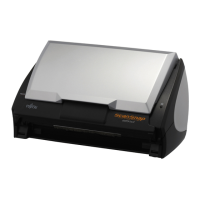
Fujitsu ScanSnap S510M - User Manual

Fujitsu ScanSnap S510M
267 pages
Print Icon
To Next Page IconTo Next Page
Loading...
P3PC-1942-03ENZ0

Table of Contents

Other manuals for Fujitsu ScanSnap S510M

Questions and Answers

  • K
    Kenneth LongSep 16, 2025
    How to fix vertical lines appearing in scanned images with my Fujitsu ScanSnap S510M Scanner?
    • G
      Gabriella LambSep 16, 2025
      To fix vertical lines appearing in scanned images from your Fujitsu Scanner, clean the inside of the ADF following the instructions in '5. Daily Care.'
  • G
    Gregory StewartAug 25, 2025
    What to do if Fujitsu ScanSnap S510M scanning does not start?
    • M
      mmeyersAug 25, 2025
      If scanning doesn't start on your Fujitsu Scanner, ensure the USB cable is correctly connected, especially checking the hub's power supply if one is in use. Disconnect, then reconnect the AC cable and AC adapter, waiting at least 5 seconds before reconnecting the AC or USB cable. If the ScanSnap Manager icon isn't visible, locate the ScanSnap folder in Applications using Finder and start ScanSnap Manager. As a further step, disconnect and reconnect the AC cable and AC adapter; if using a USB hub, connect ScanSnap directly to your computer. Restart your computer. If problems persist, uninstall and reinstall ScanSnap Manager. Also, when resuming from hibernation, move the mouse or press a key before scanning.
  • M
    Margaret SmithAug 25, 2025
    Why does Fujitsu ScanSnap S510M have multi-feeds often?
    • H
      Heather Smith MDAug 26, 2025
      If your Fujitsu Scanner frequently multi-feeds, start by cleaning the Pad ASSY. If the issue continues, the Pad ASSY may be worn and require replacement. Also, ensure the document stack is not thicker than 0.2 in. (5mm); reduce the number of sheets if necessary.
  • J
    jennapetersonAug 26, 2025
    What to do if Fujitsu ScanSnap S510M sheets of paper are not fed?
    • A
      anne94Aug 27, 2025
      If sheets of paper are not feeding properly into your Fujitsu Scanner and stop midway, begin by cleaning the Pick roller. If the problem persists, the Pick roller may be worn and need replacement. Ensure there are no foreign materials obstructing the document feed path. You can also try slightly pressing down the first sheet of the document with your finger at the start of scanning or changing the sheet feeding direction.
  • W
    whitelindseySep 18, 2025
    What to do if the scanned image of the document shifts or is distorted on my Fujitsu ScanSnap S510M?
    • L
      Lisa HarrisSep 18, 2025
      If the scanned image of the document shifts or is distorted on your Fujitsu Scanner, ensure that you load the document correctly.
  • M
    megan76Sep 23, 2025
    What to do if a paper jam occurs frequently when scanning with the Carrier Sheet on my Fujitsu Scanner?
    • A
      Alicia RogersSep 23, 2025
      If a paper jam occurs frequently when scanning with the Carrier Sheet on your Fujitsu Scanner, feed about 50 sheets of PPC paper or recycled paper, and then scan the document by using Carrier Sheet.
  • P
    Paige EscobarSep 8, 2025
    Why paper jam occurs frequently Fujitsu ScanSnap S510M?
    • K
      Kristy GarzaSep 8, 2025
      To mitigate frequent paper jams when scanning with the Carrier Sheet on your Fujitsu Scanner, feed about 50 sheets of PPC paper or recycled paper, and then scan the document using the Carrier Sheet. You can use either unused or used PPC/recycled paper.
  • K
    Kathryn DickersonSep 9, 2025
    How to unhide "ScanSnap Quick Menu" Fujitsu ScanSnap S510M Scanner?
    • A
      arnoldsandraSep 10, 2025
      To unhide the "ScanSnap Quick Menu", click "Use Quick Menu" to check it.
  • R
    Randy BrandtSep 2, 2025
    Why scanned images are not displayed on the screen Fujitsu ScanSnap S510M?
    • M
      Michael LaraSep 3, 2025
      If scanned images are not displayed when "Allow automatic blank page removal" is enabled on your Fujitsu Scanner, it's possible that nearly blank documents are being recognized as blank pages and removed. To resolve this, clear the "Allow automatic blank page removal" checkbox in the "Read Mode Option" window, accessible via the [Option] button on the [Scanning] tab of the "Scan and Save Settings" window.
  • M
    Mary McleanSep 1, 2025
    Why file size of scanned black-and-white image is the same as that of a color document Fujitsu ScanSnap S510M Scanner?
    • J
      Joyce MitchellSep 1, 2025
      If the file size of a scanned black-and-white image from your Fujitsu Scanner is the same as that of a color document, it is likely that the black-and-white document was scanned in color mode. To fix this, select "B&W" from the "Color mode" drop-down list on the [Scanning] tab of the "Scan and Save Settings" window.

Fujitsu ScanSnap S510M Specifications

General IconGeneral
BrandFujitsu
ModelScanSnap S510M
CategoryScanner
LanguageEnglish

Related product manuals