2-18
Chapter 2 Installation
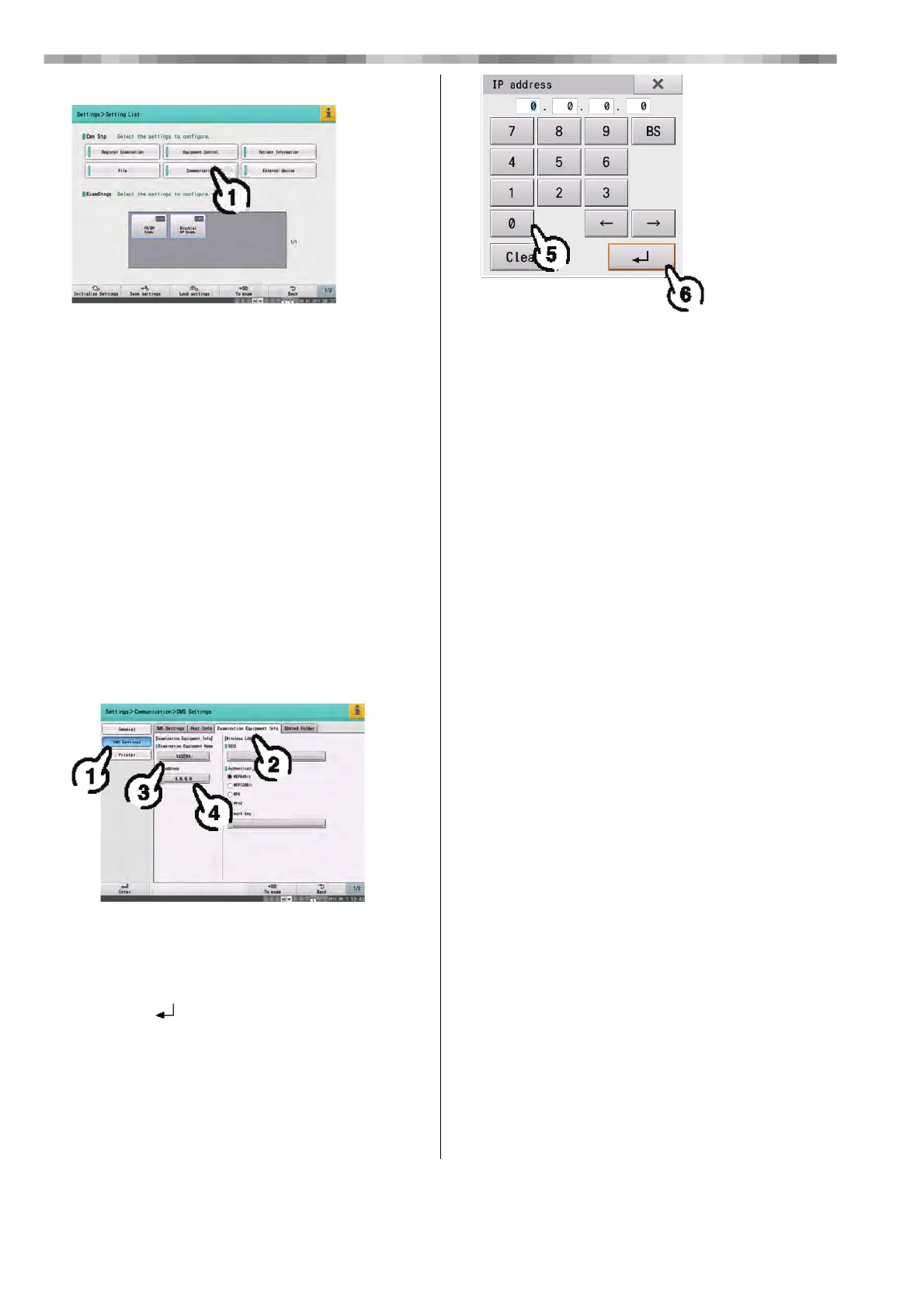
3 Touch [Communication].
4 Select [ON] for [Communication] in the
[General] tab.
Check that [Method] is set to [Wired LAN].
5 Set the IP address of the device.
1) Touch [DMS Settings].
2) Touch the [Examination Equipment Info] tab.
3) Touch "Examination Equipment Name" and
enter the examination equipment name.
• The examination equipment name is entered in the
same way as the patient name in "Chapter 4
Entering Patient Information"(P4-1).
• The default setting for the examination equipment
name is "VASERA". An examination equipment
name does not need to be entered if using this
name.
4) Touch [IP address].
5) Enter the IP address.
Refer to "■Example Setting: For "Example of
Network Configuration" (P2-16)" (P2-19) for
details on the settings.
6) Touch [ ].
7) Touch the [DMS Settings] tab.
8) Enter the subnet mask and default gateway
in <Gateway>.
Refer to "■Example Setting: For "Example of
Network Configuration" (P2-16)" (P2-19) for
details on the settings.
6 Register the host.
1) Touch the [Host Info] tab.
2) Enter the host name, IP address and port
number in <Host Info X>.
"Host" refers to information about the computer to
connect. Set the host name, IP address and port
number. Up to 6 hosts can be registered.
Refer to "■Example Setting: For "Example of
Network Configuration" (P2-16)" (P2-19) for details
on the settings.
7 Select the host to be used.s
1) Touch [DMS Settings].
2) Touch the host to be used
([Recording&Playback Host], [PW/BP Host],
[Patient Info Host]).
3) Enter the host number set in step 6 (the "X"
part of "Host Info X", 1-6).
• VSS can be used as pulse wave hosts or patient
information hosts.
4) Touch [Enter].
8 Configure the network printer settings.
Network printers that can print without a computer (laser
printers) can be connected.
1) Touch [Printer].



 To Next Page