p.10
About Your G-RAID
Activity & Failure LEDs
G-RAID Studio contains a drive activity LED integrated into each removable disk under the
top lid and an illuminated G logo on the front panel to indicate the following operations
and enclosure statuses:
• System initialization
• System ready – HDD Idle
• Disk activity – HDD Read/Write
• Disk drive failure
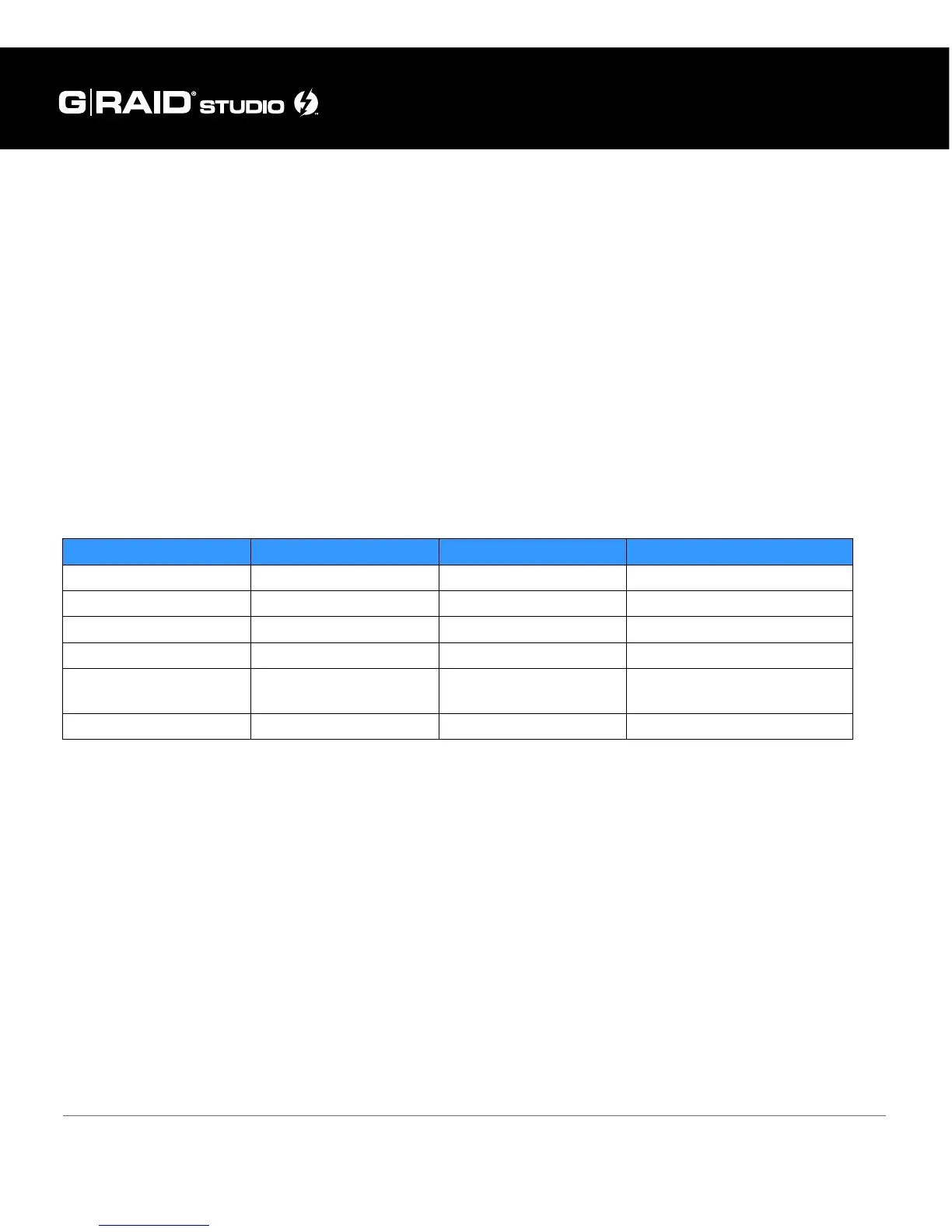
This table explains the meaning of each combination of LEDs on the drive:
In the event of a disk drive failure, the front panel’s G logo will glow RED. At the same
time, the LED located near the faulty drive will turn from BLUE to RED. To replace the
faulty drive, please refer to the section Replace a Failed Drive Module.
• If congured in fail-safe RAID 1 (Protected) mode, data stored on the G-RAID Studio
will still be intact.
• If congured in JBOD mode, only the data on the faulty drive will be lost, but the
remaining data on the working drive will be intact.
• If congured in RAID 0 (Performance) mode, all data is at risk of being lost. Please
contact our Technical Support for help if the drive failure LED indicator is lit.
RAID Status HDD1 Drive LED HDD2 Drive LED G-LOGO
System Initialization Blue - Blink once Blue - Blink once White - blink until system ready
HDD Idle Blue – On Blue - On White - On
HDD Read/Write Blue - Blink Blue - Blink White - On
HDD Failure (Raid 0) Red – On Red – On Red - On
HDD Failure (Raid 1)
Red – On (if HDD1 fails);
Blue – On (if HDD2 fails)
Red – On (if HDD2 fails);
Blue – On (if HDD1 fails)
Red - On
Raid 1 Rebuild Blue – Blink Blue – Blink White - Blink













 To Next Page