Using RAID Modes
p.23
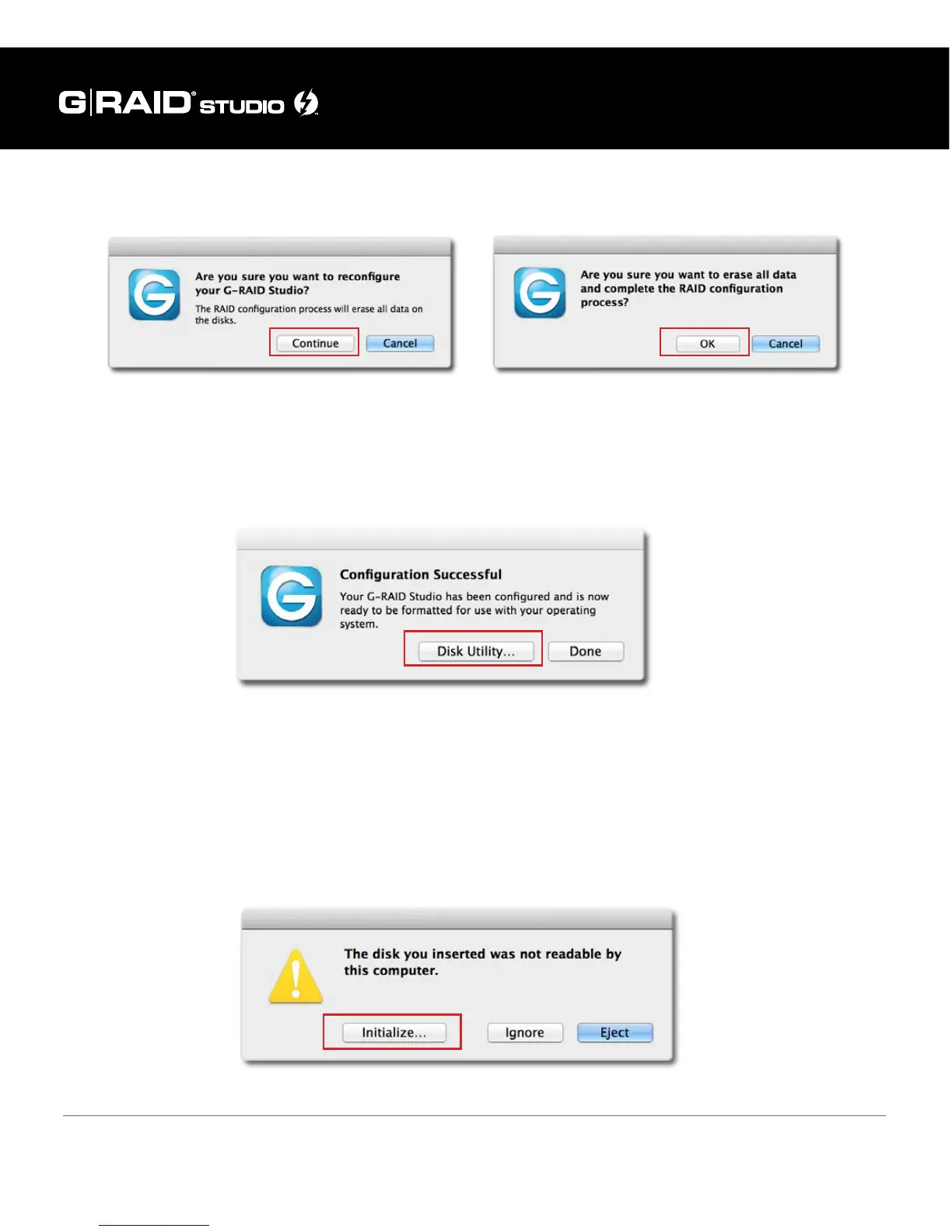
4. A new window will appear to inform you that the conguration is successful. There
will be a Disk Utility button using which you can open the Disk Utility window to
initialize your disk.
5. Changing the RAID mode of G-RAID Studio will require you to re-initialize the disk
with the Disk Utility application. The Disk Insertion dialog below should appear.
Click the Initialize button to launch Disk Utility, if you did not open the Disk Utility
from the previous window. Follow the simple steps described in the section Initialize
Drive for Mac to initialize G-RAID Studio for use with the Mac OS.













 To Next Page