Using RAID Modes
p.25
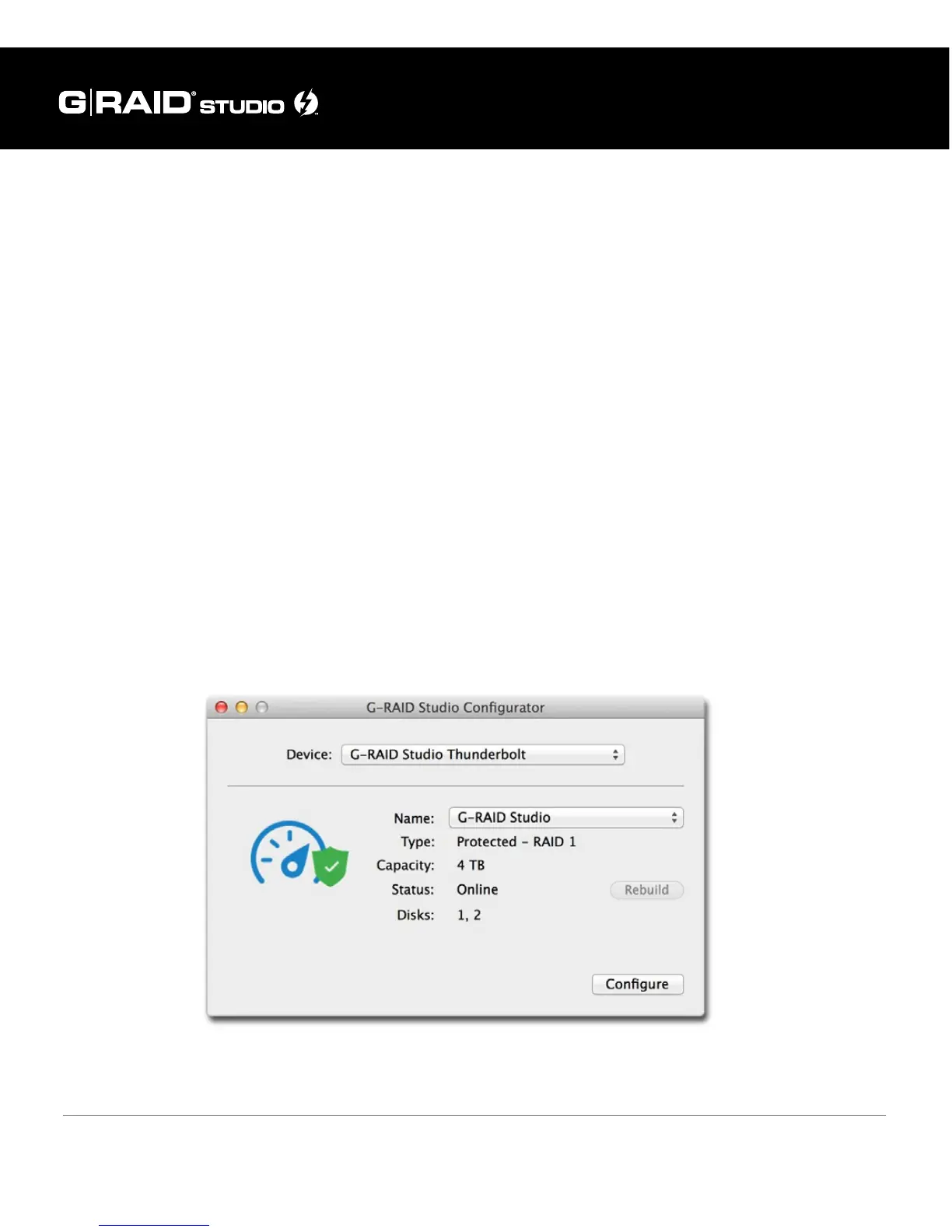
2. The Rebuild button will become ENABLED at this point so that you have the option to
rebuild the RAID 1 set.
3. To rebuild the RAID 1 set, please insert a new drive in place of the failed or removed drive.
Note: While replacing the failed drive make sure the G-RAID Studio is powered o.
If this new drive is not formatted then the Disk Utility function will automatically launch,
allowing you to format the drive. If this replacement drive is formatted then you are
ready to rebuild the RAID set.
4. Once you click on the Rebuild button two back to back warning windows will appear,
letting you know that the rebuild process will delete the data in the newly inserted
disk. Click the YES button in both the windows to continue. Note: While the rebuild is in
process please keep the G-RAID Studio connected to the host.
5. A window will appear telling you that the rebuild process is successful.
6. Your RAID 1 is now running in protected mode again.













 To Next Page