42 GPSMAP 620 Owner’s Manual
Automotive Mode: Getting Started
Automotive Mode: Getting Started
Step 1: Mount Your GPSMAP 620
1. Place the GPSMAP 620 automotive dash mount on the
dashboard of your vehicle.
2. Snap the GPSMAP 620 mounting bracket onto the automotive
dash mount arm, and place the GPSMAP 620 in the mounting
bracket (see page 2).
3. Plug the speaker/vehicle power cable into a power outlet in your
vehicle. Your unit should turn on automatically, in automotive
mode, if it is plugged in and the vehicle is running.
Step 2: Congure Your GPSMAP 620
If your GPSMAP 620 device does not power on automatically,
press the Power key to turn it on. Follow the on-screen
instructions. Press and hold the Power key to turn off your
device.
Step 3: Acquire Satellites
Go outdoors to an open area, away from tall buildings and trees
and turn on your GPSMAP 620.
Acquiring satellite signals can take a few minutes. The bars
indicate satellite strength. When at least one of the bars is green,
your GPSMAP 620 has acquired satellite signals. Now you can
select a destination and navigate to it.
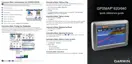
Step 4: Use Your GPSMAP 620
➊ ➋ ➌
➍
➎ ➏
➐ ➑
Automotive Mode: Menu Page
➊
GPS satellite strength.
➋
Usage mode. Touch this icon to change modes.
➌
Battery status.
➍
Current time. Touch to change time settings.
➎
Touch to nd a destination.
➏
Touch to view the map.
➐
Touch to adjust the volume.
➑
Touch to use the tools such as Settings and Custom Routes.











 To Next Page