GPSMAP 620 Owner’s Manual 43
Automotive Mode: Getting Started
Finding YourYour Destination
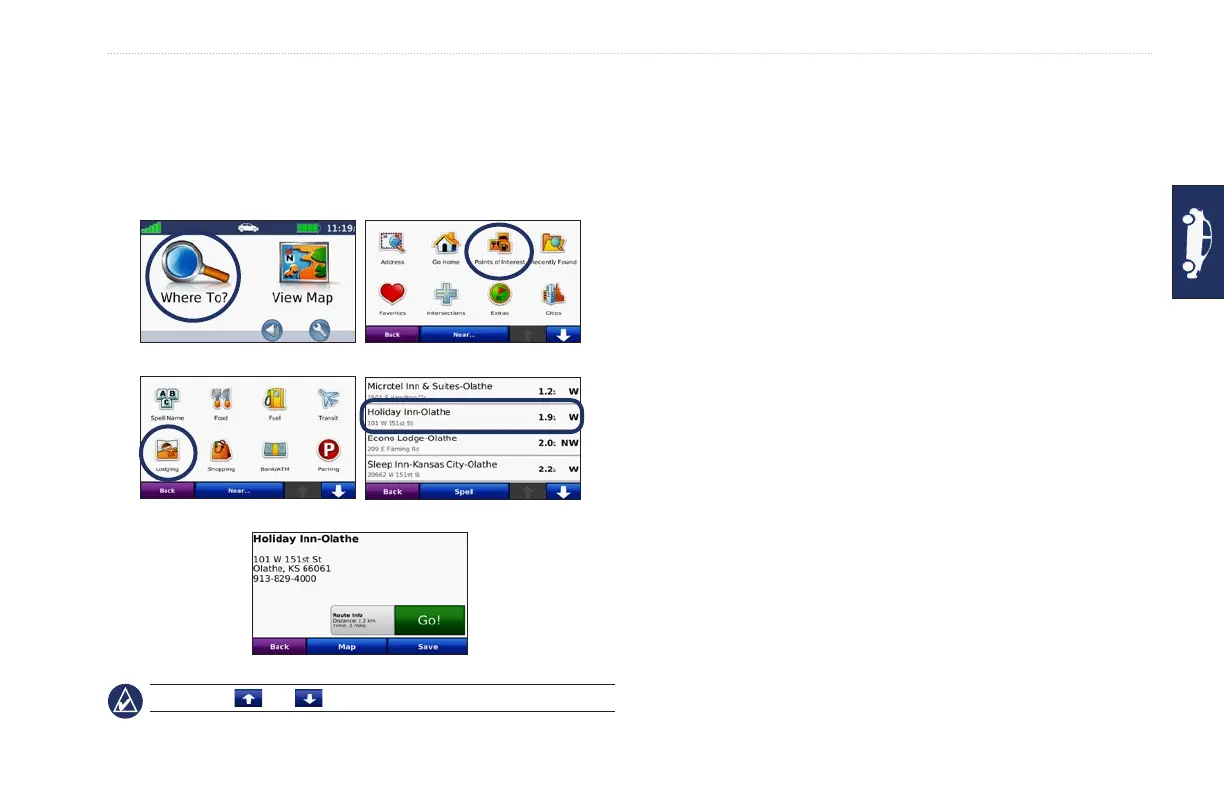
The Where To? menu provides several different categories for you
to use when searching for addresses, cities, and other locations. The
detailed maps loaded in your GPSMAP 620 contain millions of
points of interest, such as restaurants, hotels, and auto services.
5. Touch Go!.
2. Select a category.
1. Touch Where To?.
4. Select a destination.
3. Select a subcategory.
TIP: Touch and to see more choices.
Adding a Stop
You can add a stop (called a Via Point) to your route. The
GPSMAP 620 gives you directions to the Via Point and then to
your nal destination.
1. With a route active, touch Menu > Where To?.
2. Search for the extra stop.
3. Touch Go!.
4. Touch Add as Via Point to add this stop before your
destination. Touch Set as New Destination to make this your
nal destination.
Taking a Detour
1. With a route active, touch Menu.
2. Touch Detour.
The GPSMAP 620 attempts to get you back on your original route
as quickly as possible. If the route you are currently taking is the
only reasonable option, the GPSMAP 620 might not calculate a
detour.
Stopping the Route
1. With a route active, touch Menu.
2. Touch Stop.











 To Next Page