Tips and Shortcuts (MFD models)
• Press to turn on the chartplotter.
• From any screen, press repeatedly to scroll through the
brightness levels, if available. This can be helpful when the
brightness is so low you cannot see the screen.
• Select Home from any screen to return to the Home screen.
• Select Menu to open additional settings about that screen.
• Select Menu to close the menu when finished.
• Press to open additional options, such as locking the
touchscreen.
• Press , and select Power > Turn Off System, or hold
until the Turn Off System bar fills to turn off the chartplotter,
when available.
• Press , and select Power > Sleep Station to set the
chartplotter to standby mode, when available.
• On the home screen of some models, swipe up or down on
the category buttons along the right side of the screen to view
the additional buttons.
On some models, not all category buttons are visible. The
arrows at the top or bottom of the buttons indicate not all
buttons are visible.
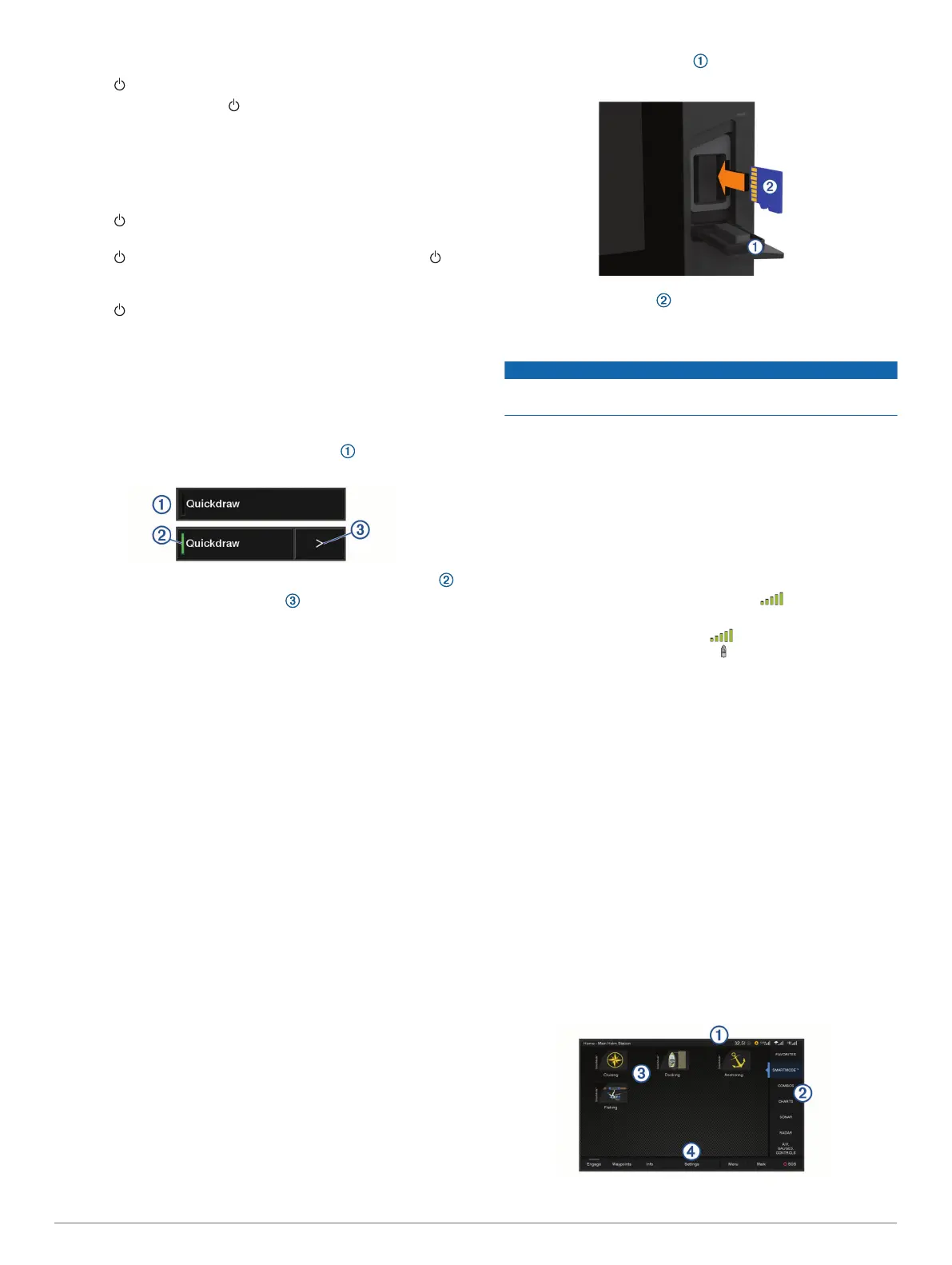
• On some menu buttons, select the button to enable the
option.
A green light on an option indicates the option is enabled .
• When available, select the arrow to open the menu.
Accessing Owner's Manuals on the
Chartplotter
1
Select Info > Owner's Manual.
2
Select a manual.
3
Select Open.
Downloading the Manuals from the Web
You can get the latest owner's manual and translations of
manuals from the Garmin website. The owner's manual includes
instructions for using device features and accessing regulatory
information.
1
Go to garmin.com/manuals/GPSMAPPlus.
2
Download the manual.
Garmin Support Center
Go to support.garmin.com for help and information, such as
product manuals, frequently asked questions, videos, software
updates, and customer support.
Inserting Memory Cards
You can use optional memory cards with the chartplotter. Map
cards allow you to view high-resolution satellite imagery and
aerial reference photos of ports, harbors, marinas, and other
points of interest. You can use blank memory cards to record
Garmin Quickdraw
™
Contours mapping, record sonar (with a
compatible transducer), transfer data such as waypoints and
routes to another compatible chartplotter or a computer, and use
the ActiveCaptain
®
app.
This device supports up to a 32 GB memory card, formatted to
FAT32. Speed class 4 or greater is required. 12x2/A12 models
use an SD memory card. 7x2/9x2 models use a microSD
memory card.
1
Open the access flap or door on the front of the
chartplotter.
2
Insert the memory card .
3
Press the card in until it clicks.
4
Clean and dry the gasket and door.
NOTICE
To prevent corrosion, be sure the memory card, gasket, and
door are thoroughly dry before closing the door.
5
Close the door.
Acquiring GPS Satellite Signals
The device may need a clear view of the sky to acquire satellite
signals. The time and date are set automatically based on the
GPS position.
1
Turn on the device.
2
Wait while the device locates satellites.
It may take 30 to 60 seconds to acquire satellite signals.
When the device acquires satellite signals, appears at the
top of the Home screen.
If the device loses satellite signals, disappears and a
flashing question mark appears over on the chart.
For more information about GPS, go to garmin.com/aboutGPS.
For help acquiring satellite signals, see My device will not
acquire GPS signals, page 64.
Selecting the GPS Source
You can select your preferred source for GPS data, if you have
more than one GPS source.
1
Select Settings > System > GPS > Source.
2
Select the source for GPS data.
Customizing the Chartplotter
Home Screen
The chartplotter home screen provides access to all of the
features in the chartplotter. The features are dependant on the
accessories you have connected to the chartplotter. You may
not have all of the options and features discussed in this
manual.
When viewing another screen, you can return to the home
screen by selecting Home.
2 Customizing the Chartplotter











 To Next Page