Actual heading (when in standby mode)
Intended heading (when engaged)
Rudder position indicator (This functionality is available only when a
rudder sensor is connected.)
Adjusting the Step Steering Increment
1
From the Autopilot screen, select Menu > Autopilot Setup >
Step Turn Size.
2
Select an increment.
Setting the Power Saver
You can adjust the level of rudder activity.
1
From the autopilot screen, select Menu > Autopilot Setup >
Power Mode Setup > Power Saver.
2
Select a percentage.
Selecting a higher percentage reduces rudder activity and
heading performance. The higher the percentage, the more
the course deviates before the autopilot corrects it.
TIP: In choppy conditions at low speeds, increasing the
Power Saver percentage reduces rudder activity.
Enabling Shadow Drive
™
NOTE: The Shadow Drive feature is not available on all
autopilot models.
From the autopilot screen, select Menu > Autopilot Setup >
Shadow Drive > Enabled.
Selecting the Preferred Heading Source
NOTICE
For best results, use the autopilot CCU internal compass for the
heading source. Using a third-party GPS compass can cause
the data to be delivered erratically and may result in excessive
delays. The autopilot needs timely information, and therefore
cannot often use third-party GPS compass data for GPS
location or speed. If a third-party GPS compass is used, the
autopilot will likely report loss of navigation data and speed
source periodically.
If you have more than one heading source on the network, you
can select a your preferred source. The source could be a
compatible GPS compass or a magnetic heading sensor.
1
From the autopilot screen, select Menu > Autopilot Setup >
Preferred Sources
2
Select a source.
If the selected heading source is unavailable, the autopilot
screen does not display any data.
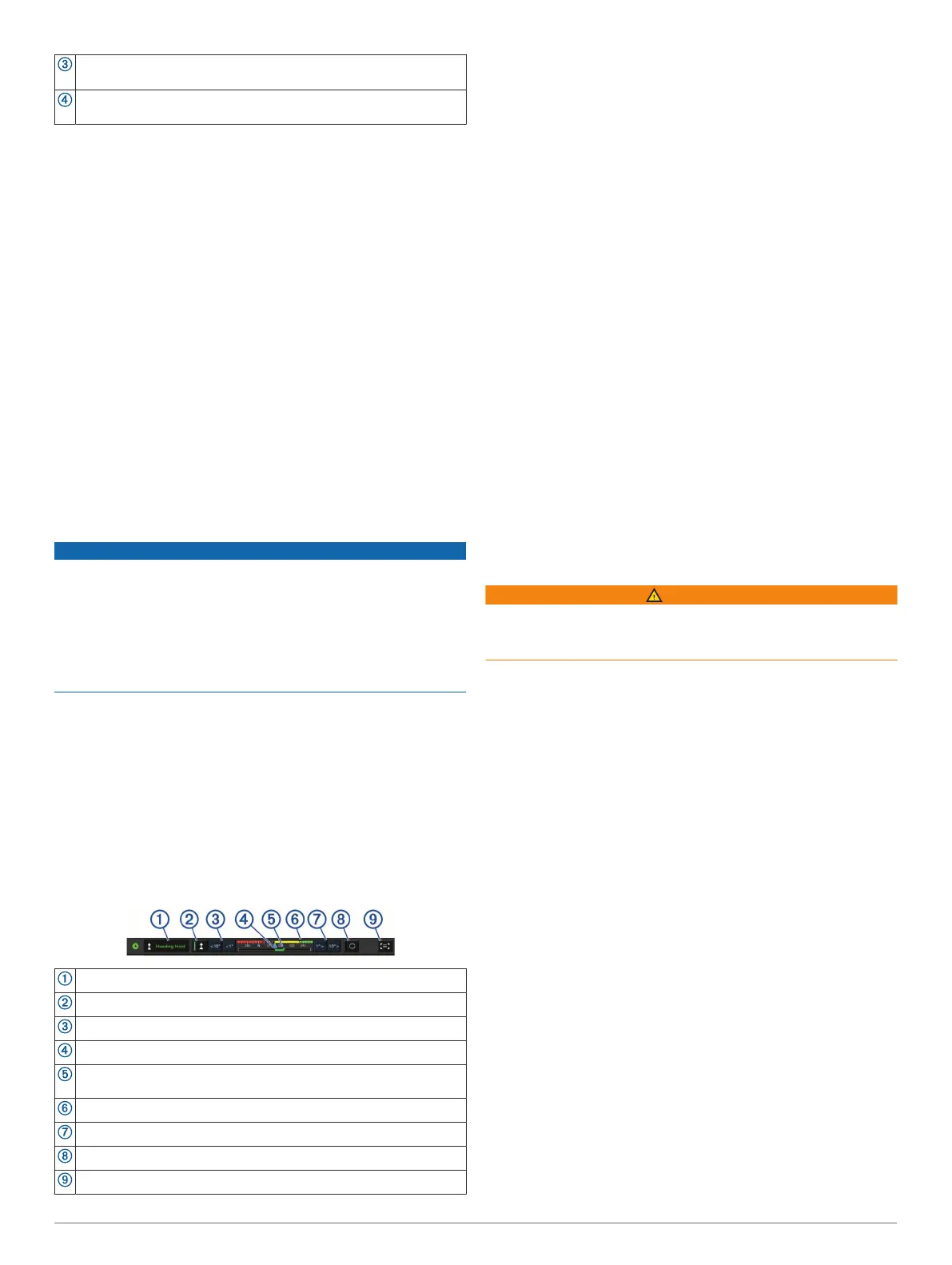
Autopilot Overlay Bar
NOTE: Not all options are available on all autopilot models.
Autopilot mode
Enables the heading hold
Steers left
Actual heading
Rudder position indicator (available only when a rudder sensor is
connected)
Intended heading (heading the autopilot is steering toward)
Steers right
Engages the steering pattern
Opens the full autopilot screen and menu
Engaging the Autopilot
When you engage the autopilot, the autopilot takes control of the
helm and steers the boat to maintain your heading.
From any screen, select Engage.
Your intended heading shows in the center of the Autopilot
screen.
Adjusting the Heading with the Helm
NOTE: You must enable the Shadow Drive feature before you
can adjust the heading using the helm (Enabling Shadow
Drive
™
, page 39).
With the autopilot engaged, manually steer the boat.
The autopilot activates Shadow Drive mode.
When you release the helm and manually maintain a specific
heading for a few seconds, the autopilot resumes a heading
hold at the new heading.
Adjusting the Heading with the Chartplotter in Step
Steering Mode
Before you can steer your boat using the keys at the bottom of
the autopilot screen, you must engage the autopilot (Engaging
the Autopilot, page 39).
• Select <1° or 1°> to initiate a single 1° turn.
• Select <<10° or 10°>> to initiate a single 10° turn.
• Hold <1° or 1°> to initiate a rate-controlled turn.
The boat continues to turn until you let go of the key.
• Hold <<10° or 10°>> to initiate a sequence of 10° turns.
Steering Patterns
WARNING
You are responsible for the safe operation of your boat. Do not
begin a pattern until you are certain that the water is clear of
obstacles.
The autopilot can steer the boat in preset patterns for fishing,
and it can also perform other specialty maneuvers such as U-
turns and Williamson turns.
Following the U-Turn Pattern
You can use the u-turn pattern to turn the boat around 180
degrees and maintain the new heading.
1
From the autopilot screen, select Menu > Pattern Steering >
U-Turn.
2
Select Engage Port or Engage Starboard.
Setting Up and Following the Circles Pattern
You can use the circles pattern to steer the boat in a continuous
circle, in a specified direction, and at a specified time interval.
1
From the autopilot screen, select Menu > Pattern Steering >
Circles.
2
If necessary, select Time, and select a time for the autopilot
to steer one complete circle.
3
Select Engage Port or Engage Starboard.
Setting Up and Following the Zigzag Pattern
You can use the zigzag pattern to steer the boat from port to
starboard and back, over a specified time and angle, across
your present heading.
1
From the autopilot screen, select Menu > Pattern Steering >
Zigzag.
2
If necessary, select Amplitude, and select a degree.
3
If necessary, select Period, and select a length of time.
4
Select Engage Zigzag.
Autopilot 39











 To Next Page