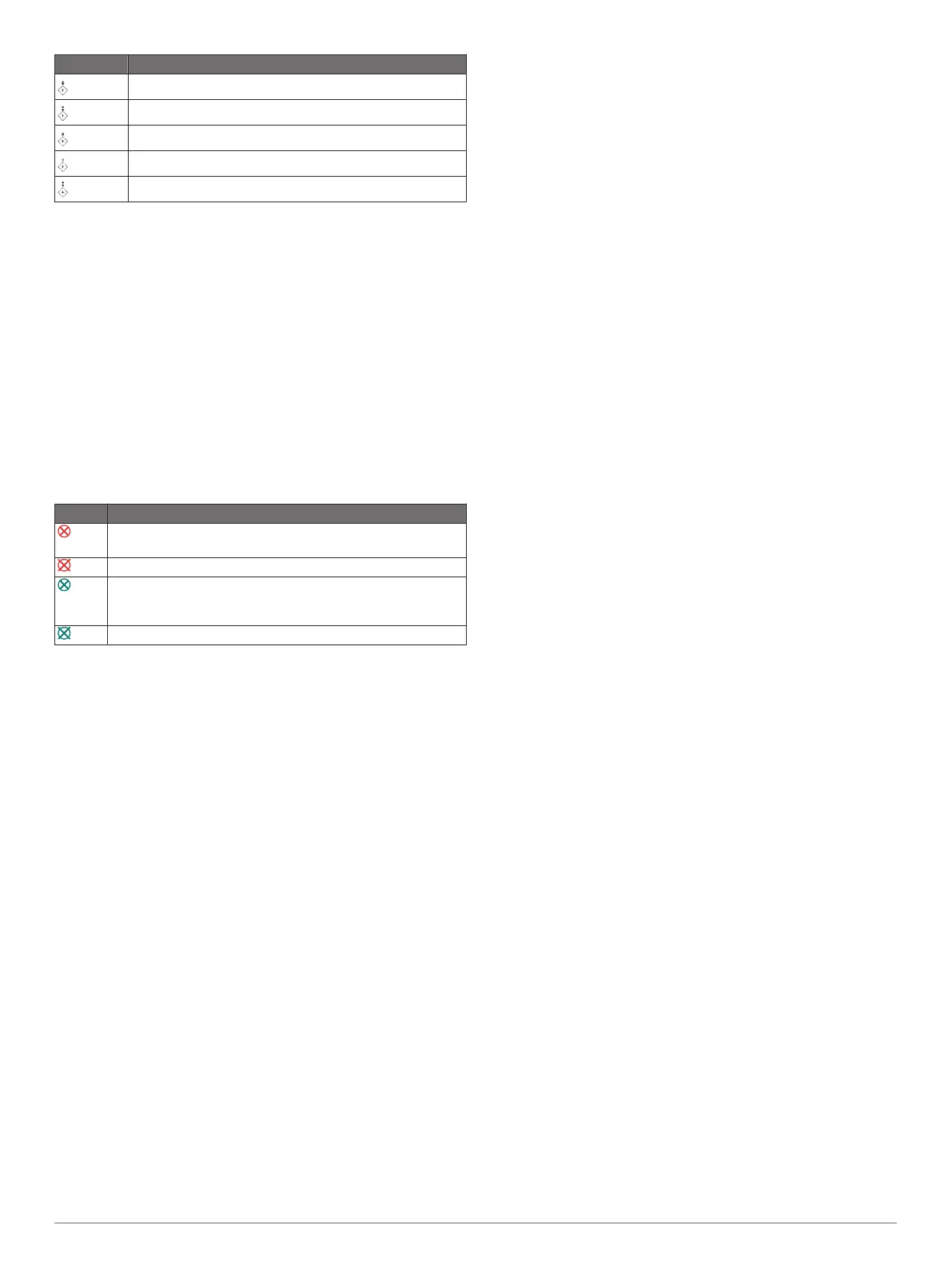
Symbol Meaning
Virtual ATON: Topmark East
Virtual ATON: Topmark West
Virtual ATON: Topmark Special
Virtual ATON: Topmark Safe
Virtual ATON: Topmark Danger
AIS Distress Signals
Self-contained AIS distress signal devices transmit emergency
position reports when activated. The chartplotter can receive
signals from Search and Rescue Transmitters (SART),
Emergency Position Indicating Radio Beacons (EPIRB), and
other man overboard signals. Distress signal transmissions are
different than standard AIS transmissions, so they appear
differently on the chartplotter. Instead of tracking a distress
signal transmission for collision avoidance, you track a distress
signal transmission to locate and assist a vessel or person.
Navigating to a Distress Signal Transmission
When you receive a distress signal transmission, a distress
signal alarm appears.
Select Review > Go To to begin navigation to the
transmission.
AIS Distress Signal Device Targeting Symbols
Symbol Description
AIS distress signal device transmission. Select to see more
information about the transmission and begin navigation.
Transmission lost.
Transmission test. Appears when a vessel initiates a test of
their distress signal device, and does not represent a true
emergency.
Transmission test lost.
Enabling AIS Transmission Test Alerts
To avoid a large number of test alerts and symbols in crowded
areas such as marinas, you can select to receive or ignore AIS
test messages. To test an AIS emergency device, you must
enable the chartplotter to receive test alerts.
1
Select Settings > Alarms > AIS.
2
Select an option:
• To receive or ignore Emergency Position Indicating Radio
Beacon (EPRIB) test signals, select AIS-EPIRB Test.
• To receive or ignore Man Overboard (MOB) test signals,
select AIS-MOB Test.
• To receive or ignore Search and Rescue Transponder
(SART) test signals, select AIS-SART Test.
Turning Off AIS Reception
AIS signal reception is turned on by default.
Select Settings > Other Vessels > AIS > Off.
All AIS functionality on all charts and 3D chart views is
disabled. This includes AIS vessel targeting and tracking,
collision alarms that result from AIS vessel targeting and
tracking, and the display of information about AIS vessels.
Chart Menu
NOTE: Not all settings apply to all charts. Some options require
premium maps or connected accessories, such as radar.
NOTE: The menus may contain some settings that are not
supported by your installed charts or your present location. If
you make changes to those settings, the changes will not impact
the chart view.
From a chart, select Menu.
Layers: Adjusts the appearance of the different items on the
charts (Chart Layers, page 12).
Quickdraw Contours: Turns on bottom contour drawing, and
allows you to create fishing map labels (Garmin Quickdraw
Contours Mapping, page 14).
Settings: Adjusts the chart settings (Chart Settings, page 14).
Edit Overlays: Adjusts the data shown on the screen
(Customizing the Data Overlays, page 4).
Chart Layers
You can turn on and off chart layers and customize features of
the charts. Each setting is specific to the chart or chart view
being used.
NOTE: Not all settings apply to all charts and chartplotter
models. Some options require premium maps or connected
accessories.
NOTE: The menus may contain some settings that are not
supported by your installed charts or your present location. If
you make changes to those settings, the changes will not impact
the chart view.
From a chart, select Menu > Layers.
Chart: Shows and hides chart-related items (Chart Layer
Settings, page 12).
My Vessel: Shows and hides items relating to the boat (My
Vessel Layer Settings, page 13).
User Data: Shows and hides user data, such as waypoints,
boundaries, and tracks, and opens user data lists (User Data
Layer Settings, page 13).
Other Vessels: Adjusts how other vessels are shown (Other
Vessels Layer Settings, page 13).
Water: Shows and hides depth items (Water Layer Settings,
page 13).
Quickdraw Contours: Shows and hides Garmin Quickdraw
Contours data (Garmin Quickdraw Contours Settings,
page 16).
Weather: Shows and hides weather-related items (Weather
Layer Settings, page 14).
Chart Layer Settings
From a chart, select Menu > Layers > Chart.
Satellite Photos: Shows high-resolution satellite images on the
land or on both land and sea portions of the Navigation chart,
when certain premium maps are used (Showing Satellite
Imagery on the Navigation Chart, page 10).
NOTE: This setting must be enabled to view Standard
Mapping charts.
Tides & Currents: Shows current station indicators and tide
station indicators on the chart (Showing Tides and Current
Indicators, page 10) and enables the tides and current slider,
which sets the time for which tides and currents are reported
on the map.
Land POIs: Shows points of interest on land.
Navaid: Shows navigational aids, such as ATONs and flashing
lights, on the chart. Allows you to select NOAA or IALA
navaid type.
Service Points: Shows locations for marine services.
Depth: Adjusts the items on the depth layer (Depth Layer
Settings, page 12).
Restricted Areas: Shows information about restricted areas on
the chart.
Photo Points: Shows camera icons for aerial photos (Viewing
Aerial Photos of Landmarks, page 10).
Depth Layer Settings
From a chart, select Menu > Layers > Chart > Depth.
12 Charts and 3D Chart Views











 To Next Page