NOTICE
Always be aware of local regulations on sonar frequencies. For
example, to protect orca whale pods, you might be prohibited
from using frequencies between 50 to 80 khz with in ½ mile of
an orca whale pod. It is your responsibility to use the device in
compliance with all applicable laws and ordinances.
Selecting the Transducer Frequency
NOTE: You cannot adjust the frequency for all sonar views and
transducers.
You can select which frequencies appear on the sonar screen.
NOTICE
Always be aware of local regulations on sonar frequencies. For
example, to protect orca whale pods, you might be prohibited
from using frequencies between 50 to 80 khz with in ½ mile of
an orca whale pod. It is your responsibility to use the device in
compliance with all applicable laws and ordinances.
1
From a sonar view, select Menu > Frequency.
2
Select a frequency suited to your needs and water depth.
For more information on frequencies, see Sonar
Frequencies, page 30.
Creating a Frequency Preset
NOTE: Not available with all transducers.
You can create a preset to save a specific sonar frequency,
which allows you to change frequencies quickly.
1
From a sonar view, select Menu > Frequency.
2
Select Manage Frequencies > New Preset.
3
Enter a frequency.
Turning On the A-Scope
NOTE: This feature is available in the Traditional sonar views.
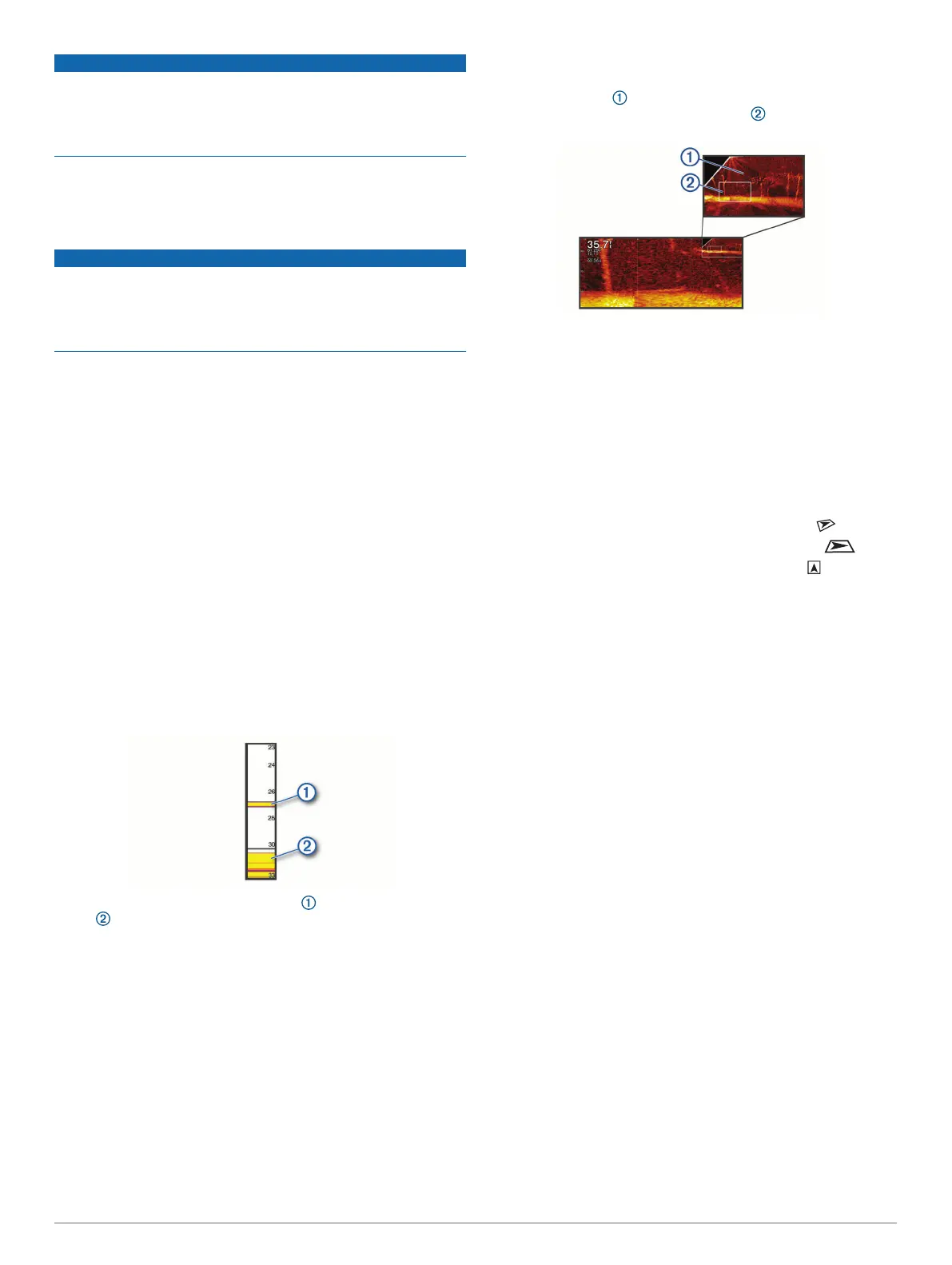
The a-scope is a vertical flasher along the right side of the view,
showing you what is underneath the transducer right now. You
can use the a-scope to identify target returns that may be
missed when the sonar data is quickly scrolling across the
screen, such as when your boat is moving at high speeds. It can
also be helpful for detecting fish that are close to the bottom.
The a-scope above shows fish returns and a soft bottom
return .
1
From a sonar view, select Menu > Sonar Setup >
Appearance > A-Scope > On.
2
Select a hold time.
You can increase the hold time to increase the length of time
the sonar returns are displayed.
Panoptix Sonar Setup
Zooming in a Panoptix LiveVü or LiveScope Sonar
View
You can zoom in on the Panoptix LiveVü and LiveScope 2D
sonar views.
NOTE: The scrolling history is hidden while the screen is in
zoom mode.
1
From a Panoptix LiveVü or LiveScope 2D sonar view, spread
two fingers apart to zoom in on the area.
An inset window appears and displays a small version of
the full-screen image. The boxed area in the inset shows
the location of the zoomed area.
2
If necessary, tap or drag withing the inset window to view a
different area of the full-screen view.
3
If necessary, spread two fingers apart to zoom in.
4
If necessary, pinch two fingers together to zoom out.
To exit zoom mode, select Back or pinch two fingers together to
zoom out until the screen returns to a full-screen view.
Adjusting the RealVü Viewing Angle and Zoom Level
You can change the viewing angle of the RealVü sonar views.
You can also zoom in and out of the view.
From a RealVü sonar view, select an option:
• To adjust the viewing angle diagonally, select .
• To adjust the viewing angle horizontally, select .
• To adjust the viewing angle vertically, select .
• To adjust the viewing angle, swipe the screen in any
direction.
• To zoom in, spread two fingers apart.
• To zoom out, pinch two fingers together.
Adjusting the RealVü Sweep Speed
You can update how quickly the transducer sweeps back and
forth. A faster sweep rate creates a less detailed image, but the
screen refreshes faster. A slower sweep rate creates a more
detailed image, but the screen refreshes more slowly.
NOTE: This feature is not available for the RealVü 3D Historical
sonar view.
1
From a RealVü sonar view, select Menu > Sweep Speed.
2
Select an option.
LiveVü Forward and FrontVü Sonar Menu
From the LiveVü Forward or FrontVü sonar view, select Menu.
Gain: Controls the level of detail and noise shown on the sonar
screen.
If you want to see the highest intensity signal returns on the
screen, you can lower the gain to remove lower intensity
returns and noise. If you want to see all return information,
you can increase the gain to see more information on the
screen. This also increases noise, and can make it more
difficult to recognize actual returns.
Depth Range: Adjusts the range of the depth scale.
Allowing the device to adjust the range automatically keeps
the bottom within the lower portion of the sonar screen, and
can be useful for tracking a bottom that has minimal or
moderate terrain changes.
Manually adjusting the range enables you to view a specified
range, which can be useful for tracking a bottom that has
large terrain changes, such as a drop-offs or cliffs. The
bottom can appear on the screen as long as it appears within
the range you have set.
Forward Range: Adjusts the range of the forward scale.
Sonar Fishfinder 31











 To Next Page