EasyManua.ls Logo

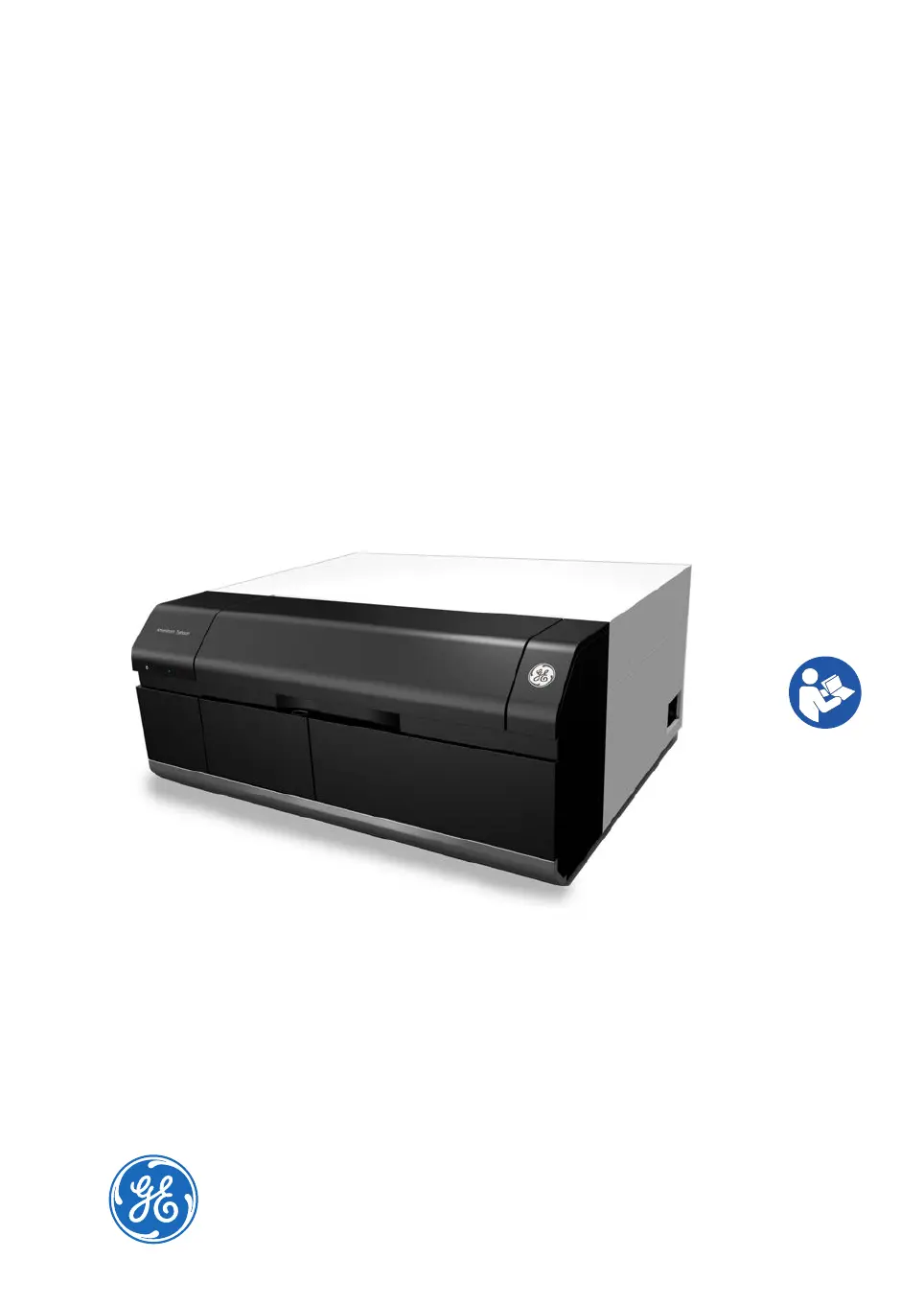
GE Amersham Typhoon - User Manual

GE Amersham Typhoon
144 pages
Print Icon
To Next Page IconTo Next Page
Loading...
Amersham
Typhoon
Operating Instructions
Original instructions

Questions and Answers

  • D
    Debra MontgomeryAug 18, 2025
    What to do if GE All in One Printer says 'The disk capacity is insufficient'?
    • S
      Samantha SanchezAug 18, 2025
      If your GE All in One Printer displays a message indicating insufficient disk capacity, it means the available disk space is not enough for the scanning process. To resolve this, you can either free up disk space on your computer or choose to store the scanned data on a different disk.
  • G
    garciaeugeneAug 20, 2025
    What to do if GE All in One Printer cannot detect Amersham Typhoon scanner?
    • A
      Amber BrownAug 20, 2025
      If the GE All in One Printer cannot detect the Amersham Typhoon scanner, it indicates a connection or power issue. Ensure that the scanner is turned on and properly connected to the computer.
  • K
    Kelly WilliamsAug 22, 2025
    Why did GE Amersham Typhoon stop scanning because the main scanner door was opened?
    • A
      Alexis AndersonAug 22, 2025
      The GE All in One Printer stopped scanning because the scanner door was opened during the scan. To fix this, close the scanner door and restart the scan. Make sure not to open the door until the scanning is complete.
  • A
    Alex GrantAug 25, 2025
    Why did GE All in One Printer stop scanning because the filter door was opened?
    • B
      Brandy HodgeAug 26, 2025
      The GE All in One Printer stopped scanning because the filter door was opened during the scan. To resolve this, close the filter door and restart the scan. Ensure that the door remains closed until the scanning process is finished.
  • T
    Travis HooverAug 27, 2025
    What to do if GE All in One Printer shows XXXX error XXXX - XXXXXXXX?
    • K
      Karen RodriguezAug 28, 2025
      When the GE All in One Printer displays an 'XXXX error XXXX - XXXXXXXX' message, it indicates a scanner error. Note the error code and error type, then restart the scanner and control software. Try the scan again.
  • T
    theresafieldsAug 30, 2025
    What to do if GE All in One Printer scan was stopped because of overexposure?
    • L
      Linda TorresAug 30, 2025
      If a scan with your GE All in One Printer is stopped due to overexposure, it means the scanned image was overexposed because of a high PMT voltage setting. You should decrease the PMT voltage in the Scan settings pane.
  • A
    anna93Sep 1, 2025
    What to do if GE Amersham Typhoon All in One Printer displays 'Close the scanner door'?
    • M
      Monique MurraySep 1, 2025
      If the GE All in One Printer displays 'Close the scanner door', it means that the scanner door is open. You should close the scanner door.
  • E
    Elizabeth BrightSep 4, 2025
    What to do if GE Amersham Typhoon All in One Printer displays 'Close the filter door'?
    • M
      Mark YatesSep 4, 2025
      If the GE All in One Printer displays 'Close the filter door', it indicates that the filter door is open. You should close the filter door.
  • W
    williamcalhounSep 7, 2025
    What to do if GE Amersham Typhoon All in One Printer displays 'Please select image folder'?
    • I
      iweaverSep 7, 2025
      If the GE All in One Printer displays 'Please select image folder', it means that no image folder is currently selected. To fix this, select an image folder by clicking the Browse... button and navigating to a suitable folder.
  • S
    Shannon ElliottSep 9, 2025
    What to do if GE Amersham Typhoon All in One Printer displays 'Please input a file name'?
    • C
      Caitlin SheltonSep 9, 2025
      If the GE All in One Printer displays 'Please input a file name', it means that no name has been assigned to the image file. You should type a name in the File Name field.

Summary

Introduction

Important User Information

Critical operation, intended use, and prerequisites for safe use.

Safety Instructions

Radiation Safety

Covers radiation hazard prevention, controlled areas, and pollution limits.

General Safety Precautions

Details safety measures for general, personal, power, installation, operation, and maintenance.

Emergency Procedures

Guides through emergency shutdown and power failure response.

Amersham Typhoon Control Software

Main Window

Explains the software's main window interface, controls, and panes.

Installation

Setup Procedures

Provides step-by-step instructions for physical scanner setup and placement.

Operation

Preparing the Amersham Typhoon Scanner

Covers starting the system and procedures for changing filters.

Preparing the Sample

Explains sample preparation for fluorescence, phosphor imaging, and densitometry.

Performing a Scan

Guides through pre-scan, scanning, stopping, and saving image data.

Troubleshooting

General Errors and Warnings

Addresses common error messages and general troubleshooting steps.

Specific Error Messages

Lists specific error messages encountered during operation and their corrective actions.

GE Amersham Typhoon Specifications

General IconGeneral
BrandGE
ModelAmersham Typhoon
CategoryAll in One Printer
LanguageEnglish