Additional Set-up Features in the
PREFERENCES Menu
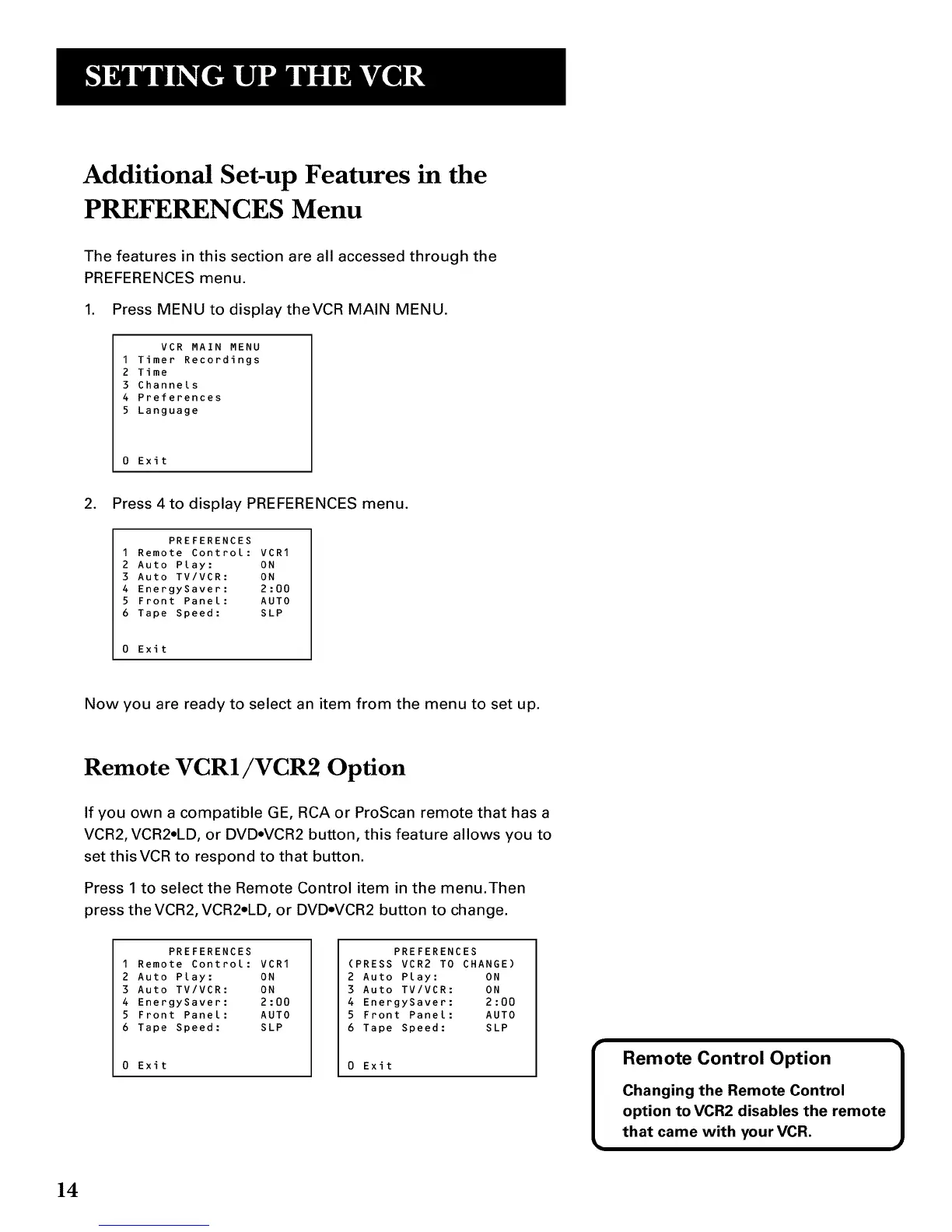
The features in this section are all accessed through the
PREFERENCES menu.
1. Press MENU to displaytheVCR MAIN MENU.
VCR MAIN MENU
1 Timer Recordings
2 Time
3 Channels
4 Preferences
5 Language
0 Exit
2. Press 4to display PREFERENCES menu.
PREFERENCES
1 Remote Control: VCR1
2 Auto Play: ON
3 Auto TV/VCR: ON
4 EnergySaver: 2:00
5 Front Panel: AUTO
6 Tape Speed: SLP
0 Exit
Now you are ready to select an item from the menu to set up.
Remote VCR1/VCR2 Option
If you own a compatible GE, RCA or ProScan remote that has a
VCR2, VCR2oLD, or DVDoVCR2 button, this feature allows you to
set thisVCR to respond to that button.
Press 1 to select the Remote Control item in the menu.Then
press the VCR2, VCR2oLD, or DVDoVCR2 button to change.
PREFERENCES
1 Remote Control: VCR1
2 Auto Play: ON
3 Auto TV/VCR: ON
4 EnergySaver: 2:00
5 Front Panel: AUTO
6 Tape Speed: SLP
Exit
PREFERENCES
(PRESS VCR2 TO CHANGE)
2 Auto Play: ON
3 Auto TV/VCR: ON
4 EnergySaver: 2:00
5 Front Panel: AUTO
6 Tape Speed: SLP
0 Exit
Remote Control Option 1
Changing the Remote Control
option to VCR2 disables the remote
that came with your VCR.
14


 To Next Page