57
Trim
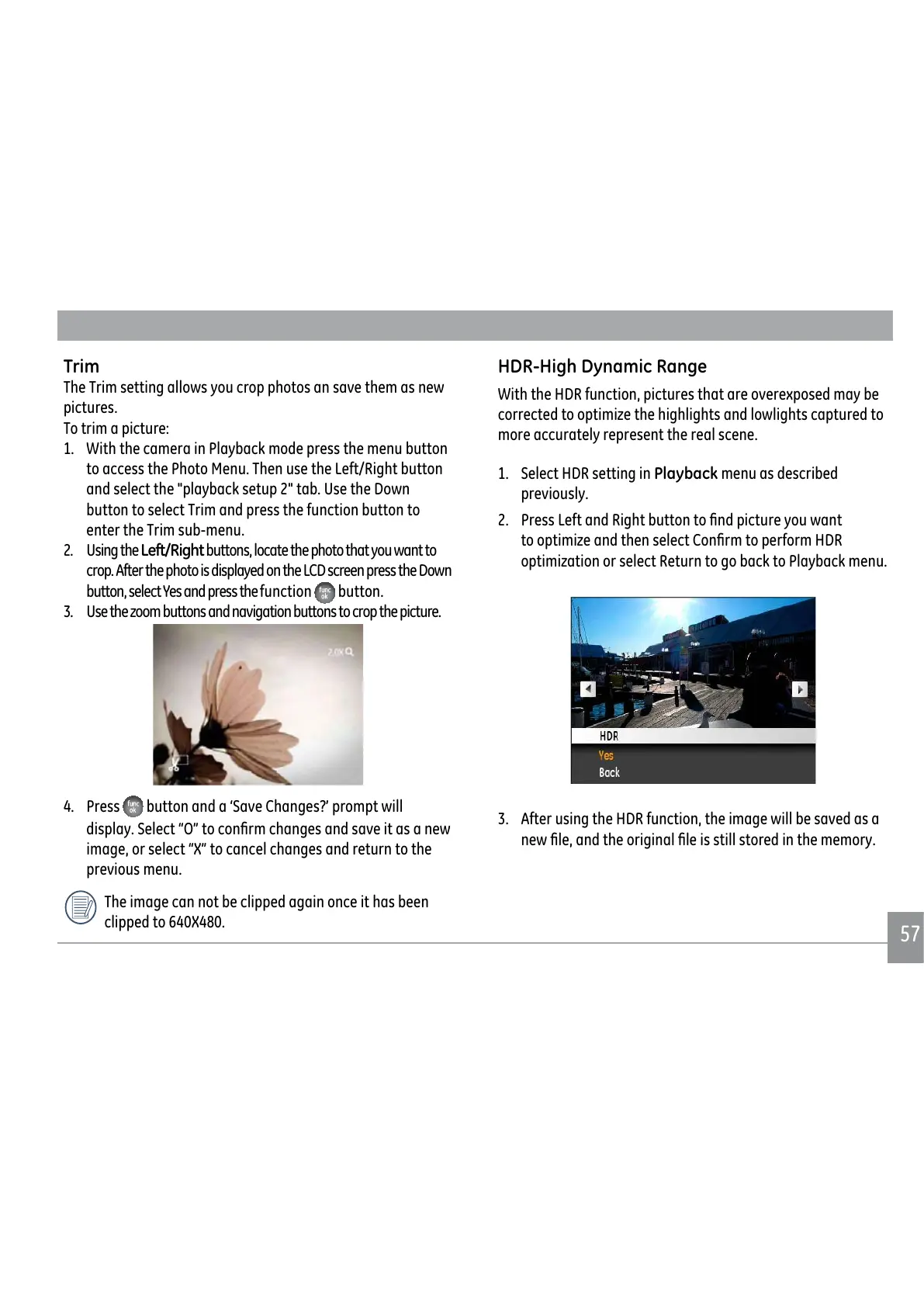
The Trim setting allows you crop photos an save them as new
pictures.
To trim a picture:
1. With the camera in Playback mode press the menu button
to access the Photo Menu. Then use the Left/Right button
and select the "playback setup 2" tab. Use the Down
button to select Trim and press the function button to
enter the Trim sub-menu.
2. Using the Left/Right buttons, locate the photo that you want to
crop. After the photo is displayed on the LCD screen press the Down
button, select Yes and press the function
button.
8VHWKH]RRPEXWWRQVDQGQDYLJDWLRQEXWWRQVWRFURSWKHSLFWXUH
.
4. Press button and a ‘Save Changes?’ prompt will
GLVSOD\6HOHFW±2²WRFRQ½UPFKDQJHVDQGVDYHLWDVDQHZ
image, or select “X” to cancel changes and return to the
previous menu.
The image can not be clipped again once it has been
clipped to 640X480.
HDR-High Dynamic Range
With the HDR function, pictures that are overexposed may be
FRUUHFWHGWRRSWLPL]HWKHKLJKOLJKWVDQGORZOLJKWVFDSWXUHGWR
more accurately represent the real scene.
1. Select HDR setting in Playback menu as described
previously.
3UHVV/HIWDQG5LJKWEXWWRQWR½QGSLFWXUH\RXZDQW
WRRSWLPL]HDQGWKHQVHOHFW&RQ½UPWRSHUIRUP+'5
RSWLPL]DWLRQRUVHOHFW5HWXUQWRJREDFNWR3OD\EDFNPHQX
3. After using the HDR function, the image will be saved as a
QHZ½OHDQGWKHRULJLQDO½OHLVVWLOOVWRUHGLQWKHPHPRU\


 To Next Page
 Loading...