72
Connecting to a PictBridge Compatible Printer
PictBridge allows printing images from a
memory card in a digital camera directly to
DSULQWHUUHJDUGOHVVRIEUDQG7R½QGRXWLID
printer is PictBridge compatible, simply look for
the PictBridge logo on the packaging or check
WKHPDQXDOIRUVSHFL½FDWLRQV:LWKWKH3LFW%ULGJHIXQFWLRQRQ
your camera, you can print the captured photos directly to a
PictBridge compatible printer using the supplied USB cable,
without the need for a PC.
Setting the USB mode
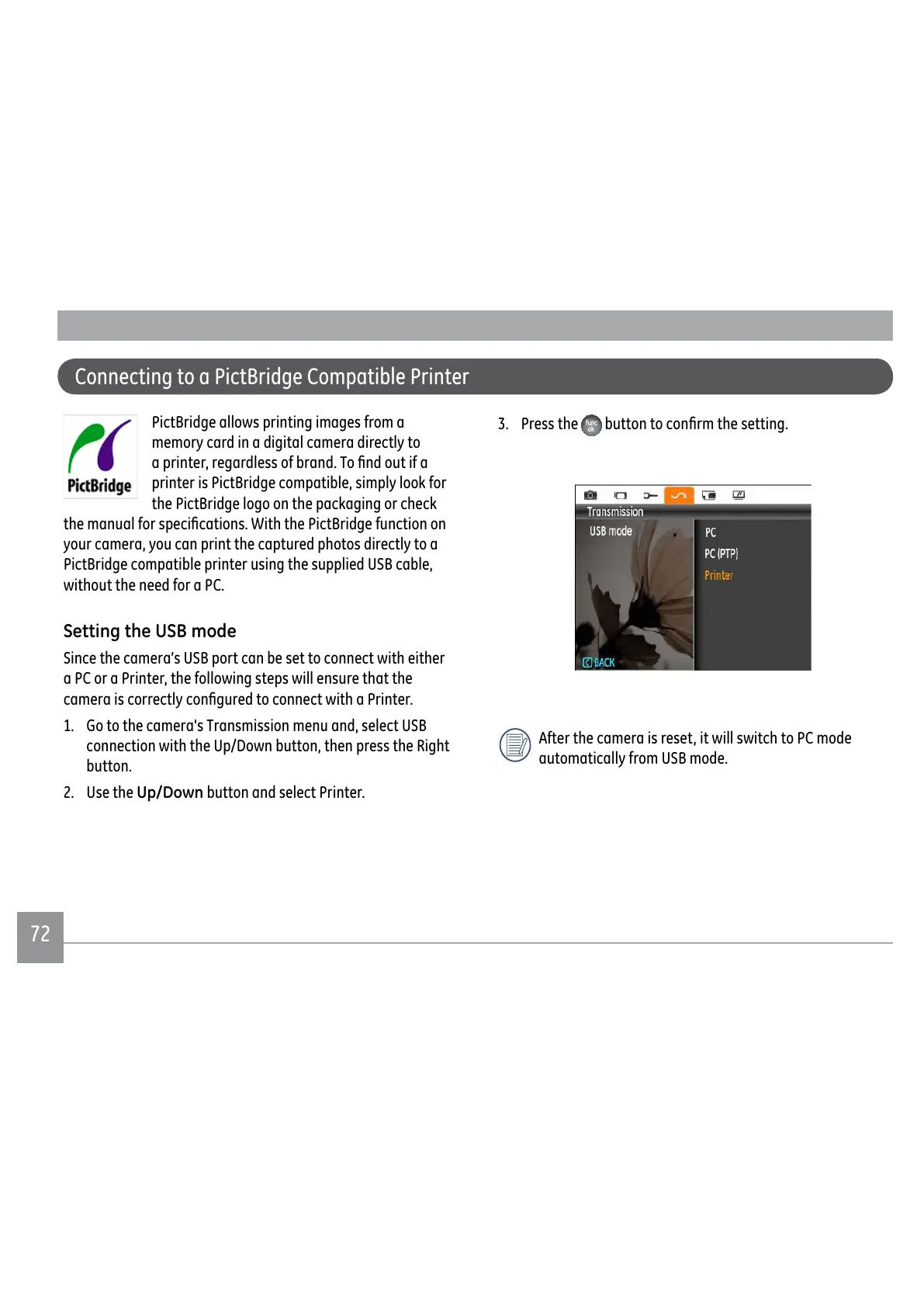
Since the camera’s USB port can be set to connect with either
a PC or a Printer, the following steps will ensure that the
FDPHUDLVFRUUHFWO\FRQ½JXUHGWRFRQQHFWZLWKD3ULQWHU
1. Go to the camera's Transmission menu and, select USB
connection with the Up/Down button, then press the Right
button.
2. Use the
Up/Down button and select Printer.
3. Press the
EXWWRQWRFRQ½UPWKHVHWWLQJ
After the camera is reset, it will switch to PC mode
automatically from USB mode.


 To Next Page
 Loading...