BRAIN 17 37 732788 - Rev. A_1
BRN17SW.bin
BRN17.prg
BRN17.rad
ENGLISH
10. MANAGING THE CONFIGURATION FILE – J8 USB
Using the J8 USB connector you can both transfer to the board the configuration and management files
from a USB drive and copy the same files stored on the board to the USB memory. When transferring
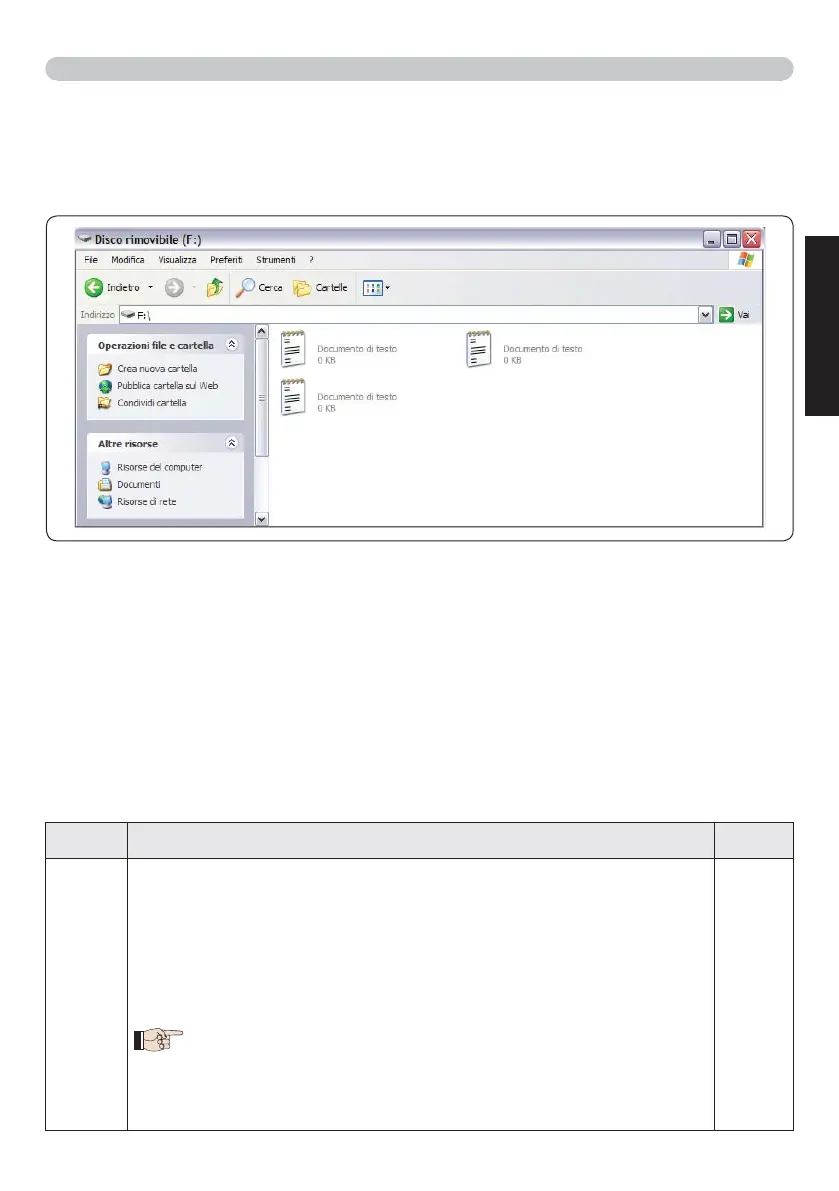
from the USB memory to the board, the files must be located in the memory root, as shown in the
screenshot below:
In addition, the names and extensions of the various files must be as follows:
• BRN17SW.bin - The board SOFTWARE update file
• BRN17.prg - The board PROGRAMMING update file
• BRN17.rad - The board RADIO update file
These files will be generated, named and placed as shown in fig. in case of transfer from the board
to the USB memory.
If at board power up a USB memory is detected inserted in the board J8 connector, after displaying
the writing
bo, it will be possible to access the update file management menu (see the following
table) (press F for scrolling through the functions) :
Display Function
Default
US
BOARD SOFTWARE UPGRADE:
This function lets you update the board application (file BRN17SW.bin).
If + and - are pressed simultaneously for at least 5 seconds, you will access
the board update. The writing
no will disappear and, in its place, the writing
-- and the USB DL10 LED will begin flashing.
Once updating is completed,
Y will be displayed if it has been done correctly,
otherwise the writing
no will appear again.
The upgrade is carried out correctly only if the USB memory
contains a valid file named exactly BRN17SW.bin
--



 To Next Page