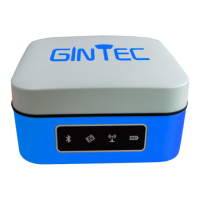
G10
8
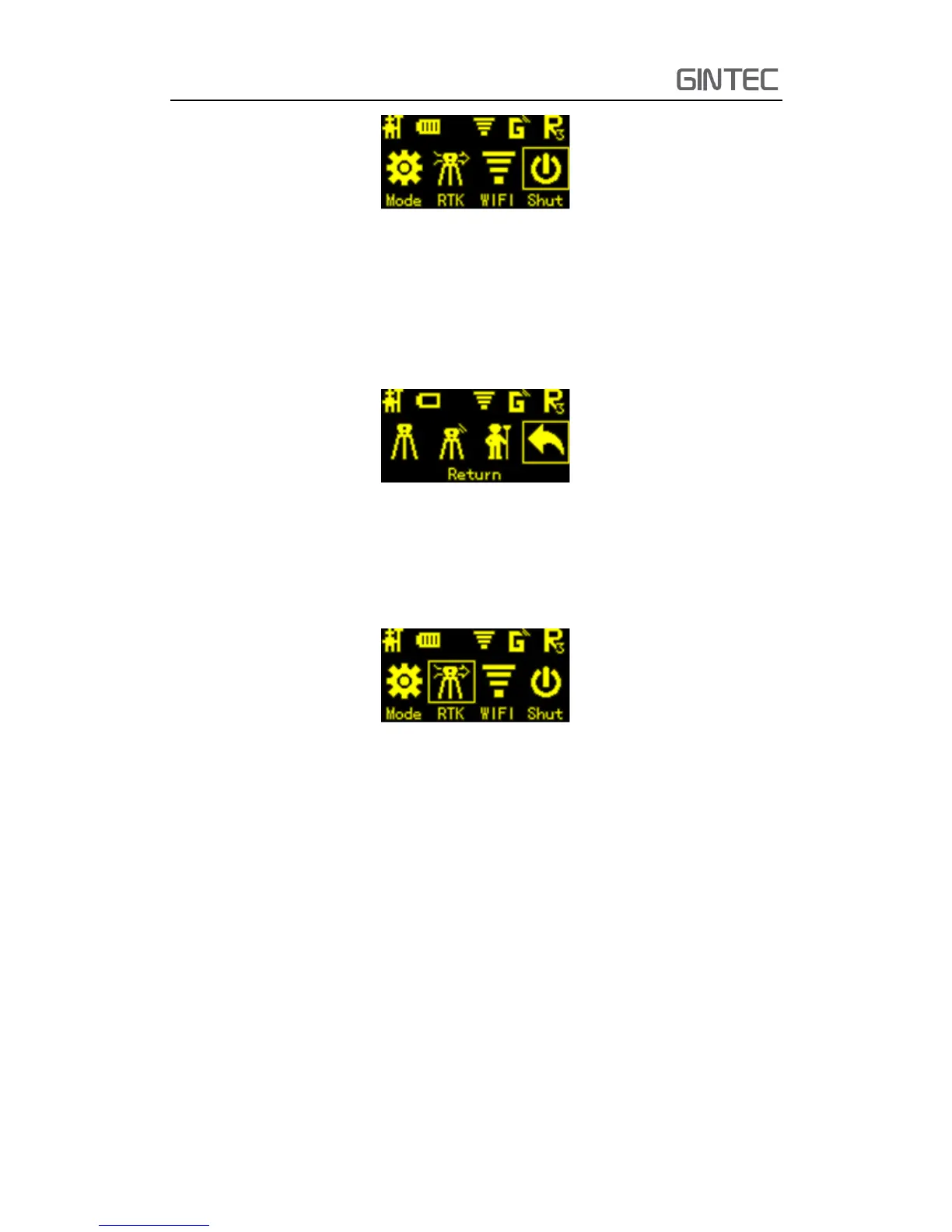
Figure 2-5
Then press function key to select. Now we want to switch work mode, so select
“Mode” menu and press power key to enter. After entering “Mode” menu, there are
three choices, static, base and rover. Select the one you want to use, then press power
key to confirm.
Figure 2-6
Then next step is switching datalink. After pressing power key to confirm work
mode, we will go back to last menu, shows as follow. This time select “RTK” to change
datalink. Press function key to select, power key to confirm.
Figure 2-7
It includes UHF, 3G/GPRS, External, Bluetooth and dual mode. Select the one you
want to use.
2.3 WEB UI function
G10 has WIFI function, it can work as a hotspot, then Phone, controller, PC and
other devices can connect its WIFI. The default WIFI name is device number, there is
no password for this WIFI.
Before using this function, you should make sure the WIFI function is available. In
the same interface with mode selection, press function button to select “WIFI”, press
power button to confirm. Then select “Enable” to activate WIFI function.



 To Next Page