PA G E 1 2 I N S T R U C T I O N M A N U A L T X 4 5 0 0
Choosing CTCSS or DCS
CTCSS uses a continuous analogue sub tone while DCS
uses a digitally encoded sub tone. Choosing which tone
system to use will largely depend on the other radios
you talk with. If others already use CTCSS or DCS, you
should select the tone system that matches theirs. If the
users you talk to don’t currently use CTCSS or DCS then
you can make your own choice. There is no difference
in performance or function between the different tone
sets. Both types are included in the radio to maintain
compatibility with other radio systems.
CTCSS tone set
There are two CTCSS tone sets available – the basic 38
tone set or the extended 50 tone set (see the CTCSS
tone chart at the rear of this manual). Both are included
to ensure compatibility with other radios.
To switch between CTCSS tone sets;
1. Switch the radio OFF.
2. Press and hold the Silent key while switching the
radio ON again.
3. CTC38 or CTC50 will appear briefly.
NOTE: When switching between tone sets, if you
already have a CTCSS tone selected, the radio will try to
match the original tone frequency with one in the new
table. If there is no tone match, the CTCSS tone will be
set to OFF and you will need to select a new tone.
DCS tone set
There are 104 DCS tones available (see the DCS tone
chart at the rear of this manual).
To Select a CTCSS or DCS tone
1. Select any UHF CB channel 1 – 80
(excluding 5 and 35).
2. Press and hold the Menu key until the radio beeps.
The CTCSS Menu option will be displayed.
3. If CTCOF is displayed, CTCSS/DCS tones are
currently switched off (default). To enable CTCSS
tones, rotate the Channel knob to the right. CTCSS
tones will be displayed as CTC01 – CTC50.
4.
Continue rotating the
Channel knob
to scroll past
the last CTCSS tone (38 or 50) to access the DCS
tones. DCS tones are displayed as DT001 – DT104.
Rotate left
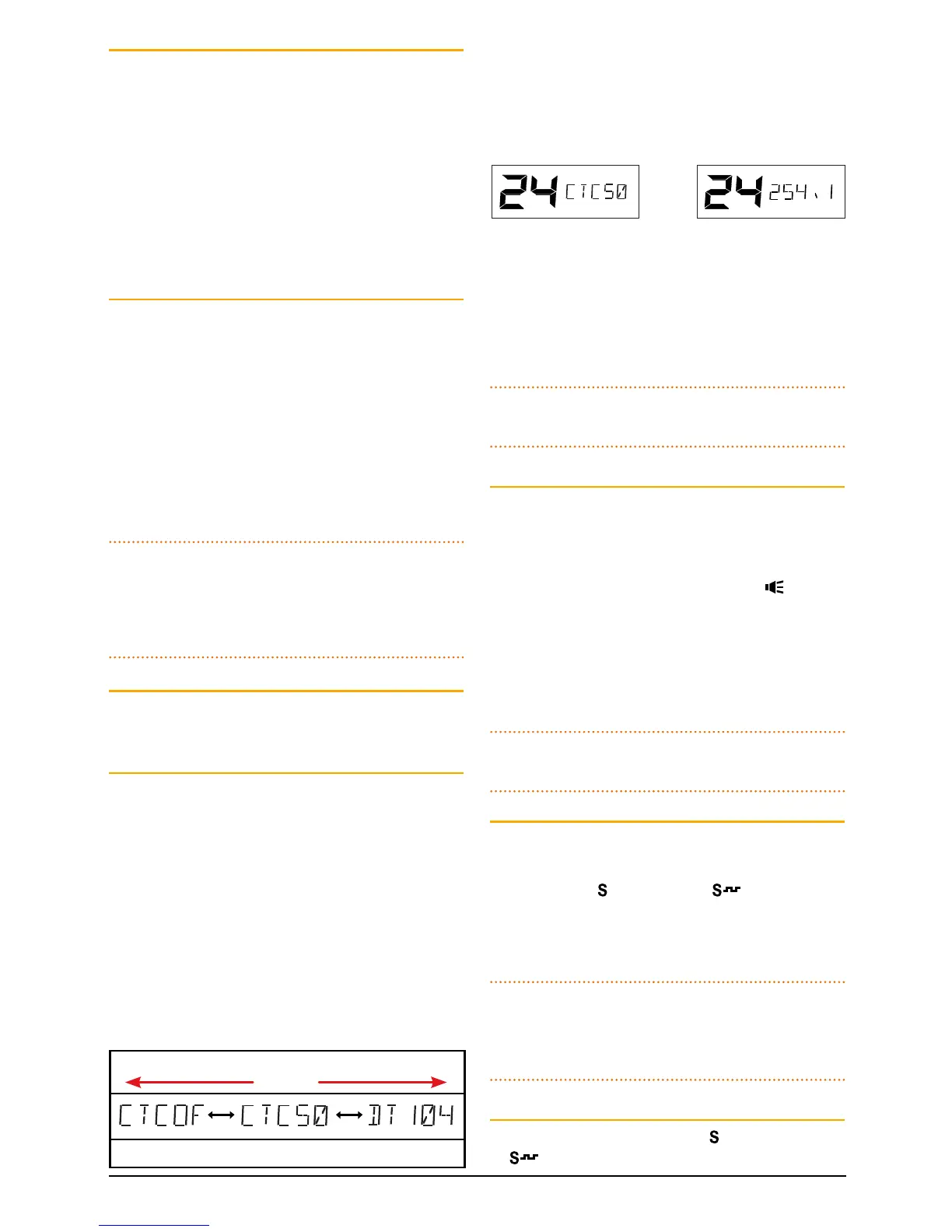
CTCSS Off CTCSS Tone 50 DCS Tone 104
Rotate right
5. To see the actual sub tone instead of the tone label,
briefly press the Channel knob. For CTCSS tones the
tone frequency will be displayed in Hz. For DCS tones
the Tone Code will be displayed. Press the Channel
knob again to return to the CTCSS/DCS label (refer
to the CTCSS and DCS Tone Charts on pages 31–32.
CTCSS Label CTCSS Sub tone
Frequency
6. To switch CTCSS/DCS tones Off, rotate the Channel
knob fully to the left until CTCOF is displayed.
To exit the menu, briefly press the PTT or wait for the
menu to time-out.
NOTE: The selected CTCSS/DCS tone will be used
globally on any channels that have CTCSS enabled.
Enabling CTCSS/DCS on a channel (Silent Mode)
Enabling CTCSS/DCS on a channel will prevent the
Squelch from opening unless the incoming signal
matches your selected CTCSS/DCS tone. Other users on
the same channel who are not using your CTCSS/DCS
tone will still be received by your radio (the
icon will
still appear on the display) – but their voice will not be
heard in the speaker. Only when someone transmits
on the channel using your CTCSS/DCS tone will the
Squelch open to allow the signal to be heard. Channels
where CTCSS/DCS have been enabled are said to be in
‘Silent Mode’.
NOTE: Silent Mode can be enabled on any channel
except emergency channels 5 and 35.
To enable Silent Mode on a channel:
1. Select the required channel.
2. Briefly press the Silent key. A high beep will be
heard and an
icon (CTCSS) or icon (DCS)
will be displayed in the lower right of the display to
indicate Silent Mode is now enabled on
that channel.
NOTE: You cannot enable Silent Mode unless a CTCSS
or DCS tone has been selected in the Configuration
Menu. If CTCSS/DCS has been set to OFF, Silent Mode
is inhibited.
To disable Silent Mode on a channel:
1. Select the required channel. An
icon (CTCSS) or
icon (DCS) will be displayed indicating Silent


 To Next Page