PA G E 1 8 I N S T R U C T I O N M A N U A L T X 4 5 0 0
To select a Channel Bank
1. Press and hold the Menu key. A high beep will be
heard and the radio will enter the configuration
menu.
2. Briefly press the Menu key repeatedly until the RX-
channel bank option is displayed.
3. Rotate the Channel knob to select from one of five
channel banks RX-A through RX-E.
4. When finished, press the PTT to exit the menu.
Programming RX-Only channel frequencies
RX-Only channels are switched off by default. To
program RX-Only channels you will need to activate the
channel editor which will then allow access to channels
81-99 in the currently selected channel bank. RX-Only
channels can be programmed with frequencies in the
range 403 – 520 MHz.
To program RX-Only frequencies, your radio must be
in Numeric mode. If your radio is in Alpha mode briefly
press F - ALPHA so that ‘NUMER’ is displayed.
To activate the Channel Editor
1. Switch the radio off.
2. Press and hold the Channel knob while switching
the radio on again.
3. RXALL will be displayed briefly, indicating the RX
Channel Editor has been activated.
You can now rotate the Channel knob past channel
80 to select additional channels 81-99. –OFF- will be
displayed to the right of the channel numbers indicating
that these channels are switched off and do not yet
contain any frequencies.
Selecting Frequency Steps
NOTE: This menu option is only available when RX-
Only channels are selected.
The frequency step is the spacing between frequencies
when the Channel knob is rotated. The frequency
step can be set to either 12.5 kHz or 25 kHz. The
default is 25 kHz. You should select a frequency step
that matches the channel allocations in the frequency
band you are programming. When selecting 25 kHz or
12.5 kHz steps, the appropriate wideband or narrow
band filter is automatically selected to ensure optimum
performance.
1. Press and hold MENU until the radio beeps.
2. Briefly press MENU repeatedly until the frequency
step is displayed.
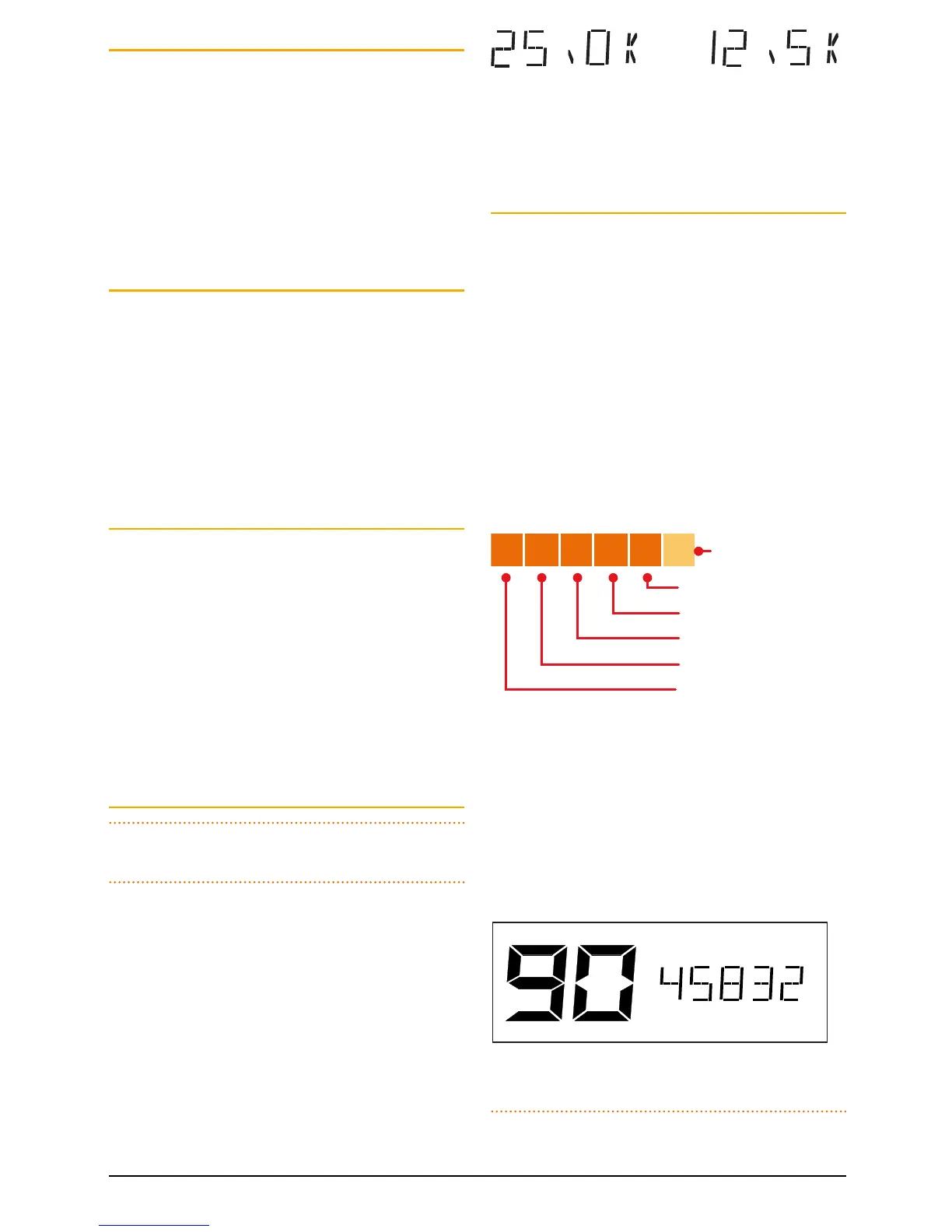
25 kHz Steps 12.5 kHz Steps
3. Rotate the Channel knob left or right to change the
frequency step.
4. Press the PTT to exit the menu.
To program an RX-Only frequency:
1. Rotate the Channel knob to select a suitable
channel number (81-99). –OFF- will be displayed to
the right of the channel number.
2. Press and hold the menu key until the radio beeps.
‘–OFF-’ will flash. You now have 6 seconds to begin
programming otherwise the menu will time-out.
3. Rotate the Channel knob to the right to begin
selecting your desired frequency starting at 403
MHz. Continue to rotate to the right to increase the
frequency or to the left to decrease the frequency.
The display will show the frequency to the nearest
10 kHz.
e.g. 468.425 will display as:
4 6 8 4 2
10 kHz
100 kHz
1 MHz
10 MHz
100 MHz
5
not shown
4. To advance through the frequencies more quickly,
briefly press the Channel knob. The frequency will
now adjust in 1 MHz steps. As you approach the
desired frequency, briefly press the Channel knob
again to return the original 25 kHz/12.5 kHz steps.
5. Once your desired frequency is displayed, press and
hold the Channel knob until the radio beeps. The
frequency is now stored under your selected channel
number.
e.g. 458.325 MHz stored under CH 90
6. Repeat steps 1 – 5 to program other channels.
NOTE: The frequency tuning is live which means the
radio is actually listening to the frequencies you are


 To Next Page