16 17
GETTING STARTED
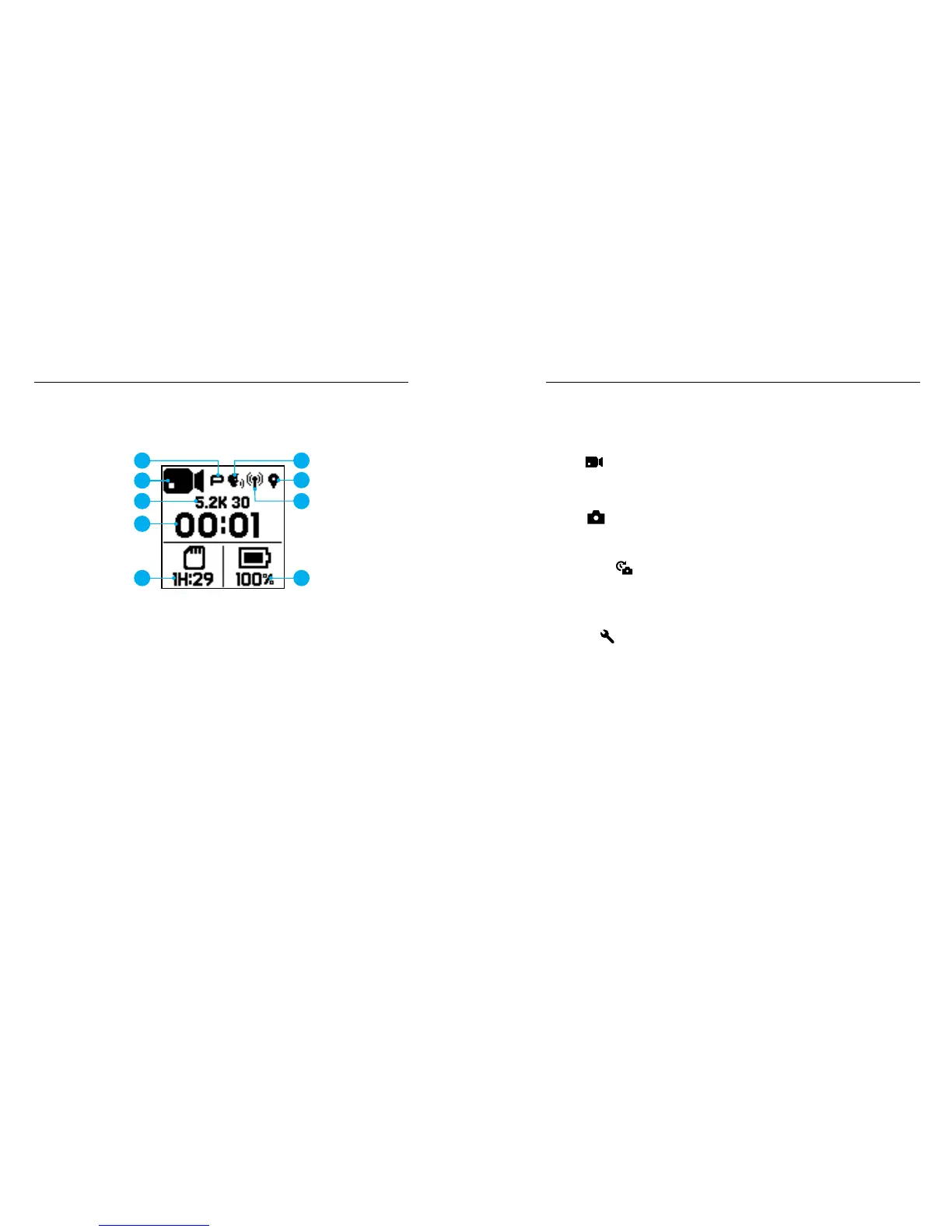
STATUS SCREEN
The status screen contains the following information about modes and
settings so you can see the basics for your current setting at a glance:
1. Camera Mode
2. Protune
™
Status
*
3. Voice Control Status
*
4. Wireless Status
*
5. GPS Status
*
6. Settings
7. Number of Files Captured or Video Duration
8. Remaining microSD Card Storage (based on the card with the lower
remaining storage)
9. Battery Status
Note: The icons and settings that appear on the status screen vary by mode. Those
shown above are for Video mode.
*
Icon appears if this setting is turned on
1
6
7
8 9
2 3
4
5
CHANGING CAPTURE MODES AND SETTINGS
Your Fusion contains four camera modes: Video, Photo, Time Lapse, and
Settings.
Video [
]
Video mode contains one capture modes: Video. For a description, see
Video Mode: Capture Mode (page 36).
Photo [
]
Photo mode contains three capture modes: Photo, Burst, and Night.
For descriptions, see Photo Mode: Capture Modes (page 41).
Time Lapse [
]
Time Lapse mode contains three capture modes: Time Lapse Video, Time
Lapse Photo, Night Lapse Photo. For descriptions, see Time Lapse Mode:
Capture Modes (page 44).
Settings [
]
Settings contains all of the settings for each camera mode. For details,
see Video Mode: Settings (page 37), Photo Mode: Settings (page
42), and Time Lapse Mode: Settings (page 46). Settings also
contains the Connections, Voice Control, and Preferences menus.
NAVIGATING YOUR GOPRO


 To Next Page