GP3D Root User Manual
19
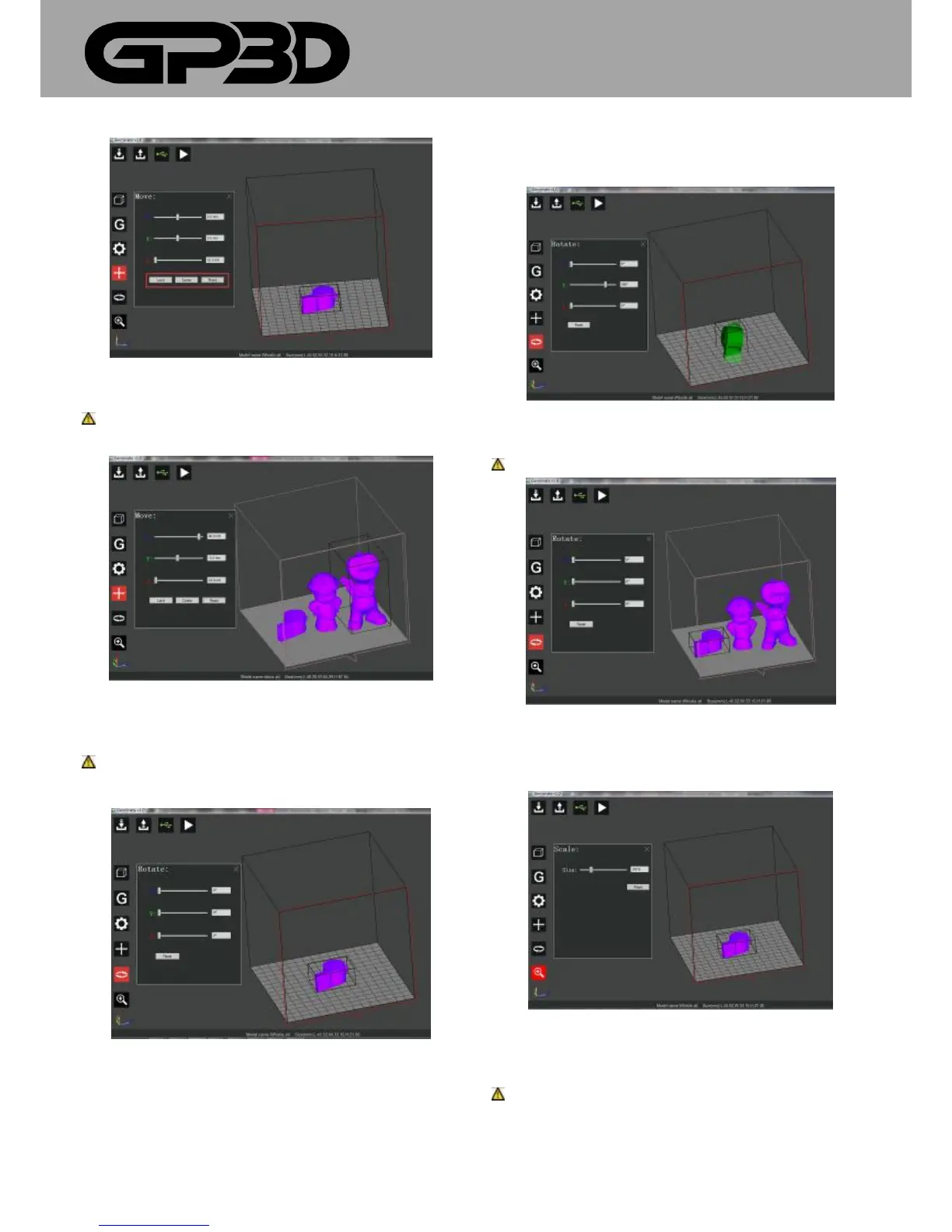
4.1.11.5 If you want to import multiple models or move one model, select
the corresponding model with the left mouse button and then move it.
Notice: Only one model can be selected, multiple models cannot be
selected or automatically arrange d after import.
4.1.12 Model rotation
4.1.12.1 Select the model and click the left menu icon for model rotation.
Notice: the left menu icon of model rotation will not appear before
the model is selected.
4.1.12.2 To rotate the model along the axial direction, move the slider on
the corresponding axis with the mouse or directly input the rotation angle
in the dialog box, and click enter. The model’s rotation angle will be
displayed in the subsequent dialog. To return to the original state, click
“Reset” to restore the original angle of the model.
4.1.12.3 To operate one of several models, first select the model with the
left mouse button and then the model can be rotated, as shown below.
Notice: You can only rotate one model each time.
4.1.13 Model zoom
4.1.13.1 Select the model to be zoomed, click the Scale menu, and the
following interface pops out.
4.1.13.2 Move the slider with the mouse or input directly the zoom scale
in the dialog.
Notice: The maximum size of zooming cannot be larger than the
printing size.



 To Next Page