Button Function
6.2.1FEED button
When the printer is ready (Blue LED lights), press FEED button , label will feed one by one.
6.2.2 Printing pause
when you press PAUSE button during printing is in progress, printing job will be paused, At this
POWER indicator will flash, again press PAUSE button, printing job will continue. moment,
Power on Function
Power on functions can be used to set or test printer hardware and enabled by pressing different
checking different LED indicators while you turn on the printer power, please follow
instructions:
buttons and
below
Function
Descriptions
Self-test page
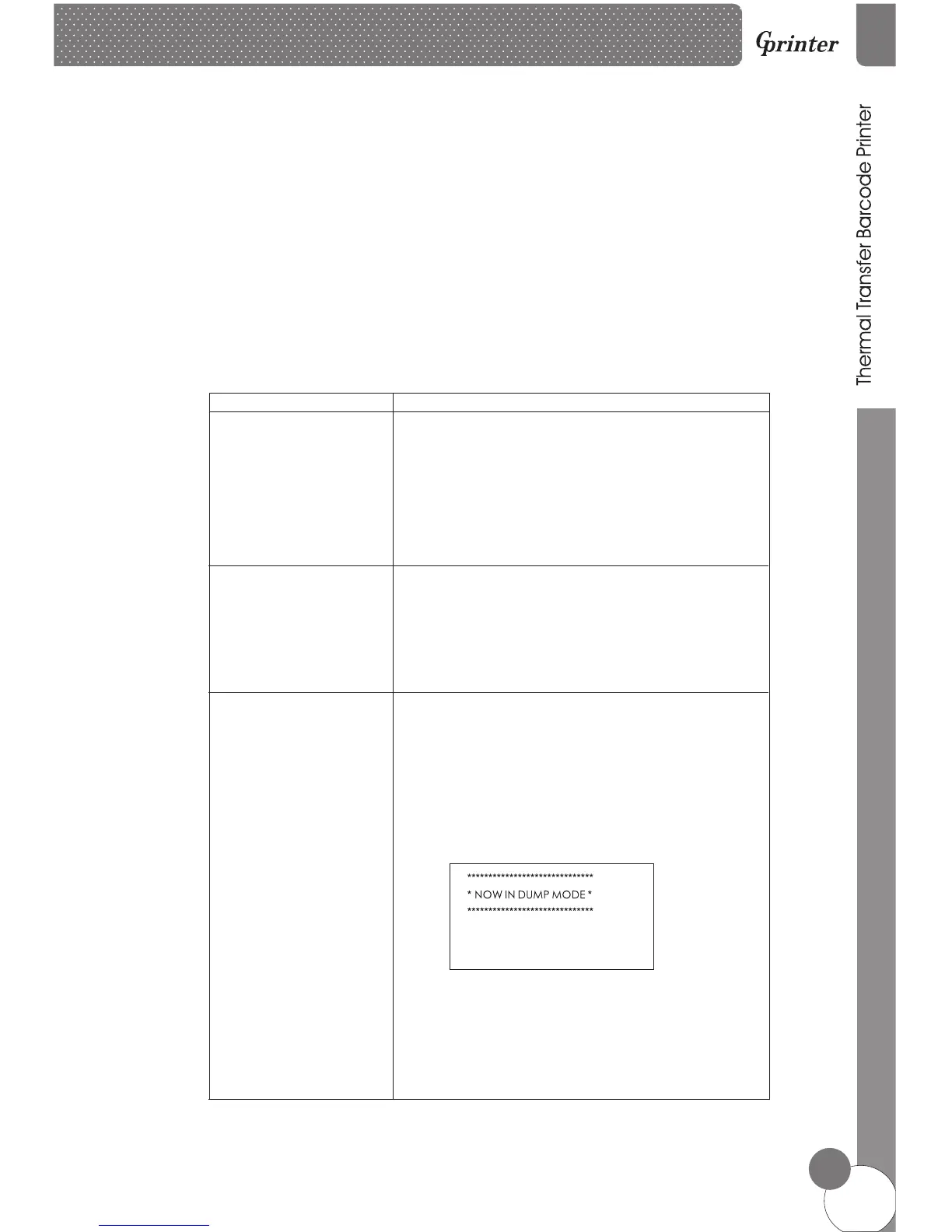
A.Turn off the printer.
B.Make sure the paper roll is installed correctly and the printer
top cover is closed.
C.Press and hold FEED button and turn on the printer. Self-
test page will be printed, then release FEED button.
Note: You can use this function to check if printing function is normal
or not.
Print DIP Switch page
Debugging Mode
A.Turn off the printer.
B.Make sure the paper roll is installed correctly and the printer
top cover is closed.
C.Press and hold PAUSE button and turn on the printer. When
paper is feeding and then release PAUSE button, DIP switch
functions details will be printed out.
A.Turn off the printer.
B.Make sure the paper roll is installed correctly and printer
top cover is closed.
C.Press and hold PAUSE and FEED button, and turn on the
Please put 3" label paper, all label data received in this mode will be
printed by machine code. Right side is ASCII character strings, left side
are hexadecimal value of ASCII character strings. This function is for
user or engineer to debug the program. If you turn off printer and then
turn on, printer will go back to normal printing mode.
printer. When Power indicator(blue) and Error indicator
(red) are on at the same time, release PAUSE and FEED
button, printer goes to Debugging Mode, and you will find
below page printed out:
6.2
6.3
<Please see page 12, page view of self>
12



 To Next Page