20
8.4 Audio Settings
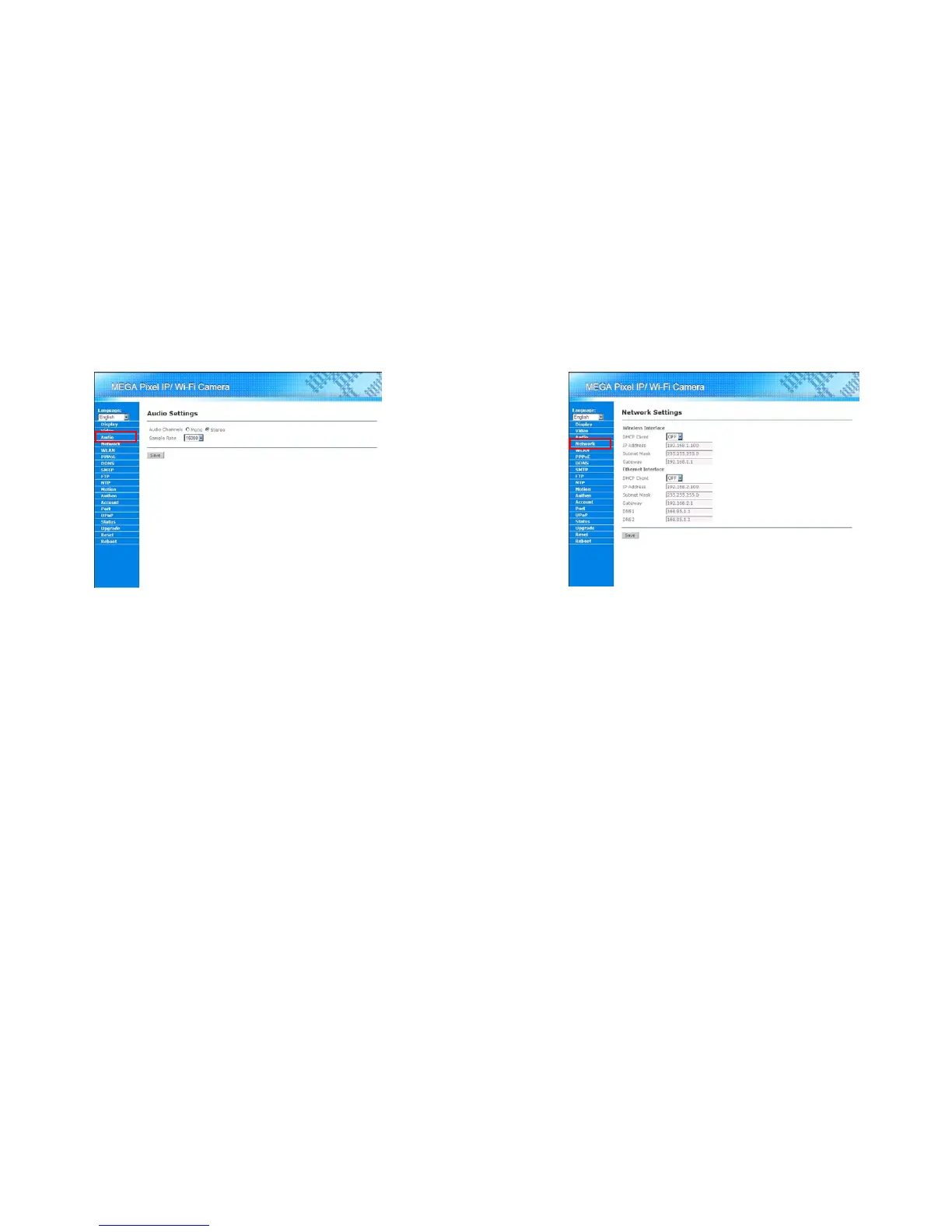
User can adjust the parameters of the audio stream by clicking on “Audio” in the Menu List. The details of
audio setting should appear in the Main Display area.
Audio Channels: Select the audio channel. Mega Pixel Wi-Fi Camera supports mono and stereo
audio.
Sample Rate: Adjust the audio quality by selecting the sample rate of the audio. The sample rates
supported by the Mega Pixel Wi-Fi Camera are: 16000, 32000 and 48000.
Save button: Save the configuration. All configurations should be available after the
configurations are successfully saved.
21
8.5 Network Settings
User can configure the network setting by clicking the “Network” in the Menu List. The details of network
setting should appear in the Main Display area.
Wireless Interface:
-DHCP Client: Enable/Disable the DHCP Client function. If the user wants to use dynamic IP
address for Mega Pixel Wi-Fi Camera, please select “On” here.
-IP Address, Subnet Mask and Gateway: If the user wants to use a static IP address for Mega
Pixel Wi-Fi Camera, please enter the IP Address, Subnet Mask and Gateway
Ethernet Interface:
-DHCP Client: Enable/Disable the DHCP Client function. If the user wants to use dynamic IP
address for Mega Pixel Wi-Fi Camera, please select “On” here.
-IP Address, Subnet Mask and Gateway: If the user wants to use a static IP address for Mega
Pixel Wi-Fi Camera, please enter the IP Address, Subnet Mask and Gateway
- DNS Settings: Enter the DNS servers to Mega Pixel Wi-Fi Camera for name resolution.
Save button: Save the configuration. All configurations should be available after the
configurations are successfully saved.



 To Next Page